Learning Studio / ai
Review AI suggestions
Ask for a focused edit, inspect the result, then choose whether to use it.
Choose a scope
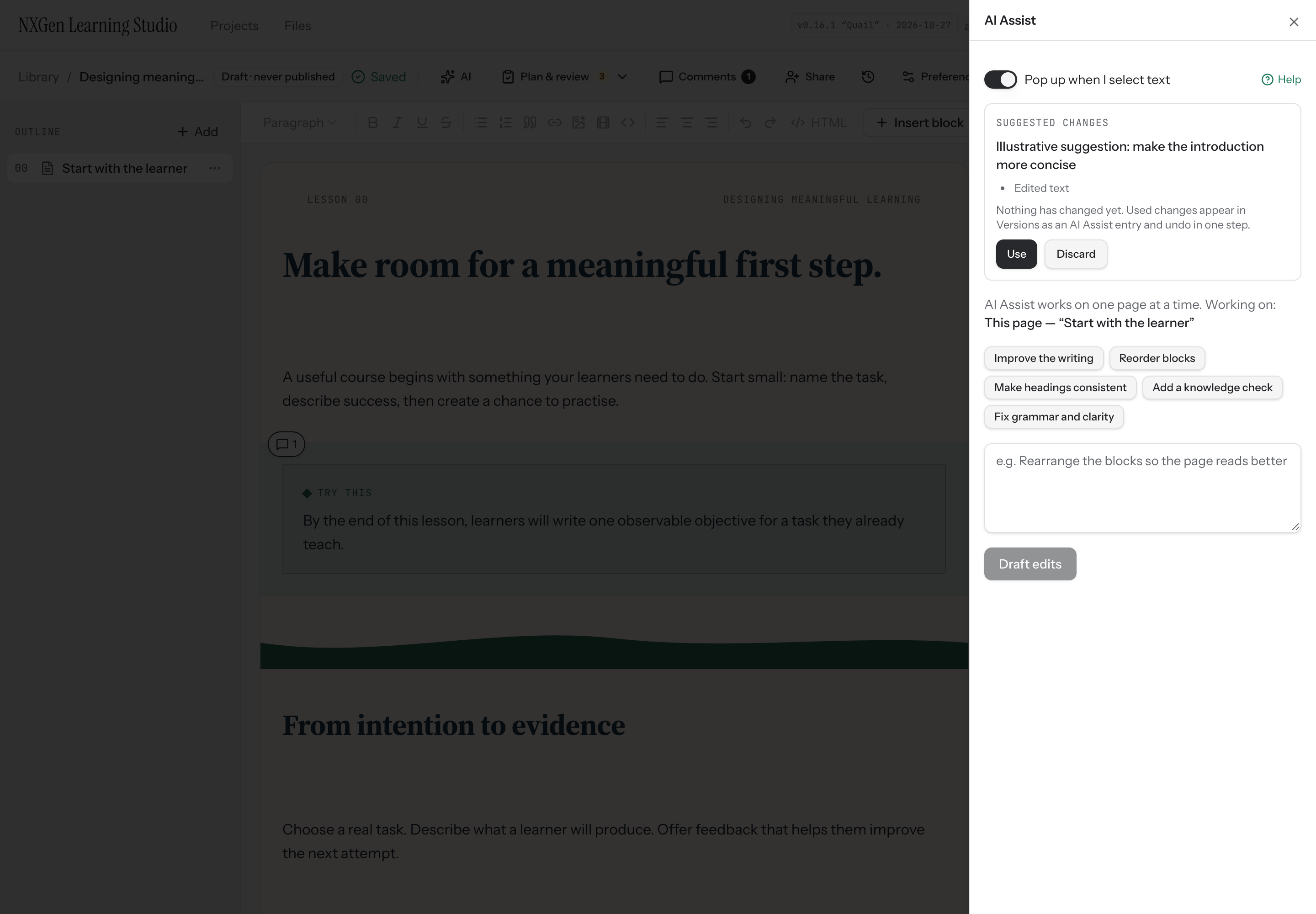
Section titled “Choose a scope”Select a block or page, then open the toolbar AI control or the inspector’s AI Assist tab. Both use the same workflow. The panel identifies the scope: selected text, a selected block, or the current content page. AI Assist works on one page at a time; it does not edit the cover or other pages in the request. Use a precise instruction such as “Make this introduction shorter while retaining its learning objective.”
Wait for the suggestion, read the summary and proposed changes, then choose Use or Discard. Suggested changes are not saved to the course until you use them. Applied changes save with an AI Assist label in Versions and undo as one grouped change. Page actions include improving writing, reordering blocks, making headings consistent, and adding a knowledge check; selected-block actions also include shortening and expanding text.
Selected text
Section titled “Selected text”The text selection Assist workflow supports focused rewriting and review. The selected-text popup can be disabled in preferences. Use supported question controls to request wrong-answer suggestions when writing assessments.
When the course changes
Section titled “When the course changes”If you edit while a request is running, a late suggestion may be rejected as stale. Save your work and request another suggestion. Locks and scope constrain the request; do not use AI as a way to bypass locked material.
Loading feedback indicates that the request is running. A loading message is not confirmation that changes were applied. The screenshot below uses an authored, illustrative suggestion; no paid model was used to capture it.