Learning Studio / start
Find your way around
Learn the library, outline, canvas, inspector, and course actions.
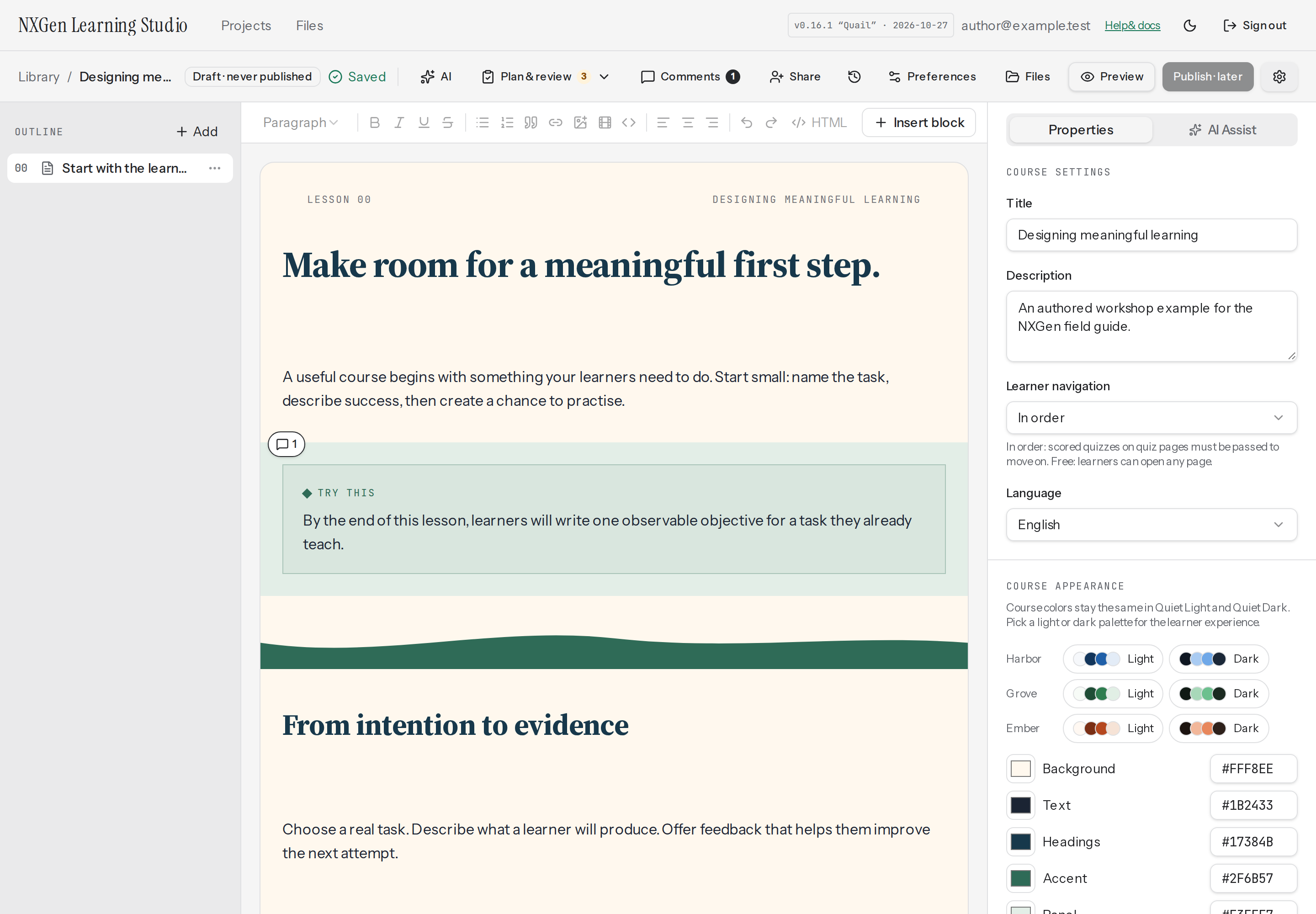
The workspace
Section titled “The workspace”The Projects screen is your course library; Files in the app navigation opens your account-wide file library. Open a course to enter the editor. The outline on the left organizes pages and chapters; the center canvas shows the selected page; the inspector on the right controls the selected page or block. Open Course settings for course-wide appearance and objectives.
Course actions
Section titled “Course actions”The editor provides AI, Comments, Share, Versions, Preferences, Files, and Preview controls. Open Plan & review for Blueprint, Alignment, and Review. Course settings selects course-wide properties in the inspector (a drawer on narrow screens); the inspector’s AI Assist tab shares the toolbar AI workflow. Some labels collapse to icons on narrow screens; their accessible names remain available.
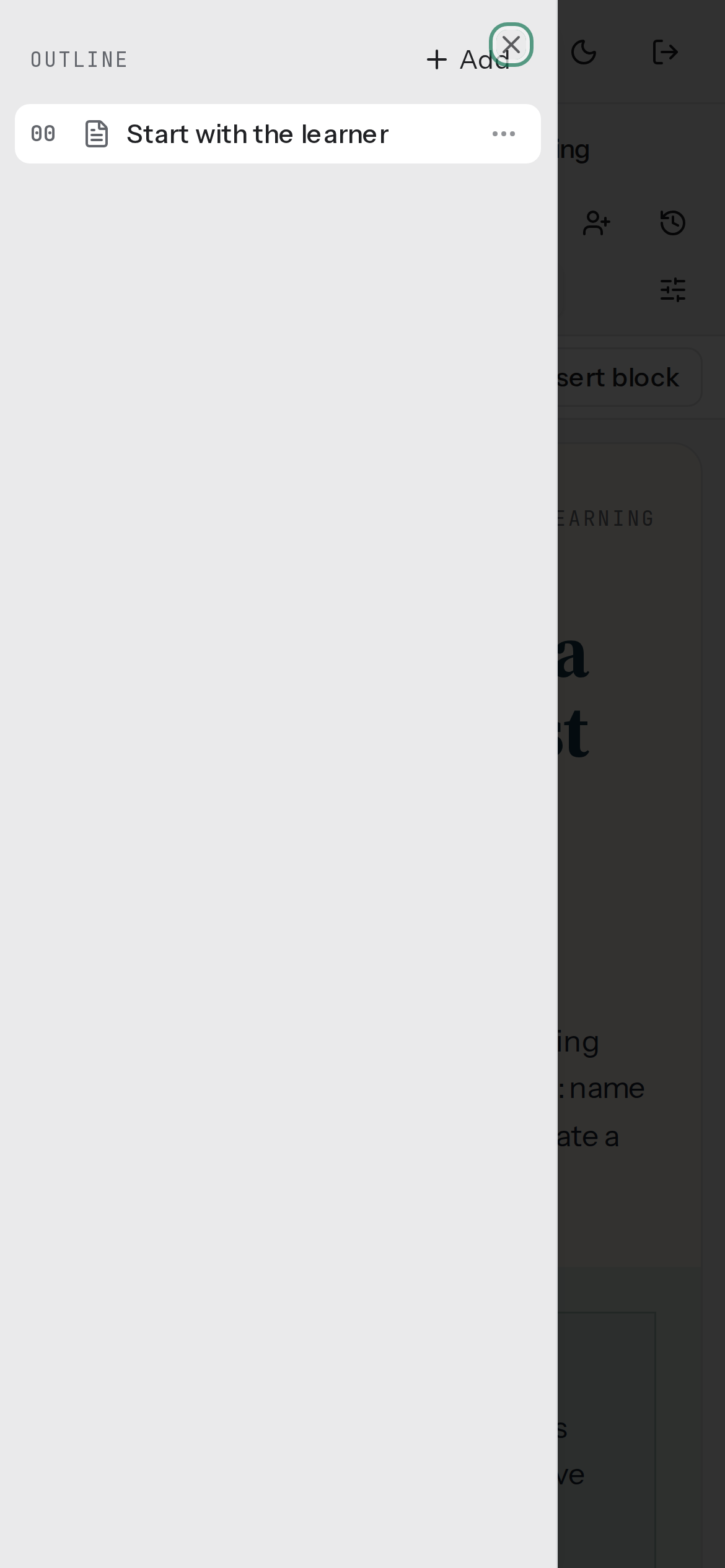
Select a block on the canvas before changing its properties. Select a page in the outline to change page settings. On narrow screens, open the outline and inspector drawers; Escape closes a drawer.
Two kinds of appearance
Section titled “Two kinds of appearance”The app’s Quiet Light/Dark control changes the workspace. A course has its own theme, so switching app appearance does not recolor learner content. Learn about themes.