Learning Studio / author
Shape layouts and themes
Separate workspace appearance from the course your learners see.
Course appearance
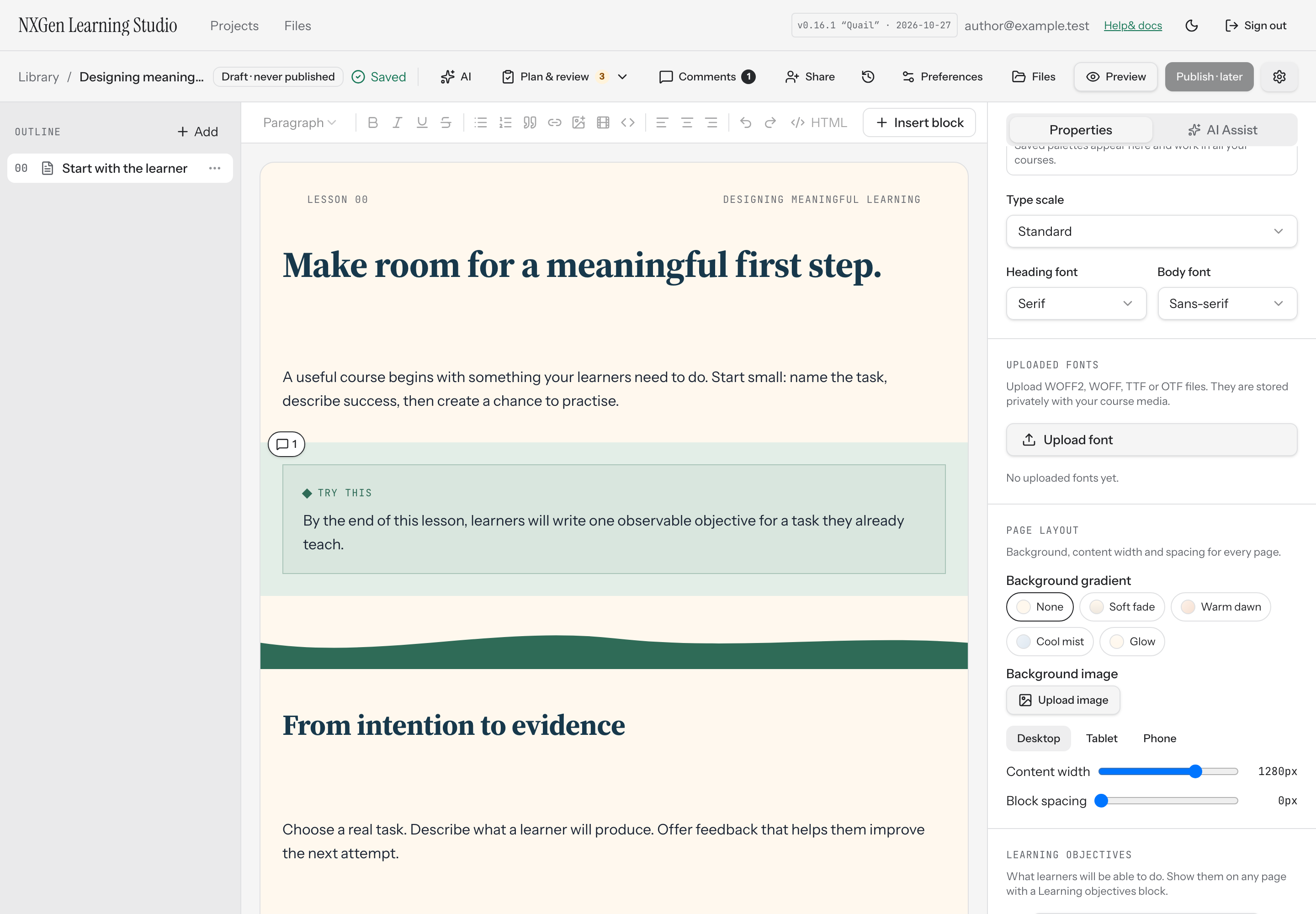
Section titled “Course appearance”Open Course settings to edit background, text, heading, accent, panel, fonts, and type scale. Course colors remain the same when you switch Quiet Light/Dark in the app.
Quail provides Harbor, Grove, and Ember palettes, each in Light and Dark. Palette contrast checks help identify readable combinations; saved brand palettes belong to your account. Check your actual course colors and content after applying a preset.
Page and block layout
Section titled “Page and block layout”Use page layout controls for page background, content width, and block spacing. Block properties include width, padding, background, and supported layout options. Columns organize content side by side.
Device overrides
Section titled “Device overrides”Choose phone or tablet before adjusting supported layout properties. The course surface’s own width selects the matching layout, including in simulated previews. Those settings override the desktop baseline; content is shared across devices. Reset to desktop clears the override rather than creating another block copy.
Verify
Section titled “Verify”Open Preview and inspect desktop, tablet, and phone. Check long headings, columns, and interactive content. Preview uses the same content renderers as the editor.
Developer Mode exposes additional allow-listed styles and animations. Animations play in learner rendering and respect reduced-motion preferences.