Learning Studio / author
Manage files and fonts
Upload, replace, and reuse private course resources.
Account library and course files
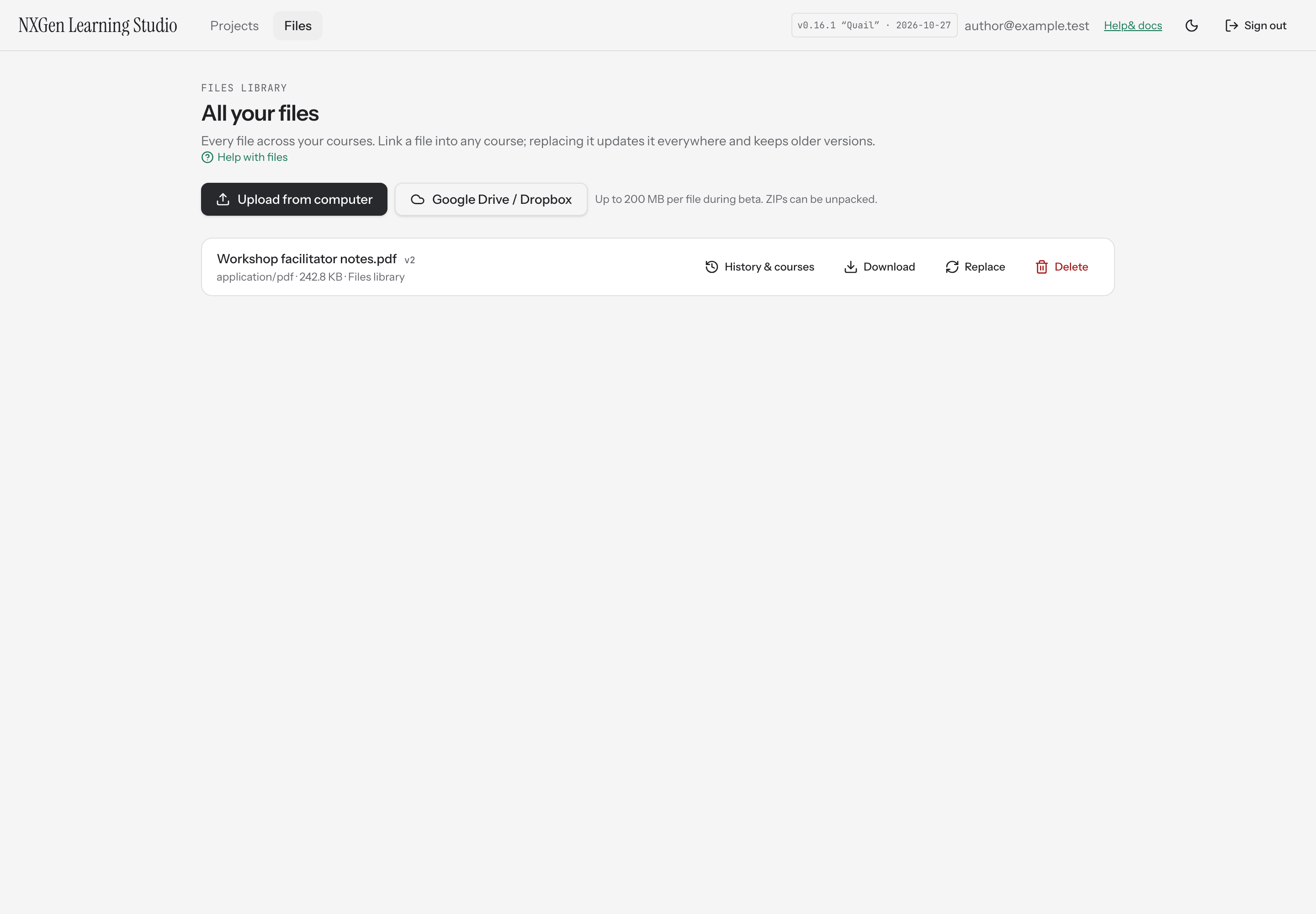
Section titled “Account library and course files”Open Files in the app navigation to manage your account library. From an editor, Files shows resources for that course. Choose Upload from computer, or Add from Files library to link an existing resource into the course without uploading another copy. The Add from Files library picker includes Search your files to find an existing resource by name.
Files remain private to your account. Course links reuse the same stored bytes. Add meaningful alternative text to informative images; mark an image decorative only when it adds no information.
Uploads and ZIP archives
Section titled “Uploads and ZIP archives”The beta limit is 200 MB per file. For a ZIP, choose Keep as one ZIP for a downloadable archive or Unpack into files to use the contents individually. Unpacking allows up to 500 files and 1 GB total uncompressed data; each extracted file must fit the per-file limit.
Replace, restore, or remove
Section titled “Replace, restore, or remove”Replace keeps the resource path and archives the previous bytes. It updates every course using that file. Open History & courses to inspect where it is used, download an older version, or restore an earlier version as the new current file. Restoring also updates every course using it.
For a linked library file, removing it from the current course leaves it in the library. Delete file removes it everywhere it is used and can leave missing media; read the confirmation and check course usage first. Course content checkpoints and file history are separate recovery tools.
Upload a font through the supported course font controls, then select it in Course settings typography. Uploaded fonts are private resources. Confirm the font renders the characters your course needs.
External media
Section titled “External media”External media and embed links must use HTTPS. The editor shows an embed placeholder so you can still select the block; learner embeds run in sandboxed frames. Provider playback and availability depend on the external service. The presence of a cloud-import control does not establish that a provider connection is configured.
Missing resources
Section titled “Missing resources”Open Plan & review → Review after replacing or removing media. Signed media URLs expire; do not paste one into documentation as a permanent resource address. See troubleshooting.