Learning Studio / features
Review proposed AI edits with before/after comparisons
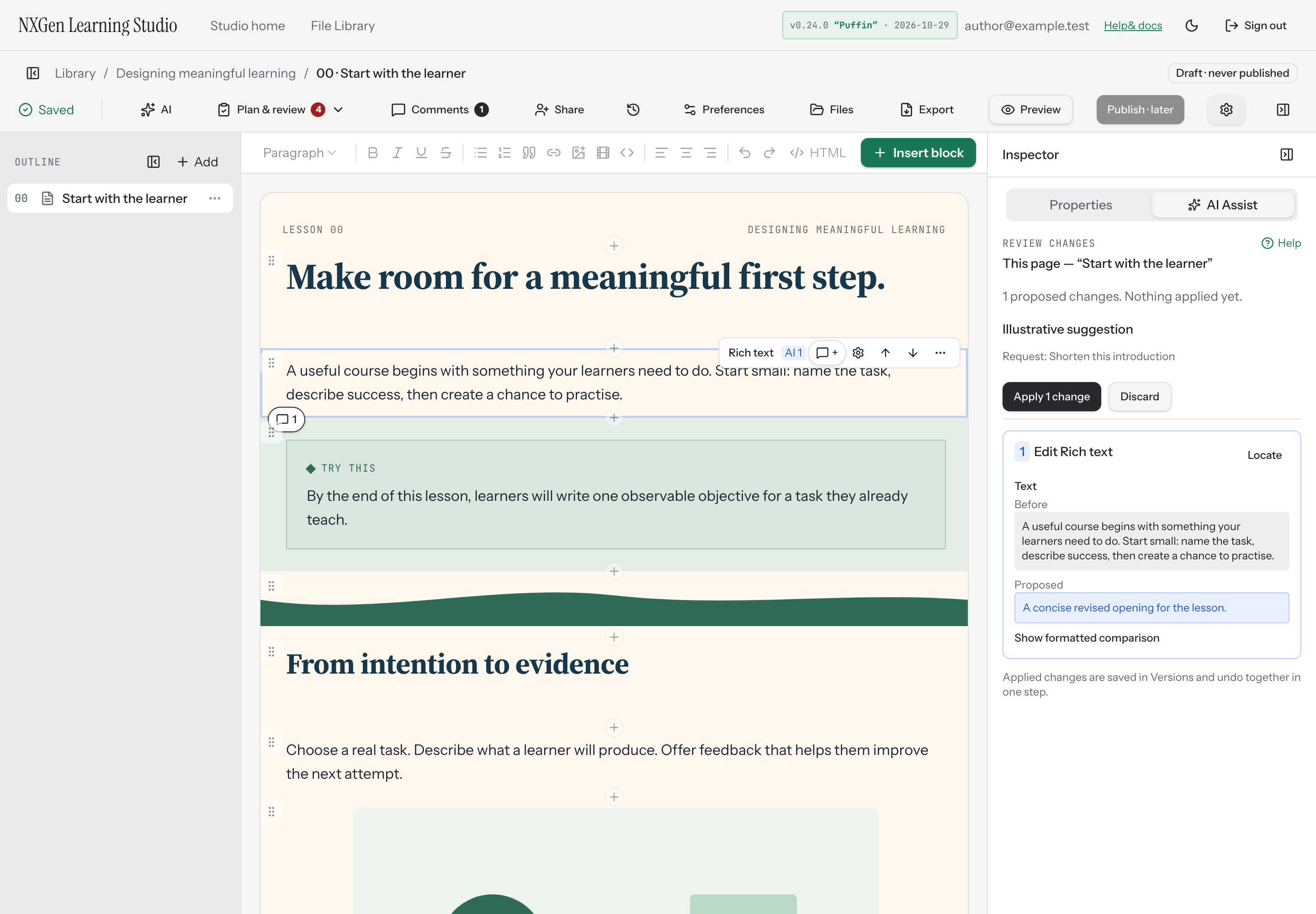
Browse a list of proposed AI edits, compare field-level before/after text, and locate each change on the canvas.
Review proposed AI edits
Section titled “Review proposed AI edits”When you request AI edits, the assistant builds a numbered list of proposed changes and shows them for your review. Nothing is applied to your course until you choose Apply.
Each proposed change is numbered and labeled with its action kind — Edit, Add, Remove, or Move — followed by the block title. For each field that changed, you see a Before value and a Proposed value side by side so you can compare exactly what differs.
If a change only affects formatting or structure (the text is the same but the layout changed), the review notes that and offers a formatted comparison you can expand.
How to use it
Section titled “How to use it”- Open AI from the editor toolbar. The panel that opens is titled AI Assist.
- Choose a suggested action or write your own instruction, then select Generate suggestions.
- When the assistant finishes, review each numbered change in the list:
- Read the Before and Proposed text for each field.
- For structural or formatting-only changes, select Show formatted comparison to see a read-only rendered preview of the block before and after.
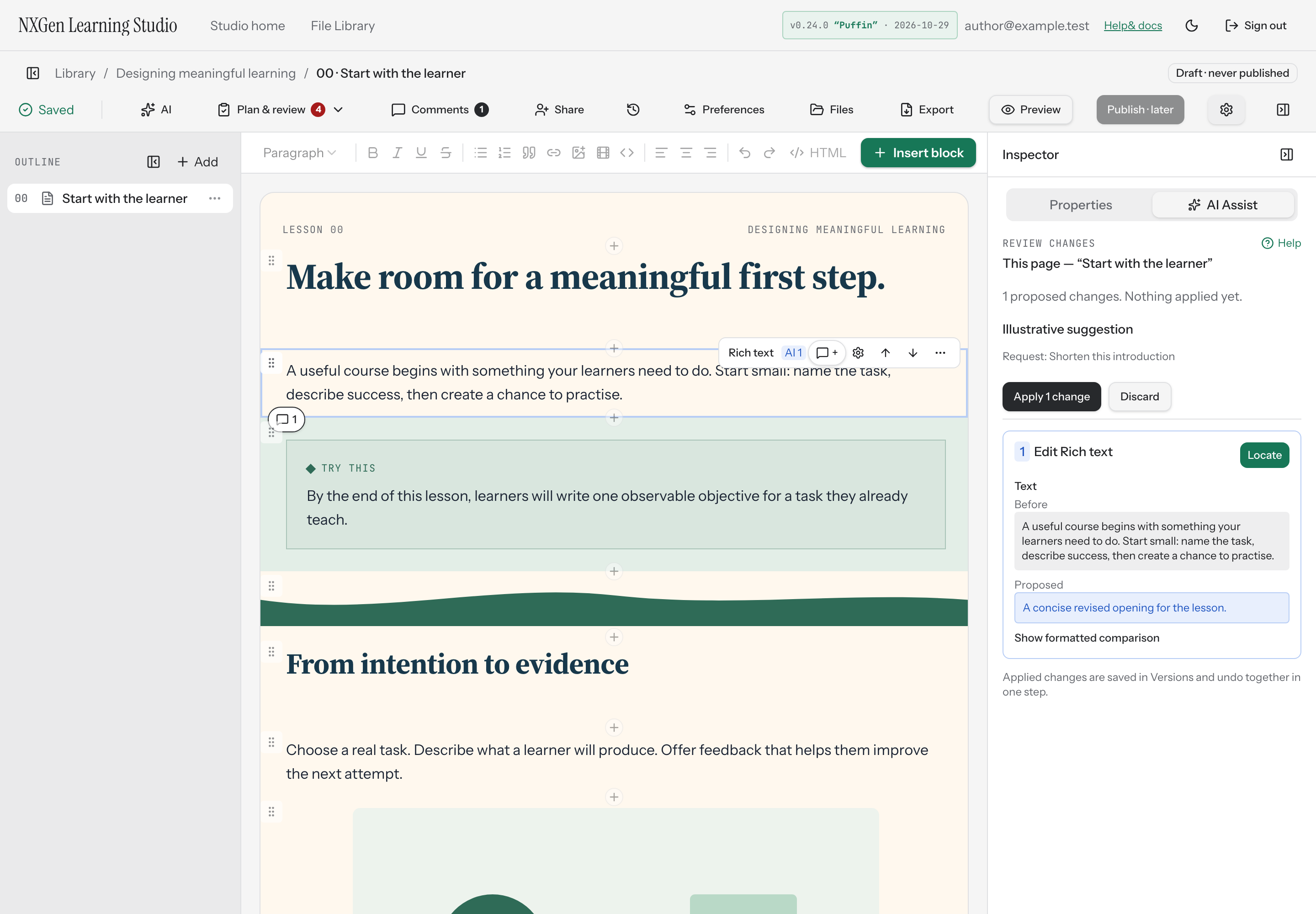
- Select Locate on any change to jump to its target on the canvas.
- When you’re satisfied, select Apply to apply all proposed changes at once, or Discard to dismiss them without affecting your content.
Applied changes are saved in Versions as a single labelled entry and can be undone in one step with Ctrl/Cmd+Z.
Availability and limits
Section titled “Availability and limits”- AI Assist works on one page at a time — the selected block or the current page. It does not edit the cover.
- Locked blocks cannot be edited. Unlock a block before requesting edits.
- If the course changes while a suggestion is pending, the review shows a notice and the changes cannot be applied. Discard and request a new review.
- Changes that would reach outside the requested page are rejected during review.
Locate a proposed change on the canvas
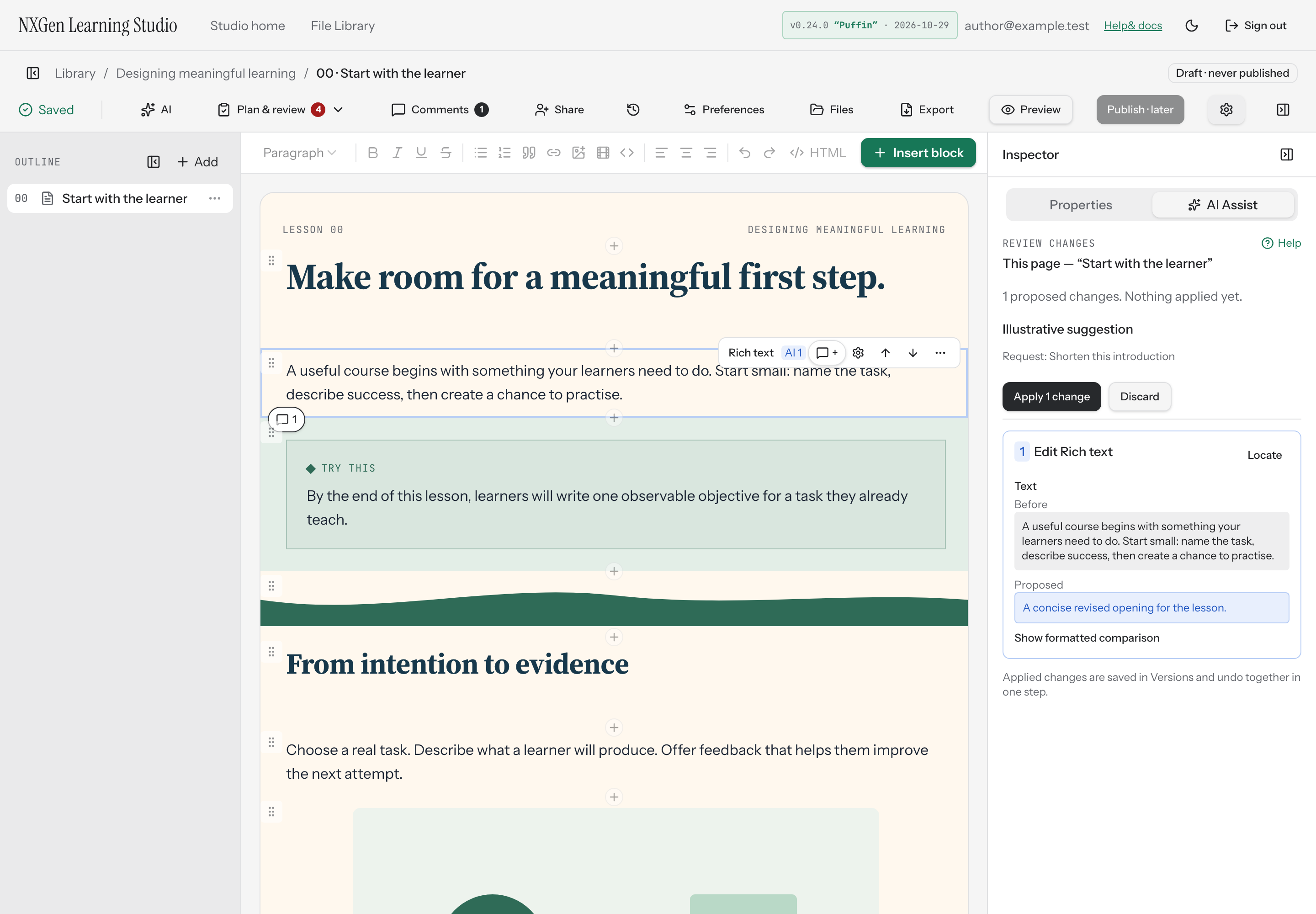
Section titled “Locate a proposed change on the canvas”Each proposed change has a Locate button. Selecting it navigates to the page the change belongs to, closes the mobile inspector if open, and scrolls the canvas to the target block or AI marker.
On the canvas, blocks with pending AI changes are highlighted with an info-colored ring and an AI badge showing the change number. Proposed insertions appear as markers labeled AI · proposed insertion at the position where the new block would be added.
If a change belongs to a different page than the one you’re viewing, the review panel notes this and directs you to use Locate to see its target.