Learning Studio / features
Toggle the page outline visibility
Expand, collapse, or toggle the editor outline (page tree) on desktop and mobile.
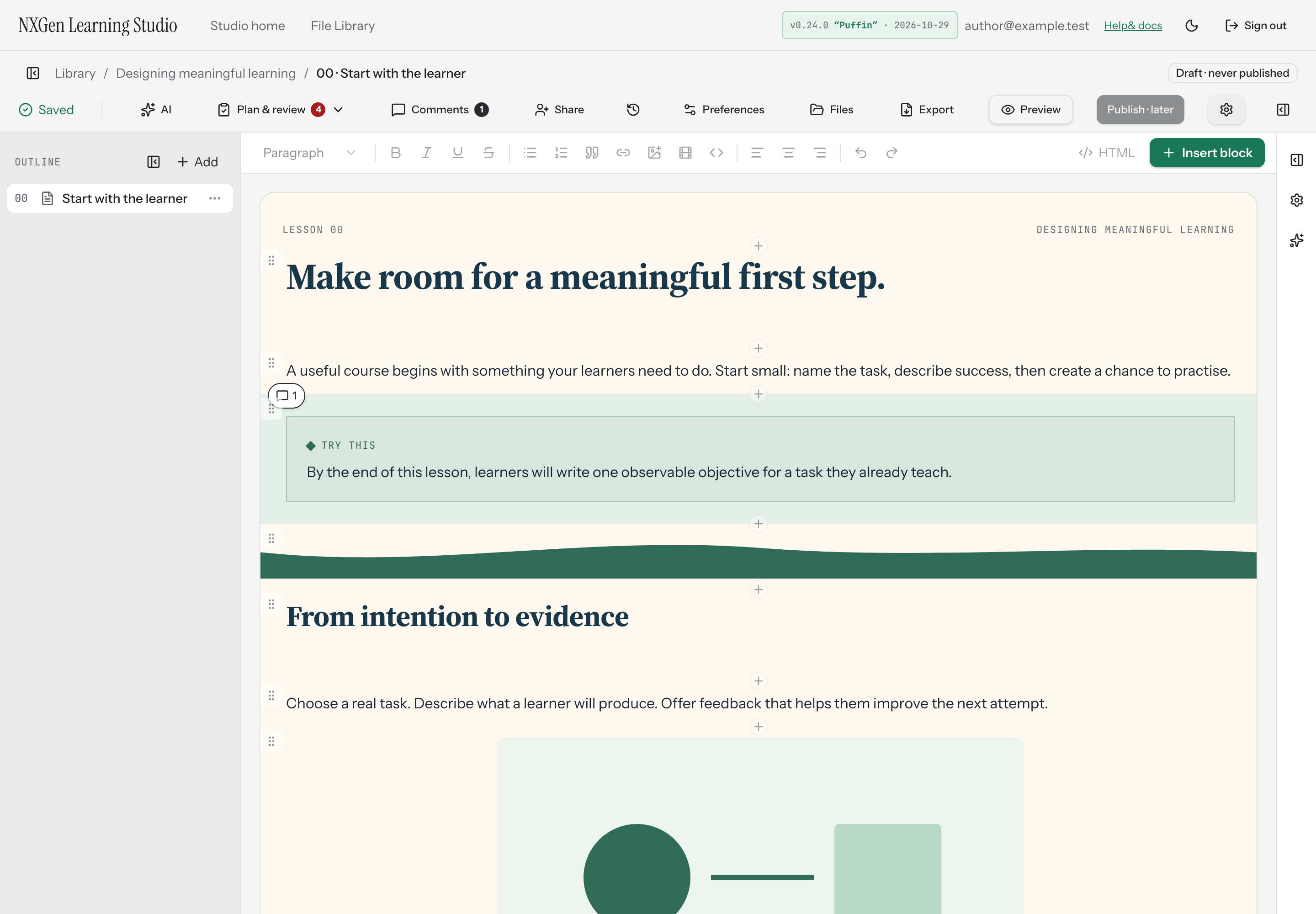
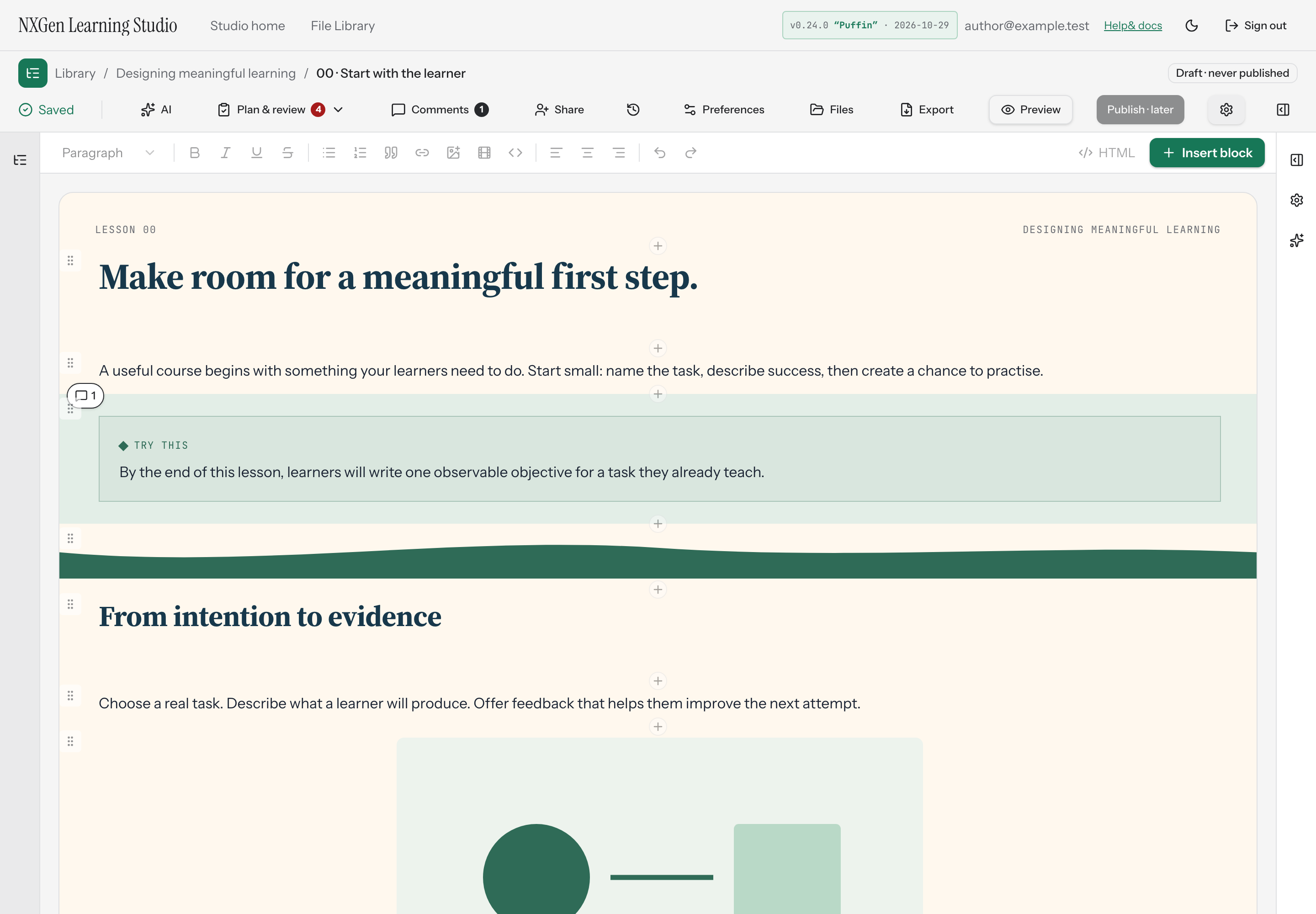
Show or hide the page outline
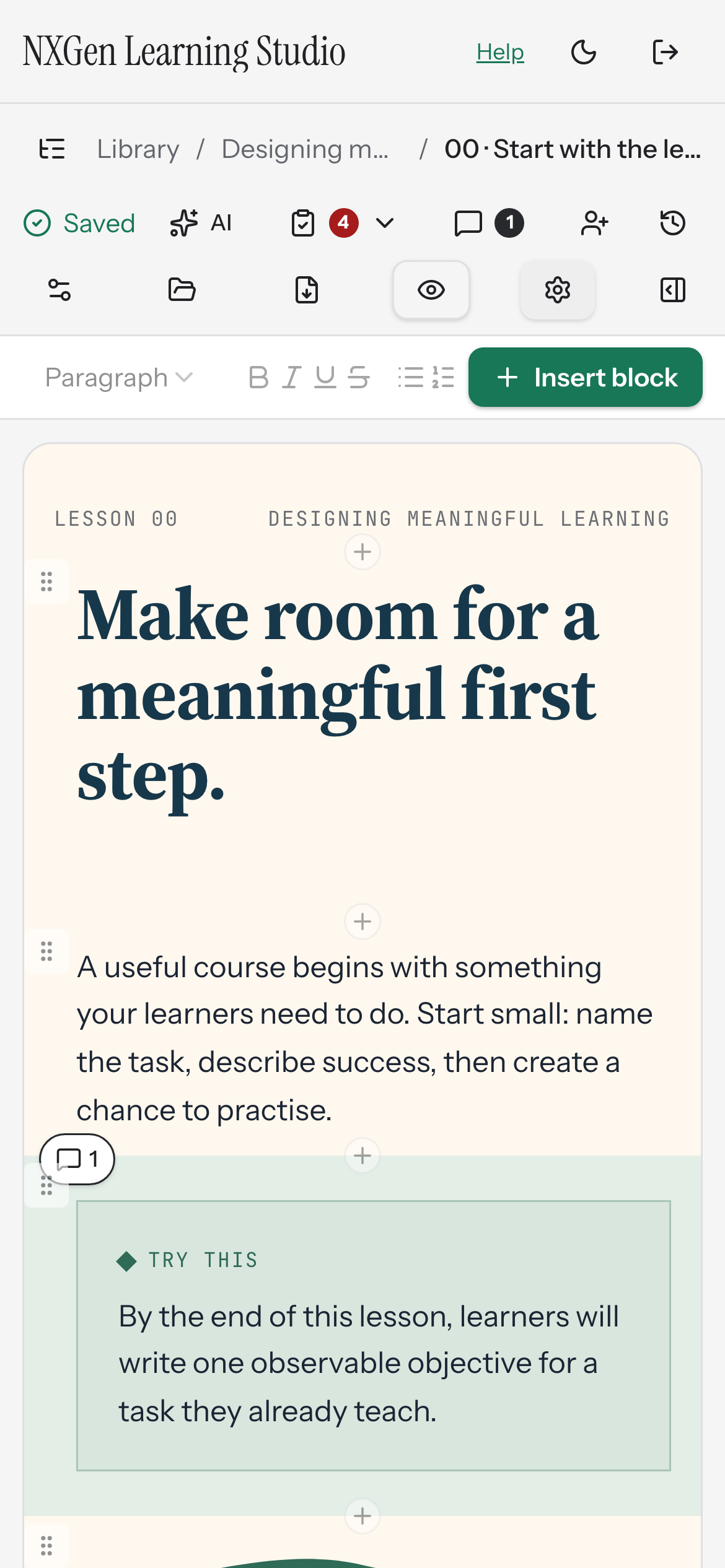
Section titled “Show or hide the page outline”The page outline lists every section in your course. On desktop, you can keep it visible while you work or collapse it to give the canvas more room. On mobile, the outline opens as an overlay sheet you can dismiss when you’re done.
How to use it
Section titled “How to use it”- In the editor toolbar, select the Outline toggle. Its label reads Show outline when the outline is hidden and Collapse outline when it’s visible.
- Select it again to switch the outline’s visibility.
On desktop, your choice is saved as a studio preference — the outline stays expanded or collapsed the next time you open the editor. On mobile, opening the outline doesn’t affect your desktop preference; closing the sheet leaves it unchanged.
When the outline is collapsed on desktop, a narrow rail remains with a Show outline button. Selecting the breadcrumb page label in the toolbar also reveals the outline and scrolls to the current page.
Availability and limits
Section titled “Availability and limits”The desktop outline appears at viewport widths of 1024px and above. Below that breakpoint, the outline opens as a mobile sheet and closes automatically if you resize back to desktop. Switching between desktop and mobile does not change your saved desktop preference.