Learning Studio / features
View who added a block and when
Use Developer Mode to find out who added a block and when.
Check block attribution with Developer Mode
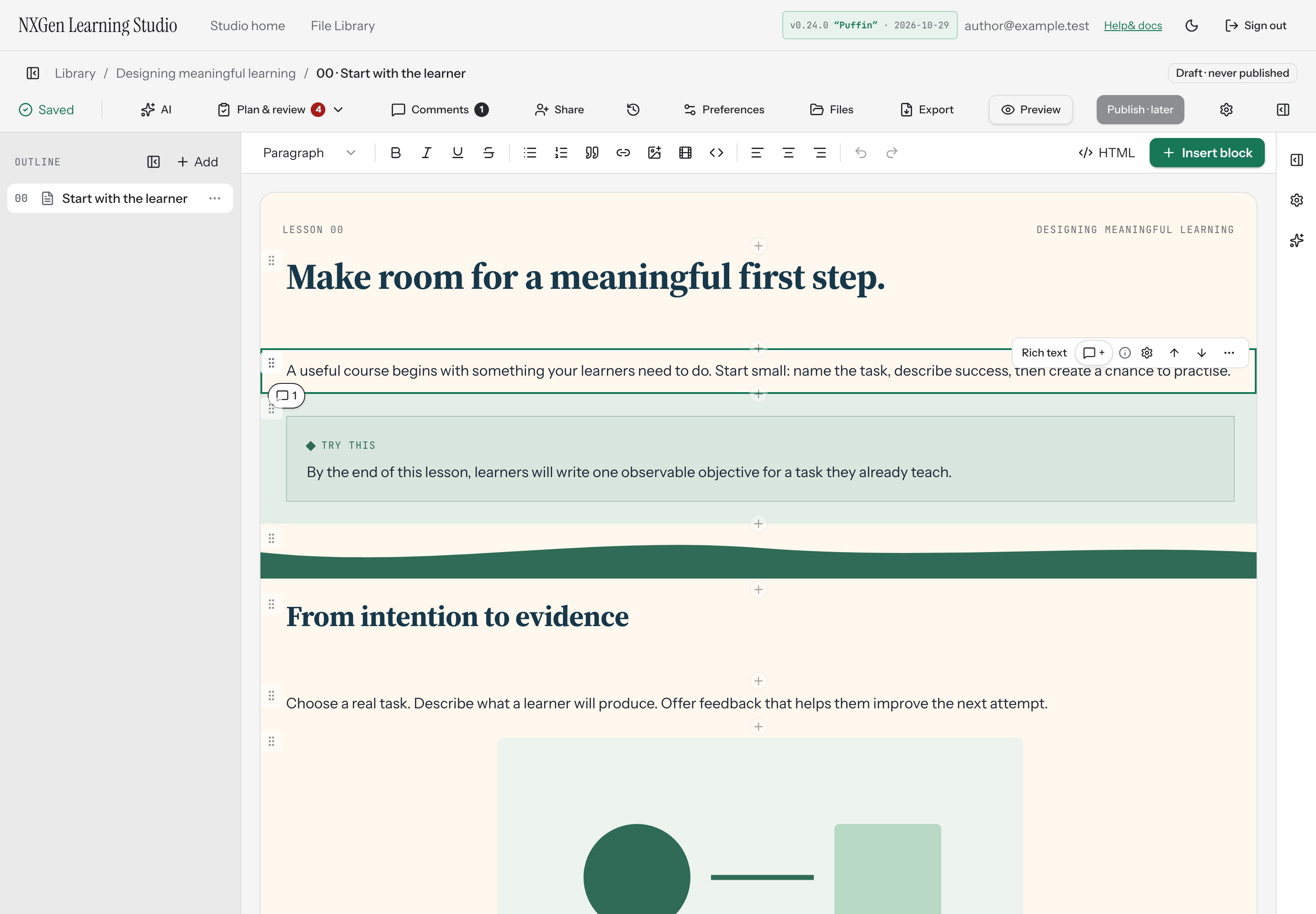
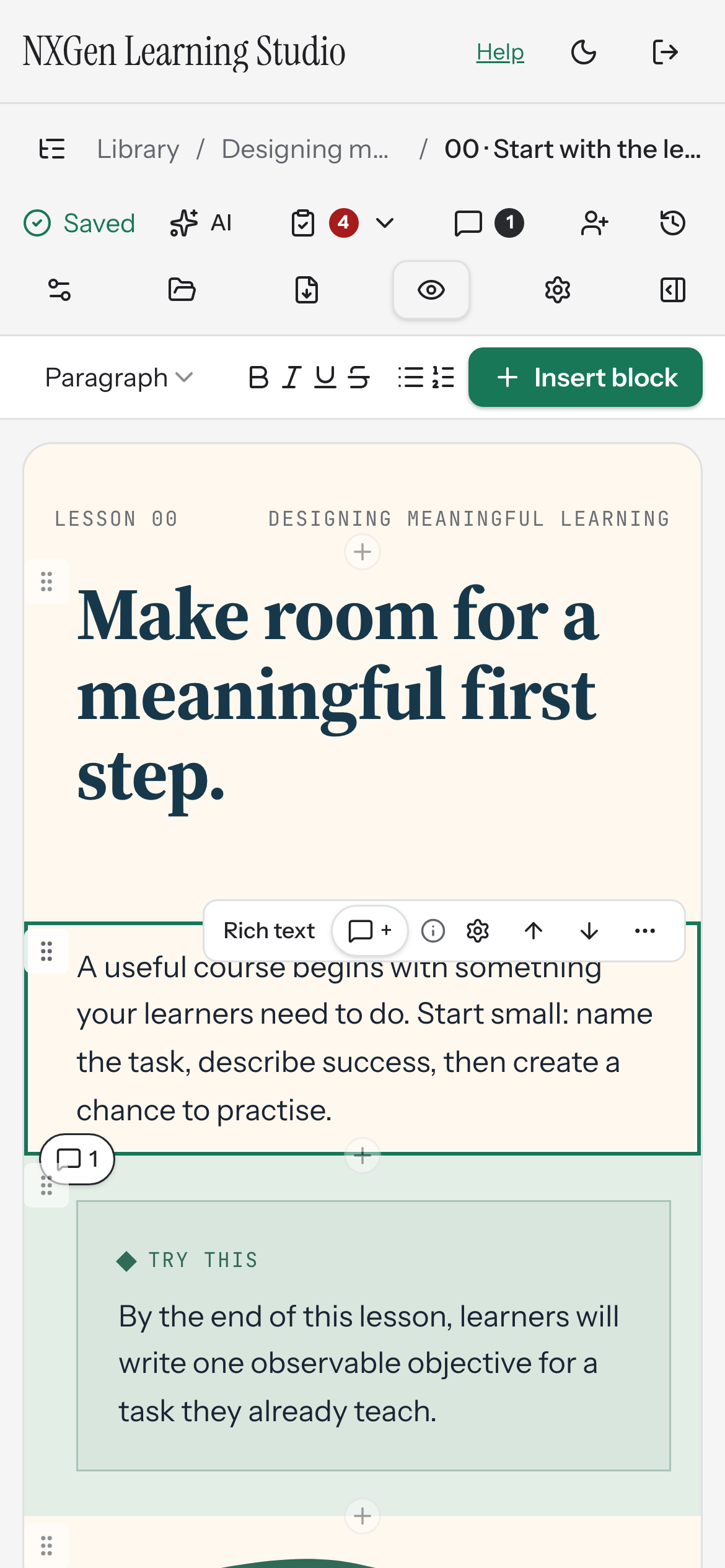
Section titled “Check block attribution with Developer Mode”Developer Mode adds an info icon to each block’s toolbar on the canvas. Hover or focus the icon to see who added the element and how long ago. The attribution text identifies the actor as AI, an agent, you, or a collaborator.
How to use it
Section titled “How to use it”- Ensure Developer Mode is enabled in your studio preferences.
- Hover over a block on the canvas to reveal its toolbar.
- Hover or focus the info icon in the toolbar.
- The tooltip displays “Added by [actor] [time ago]”. If no history exists, it shows “Added before history was kept”. While loading, it shows “Loading…”.
Availability and limits
Section titled “Availability and limits”The info icon appears on every editor block when Developer Mode is active. Attribution is informational only and does not affect editing, learner experience, or block behavior.