Learning Studio / features
Comment on a specific block
Use a comment pin to view threads, leave feedback, reply, and resolve or reopen discussions on a single block.
Comment on a specific block
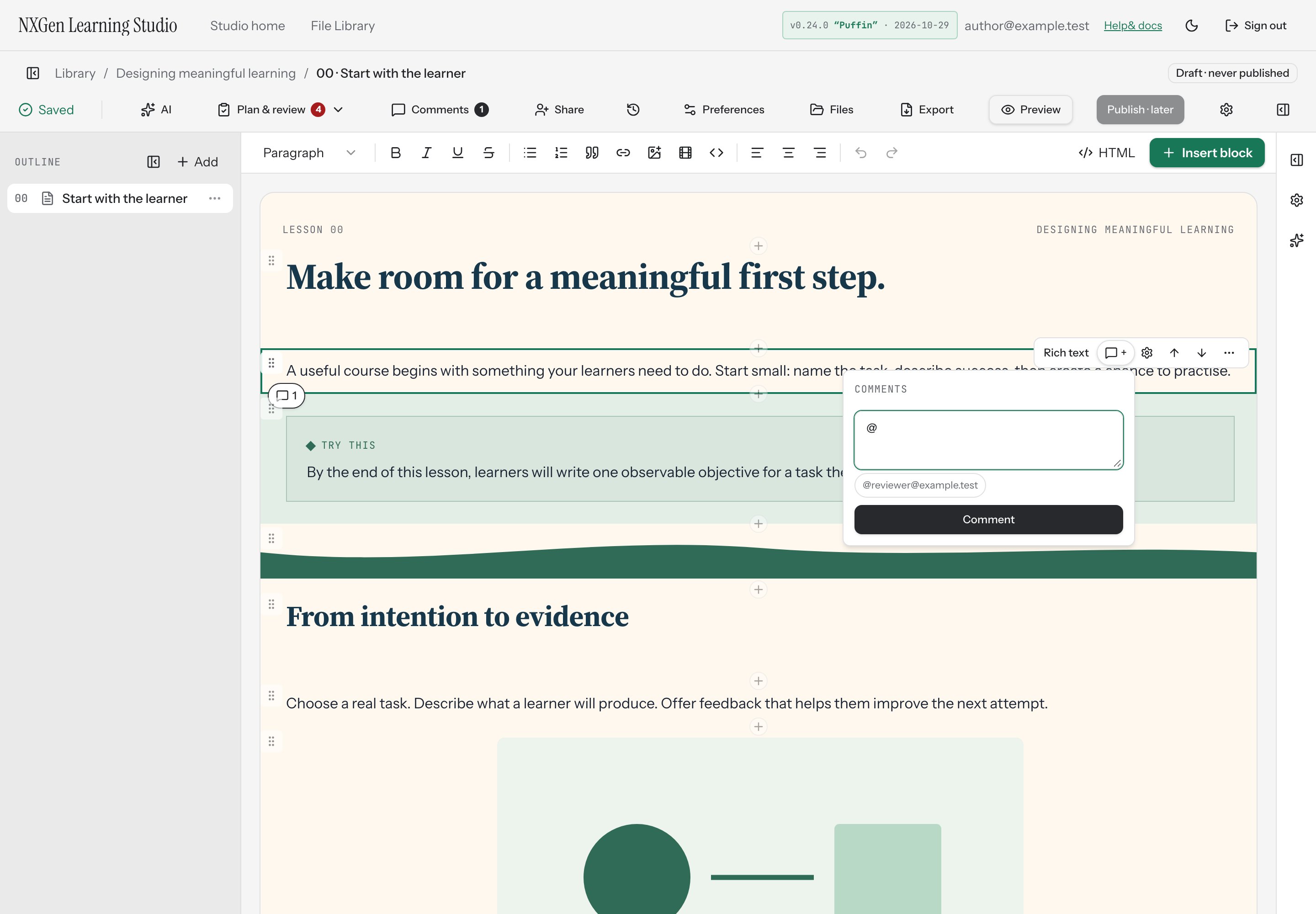
Section titled “Comment on a specific block”Block comments let you leave feedback on a single element — a text block, image, question, or any other block on the page — rather than on the course as a whole. Each block can have its own threaded discussion.
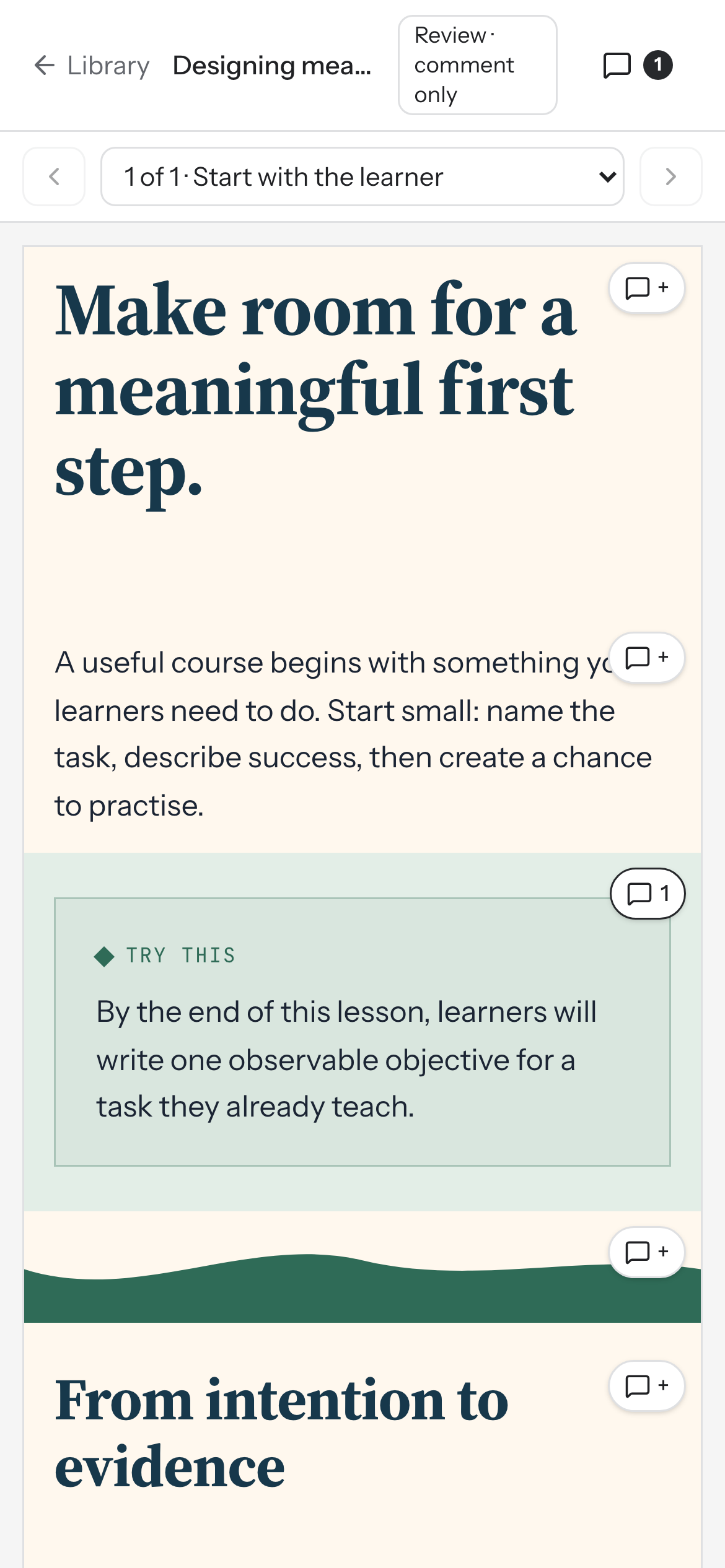
A comment pin appears in the block toolbar. When a block has open comments, a badge also appears at its top-left corner so you can spot active discussions at a glance.
How to use it
Section titled “How to use it”- In the studio canvas, select the block you want to comment on.
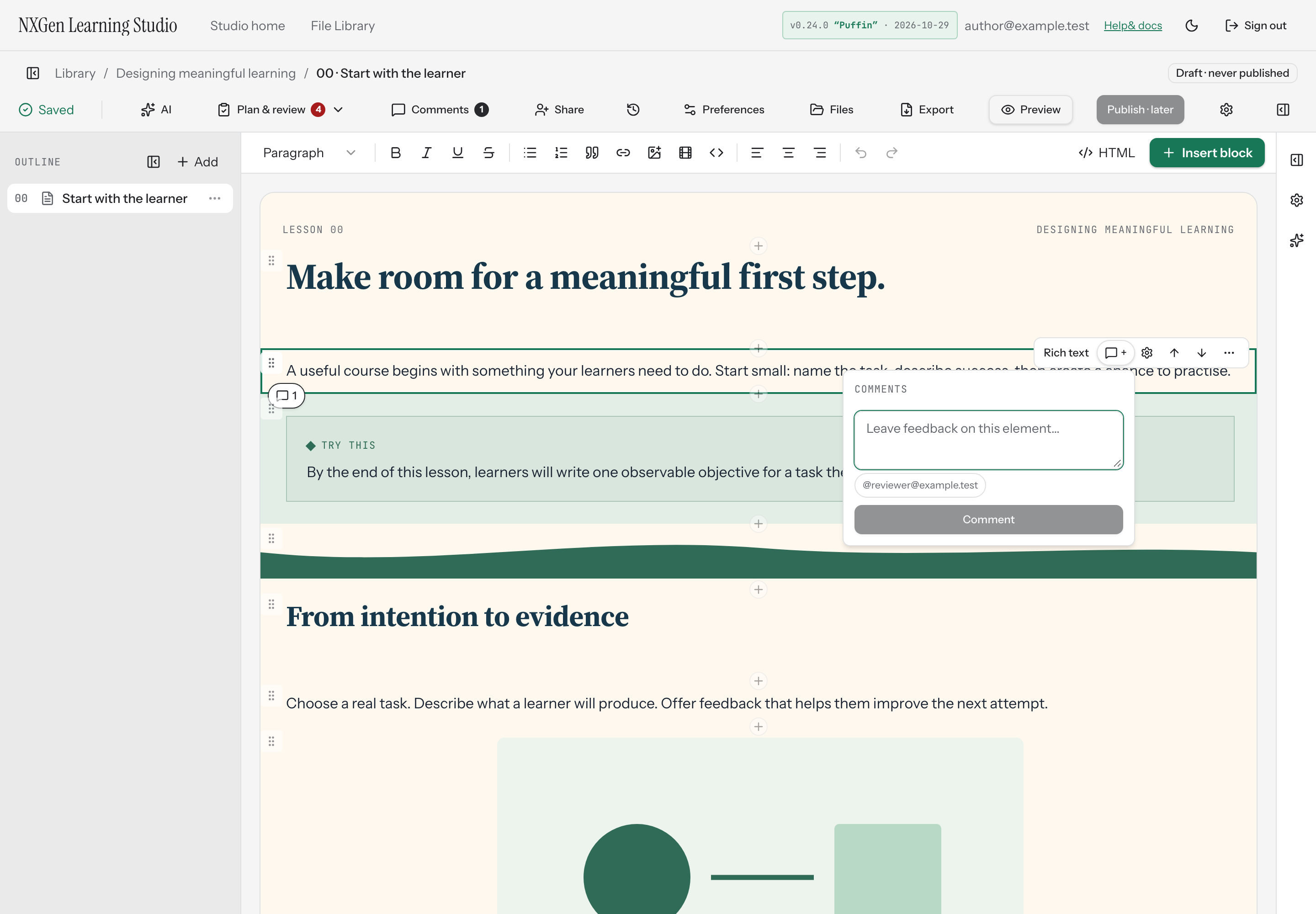
- Click the comment pin in the block toolbar to open the comments popover.
- Type your feedback in the text area and select Comment to start a new thread.
To reply to an existing thread, use the reply field within that thread and press Enter to post your reply.
You can @mention invited reviewers and anyone who has already commented on the course. Click a suggested name to insert it into your comment. Mentions that include your own email are highlighted.
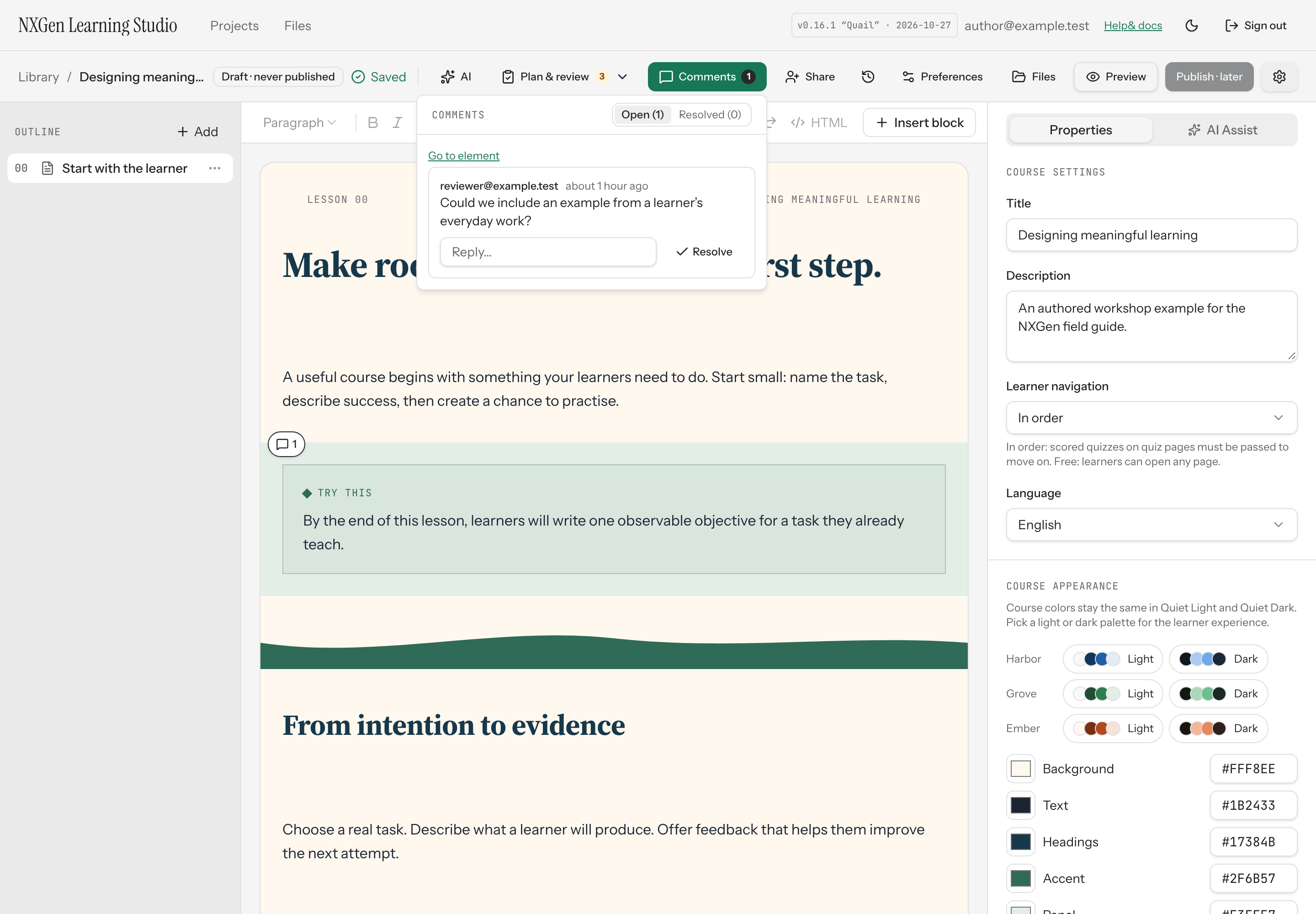
To resolve a discussion, select Resolve on that thread. Resolved threads are dimmed but remain visible. To reopen a resolved thread, select Reopen.
You can also browse all comment threads from the Comments panel in the studio toolbar. The panel filters threads by open or resolved status and shows an unread count for new comments. Select Go to element to jump to the block a thread belongs to. If the block has been removed, the panel shows Element removed instead.
Availability and limits
Section titled “Availability and limits”- Block comments are available to the course owner and invited reviewers. Reviewers can view the course and leave comments on any element but cannot edit content.
- Comments are limited to 4,000 characters per post.
- Up to 200 comment threads can be loaded for a course.
- The course owner invites reviewers by email from the Share dialog. Invitees must already have an NXGen account.
- Publishing is not available in this build; use Preview to inspect the learner experience.
Spot pages with open comments
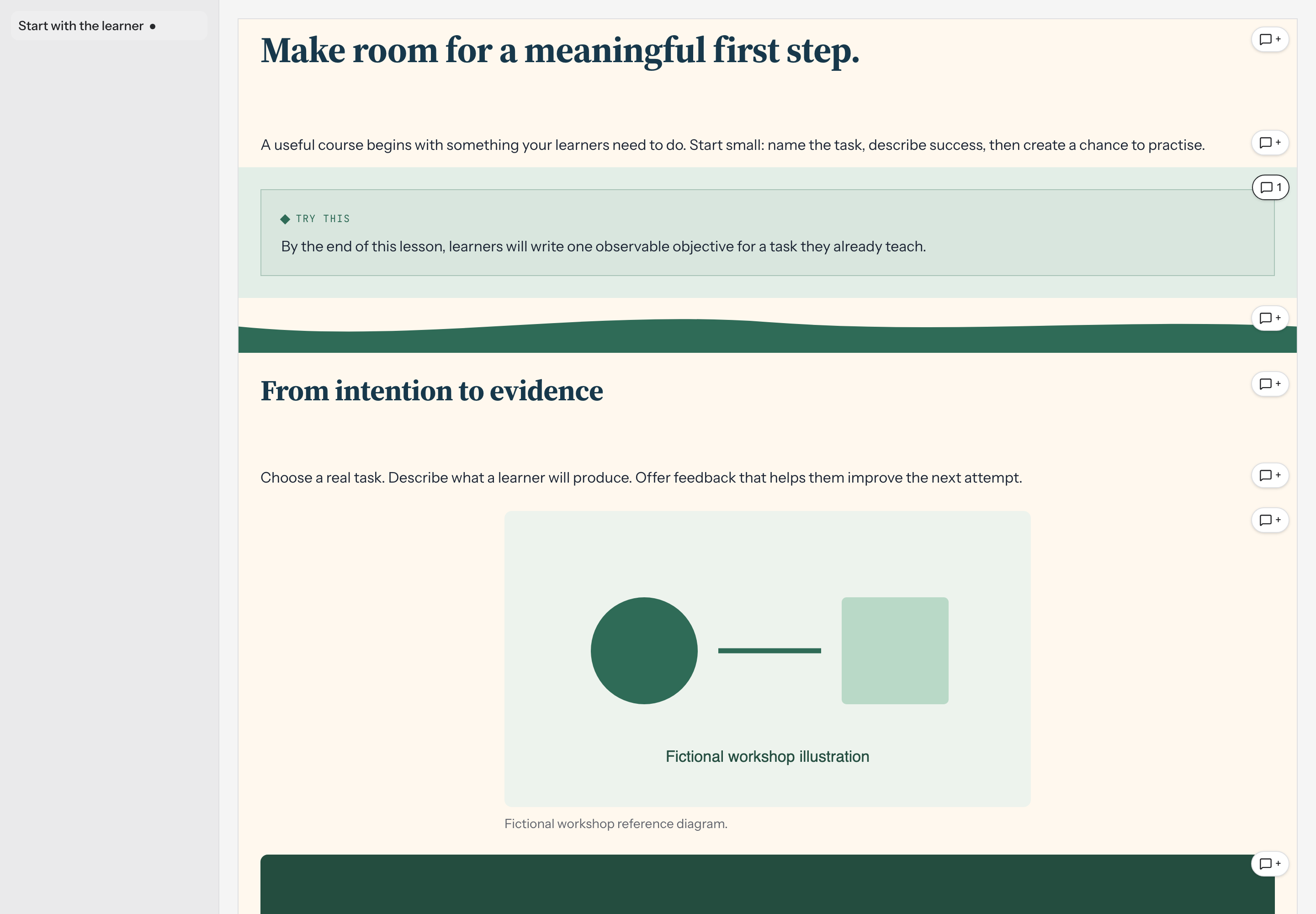
Section titled “Spot pages with open comments”In the review view, the page sidebar shows a small dot next to any page that has open comment threads, so you can see where feedback is still pending at a glance.