Learning Studio / features
Configure page layout
Set a page background gradient, upload and position a background image with fade, and adjust content width and block spacing per device.
Set page background, width, and spacing
Section titled “Set page background, width, and spacing”Page layout settings control the course-wide background, content width, and block spacing for every page. You set them once in course settings and they apply across the course.
- In the Studio editor, select the course so the Inspector shows Course settings.
- Scroll to the Page layout group.
- Adjust the controls described below.
Background gradient
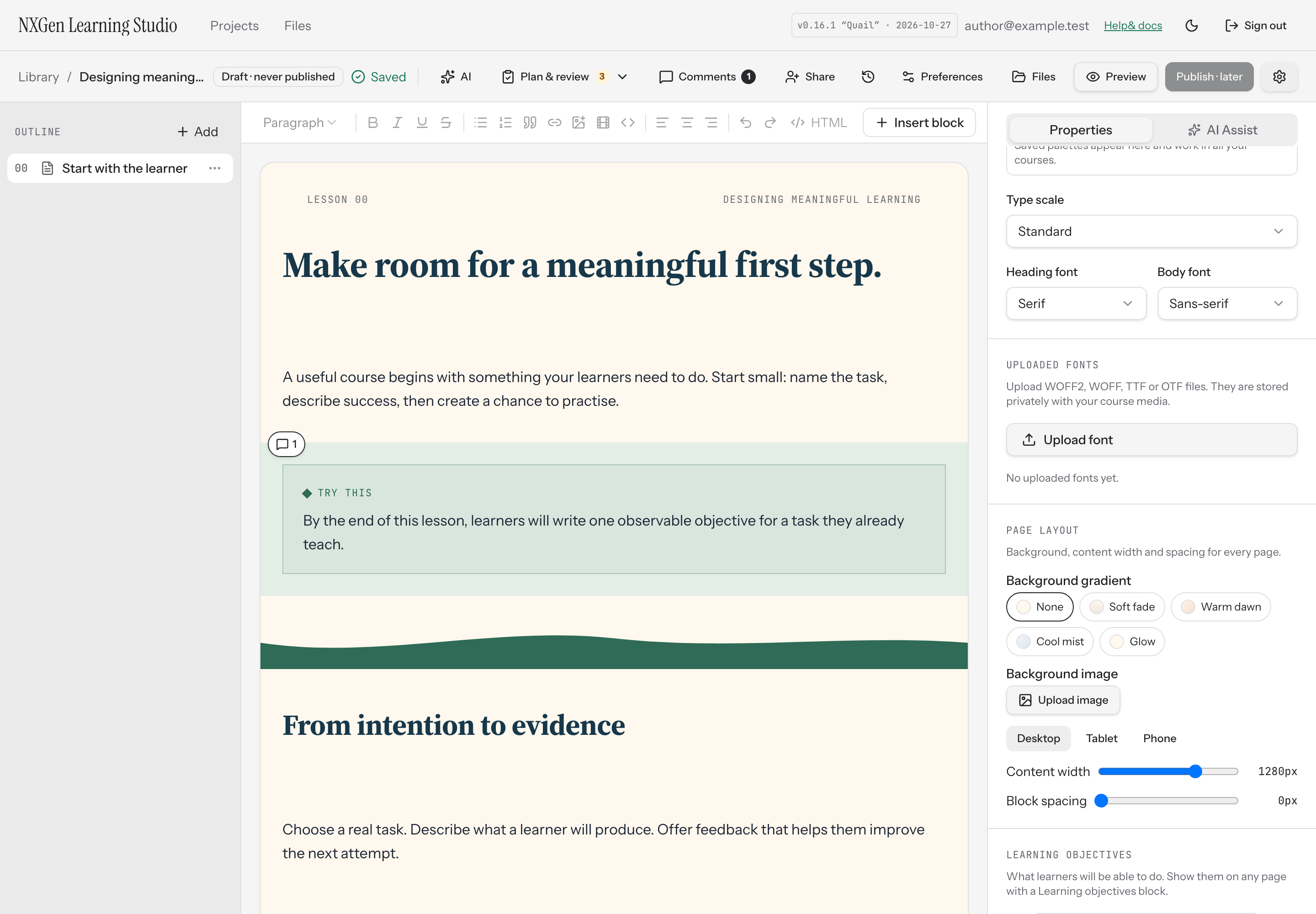
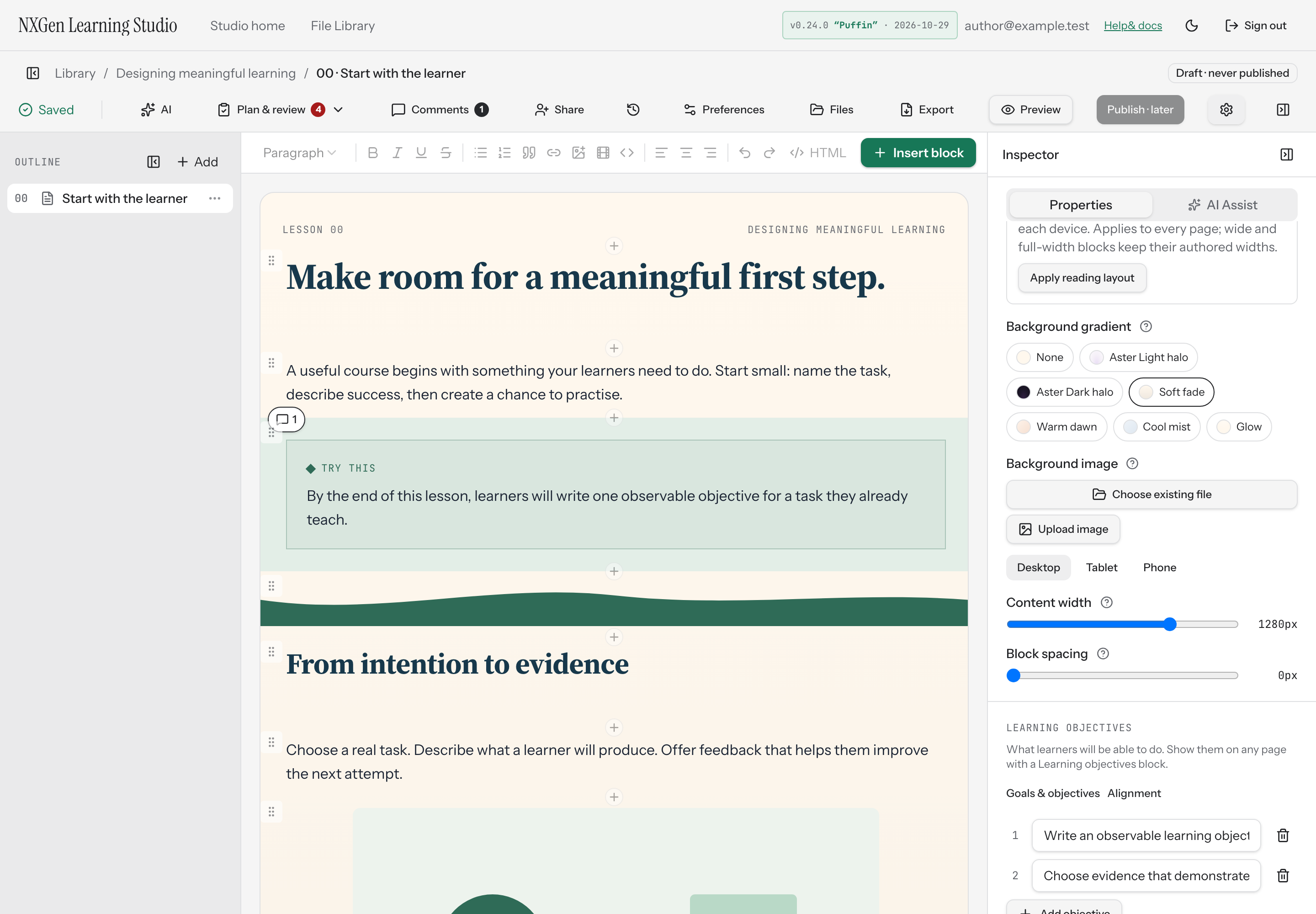
Section titled “Background gradient”Choose a Background gradient preset to apply a soft color wash behind every page. Options include Aster halo presets, soft fades, warm and cool tints, and a glow effect. Select None to remove the gradient.
Background image
Section titled “Background image”Upload a Background image to sit behind your page content. Uploaded images are stored privately with your course media.
- Choose Choose existing file to reuse an image from Course Files or Files Library. Use Search existing files to find it by filename. Or click Upload image to add a new image.
- When an image is set, choose how it fits the page: Fill (crop to cover), Fit (show the whole image), or Tile (repeat the image).
- Set Image position to Top, Center, or Bottom.
- Use the Fade slider to overlay the course background color on top of the image, fading it back so content stays readable. The fade range is 0–90%.
- Click Remove to clear the page background image. The resource remains in Files.
Content width and block spacing
Section titled “Content width and block spacing”Use the Content width slider to set the maximum width of standard-width blocks, from 480px to 1600px in 20px steps. Use the Block spacing slider to add extra vertical space between blocks, from 0px to 160px in 4px steps.
Wide and full-width blocks keep their authored widths regardless of the content width setting.
Reading layout
Section titled “Reading layout”Apply reading layout sets a focused 760px content column with comfortable spacing on each device. It retains your background and existing course content, and adjusts content width and block spacing for desktop, tablet, and phone.
Per-device overrides
Section titled “Per-device overrides”Content width and block spacing can be overridden for tablet and phone independently. Select a device tab, then adjust the sliders. Phone values you don’t set inherit tablet values where present, then desktop values. Use Reset to desktop to clear a device’s overrides.
Availability and limits
Section titled “Availability and limits”Page layout is a course-wide setting. You can set one background gradient, one background image, one desktop content width, one desktop block spacing value, and optional tablet and phone overrides for width and spacing. Gradients are limited to simple linear or radial gradient syntax. Background images must be private files uploaded or selected from Files; external image URLs aren’t supported for page backgrounds. A reused background shares its resource with other uses, so replacing that resource updates them all. Applying an Aster appearance replaces any background image.