Learning Studio / features
Undo, redo, and save with keyboard shortcuts
Use Cmd/Ctrl+Z to undo, Cmd/Ctrl+Shift+Z or Cmd/Ctrl+Y to redo, and Cmd/Ctrl+S to save pending edits.
Undo, redo, and save changes via keyboard shortcuts
Section titled “Undo, redo, and save changes via keyboard shortcuts”When you’re editing a course in the studio, you can undo and redo changes without reaching for the mouse. A save shortcut lets you save any edits that haven’t been saved yet, and the editor also saves automatically.
How to use it
Section titled “How to use it”These shortcuts work while focus is inside the editor:
- Undo: Press
Cmd/Ctrl+Z. - Redo: Press
Cmd/Ctrl+Shift+ZorCmd/Ctrl+Y. - Save: Press
Cmd/Ctrl+Sto save any edits that haven’t been saved yet.
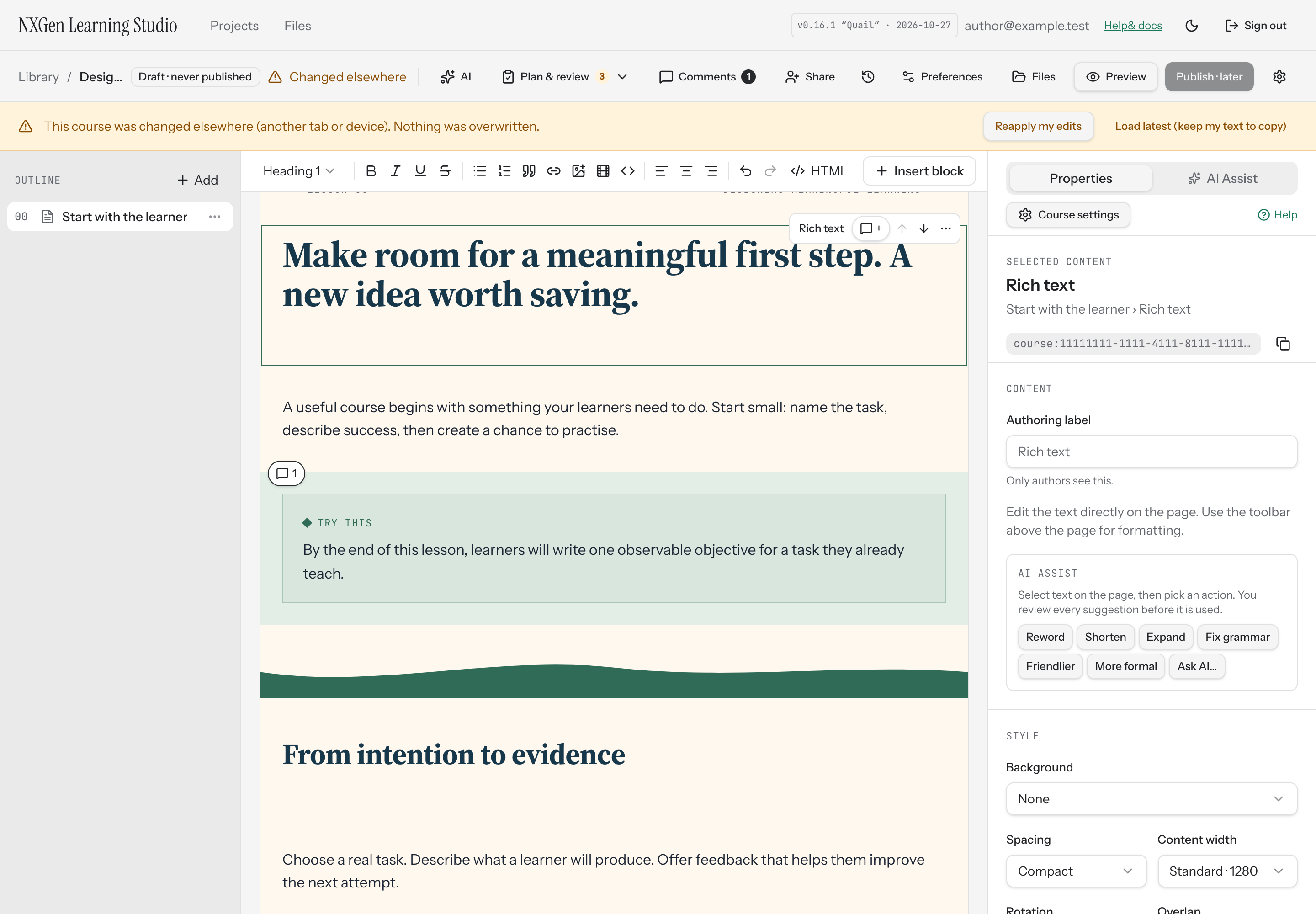
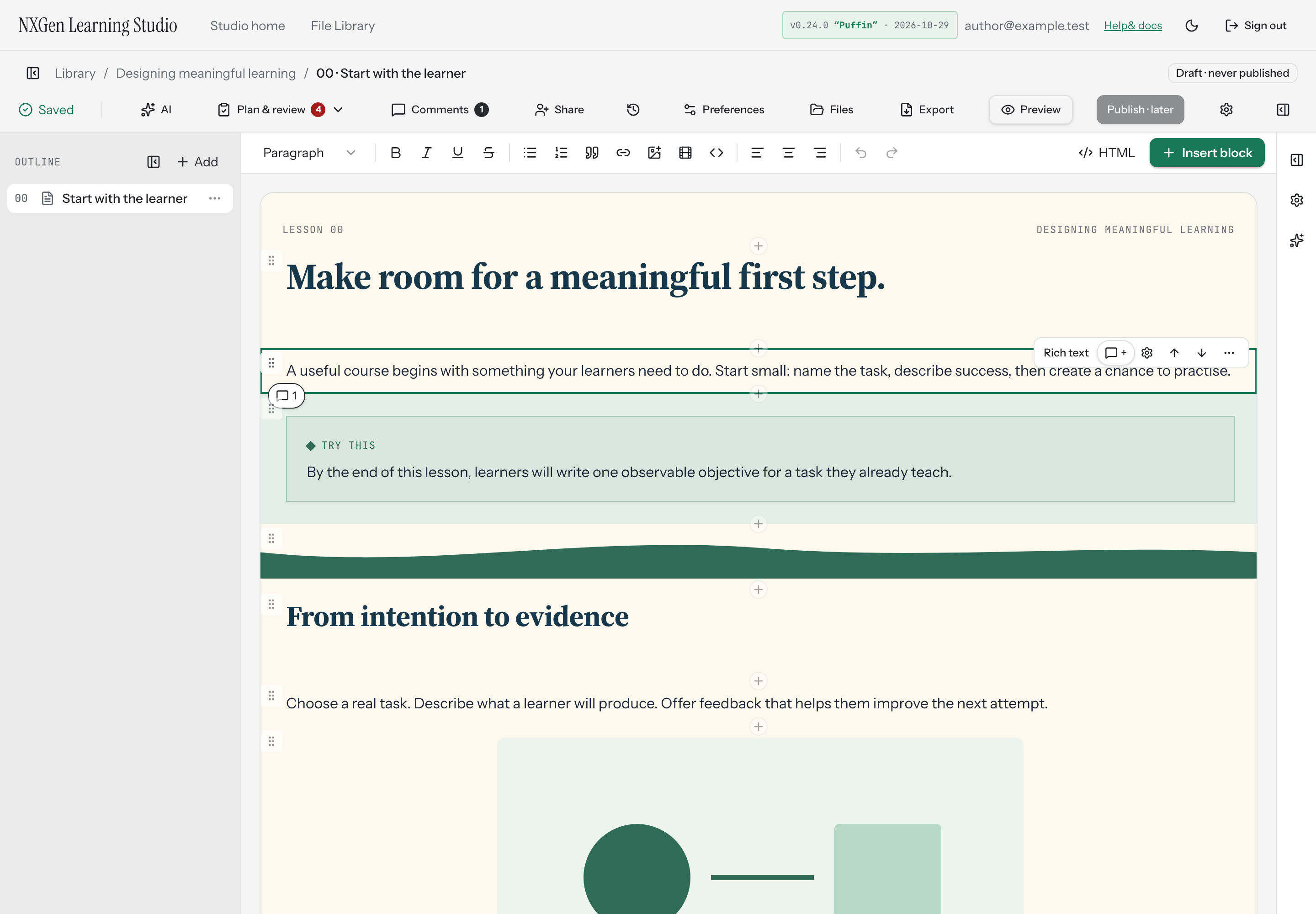
The save indicator in the toolbar shows the current status of your edits.
Availability and limits
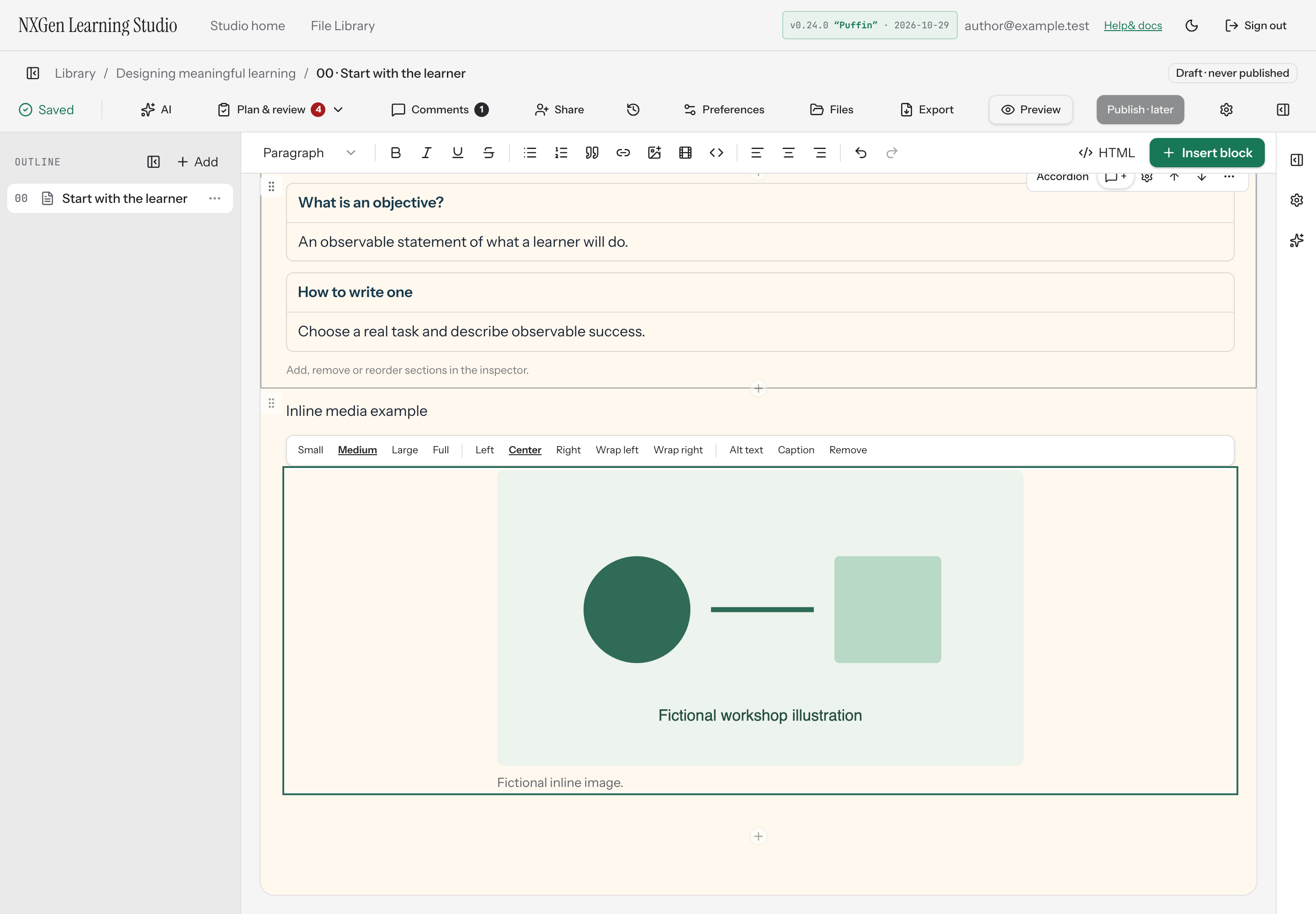
Section titled “Availability and limits”These shortcuts are available in the course editor. The editor also attempts to save pending changes when you navigate away, such as opening Preview or switching to another course. Wait for Saved before leaving to confirm your changes reached the server.
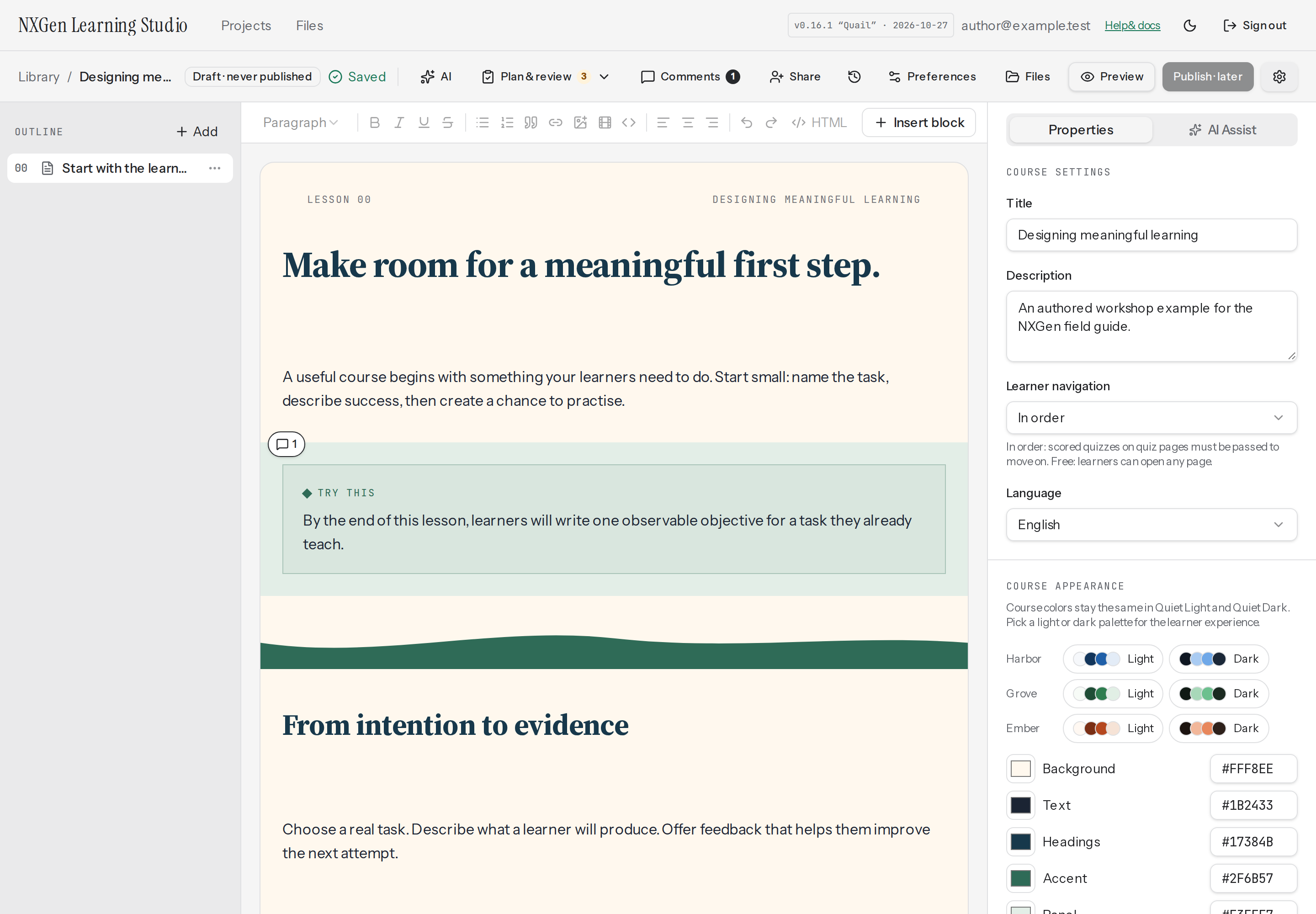
If another author has saved conflicting changes, a conflict banner appears so you can resolve it before continuing.