Learning Studio / features
Adjust inline rich-text images and video
Change the size, alignment, caption, or alternative text of an image or video within rich text.
Edit inline media in rich text
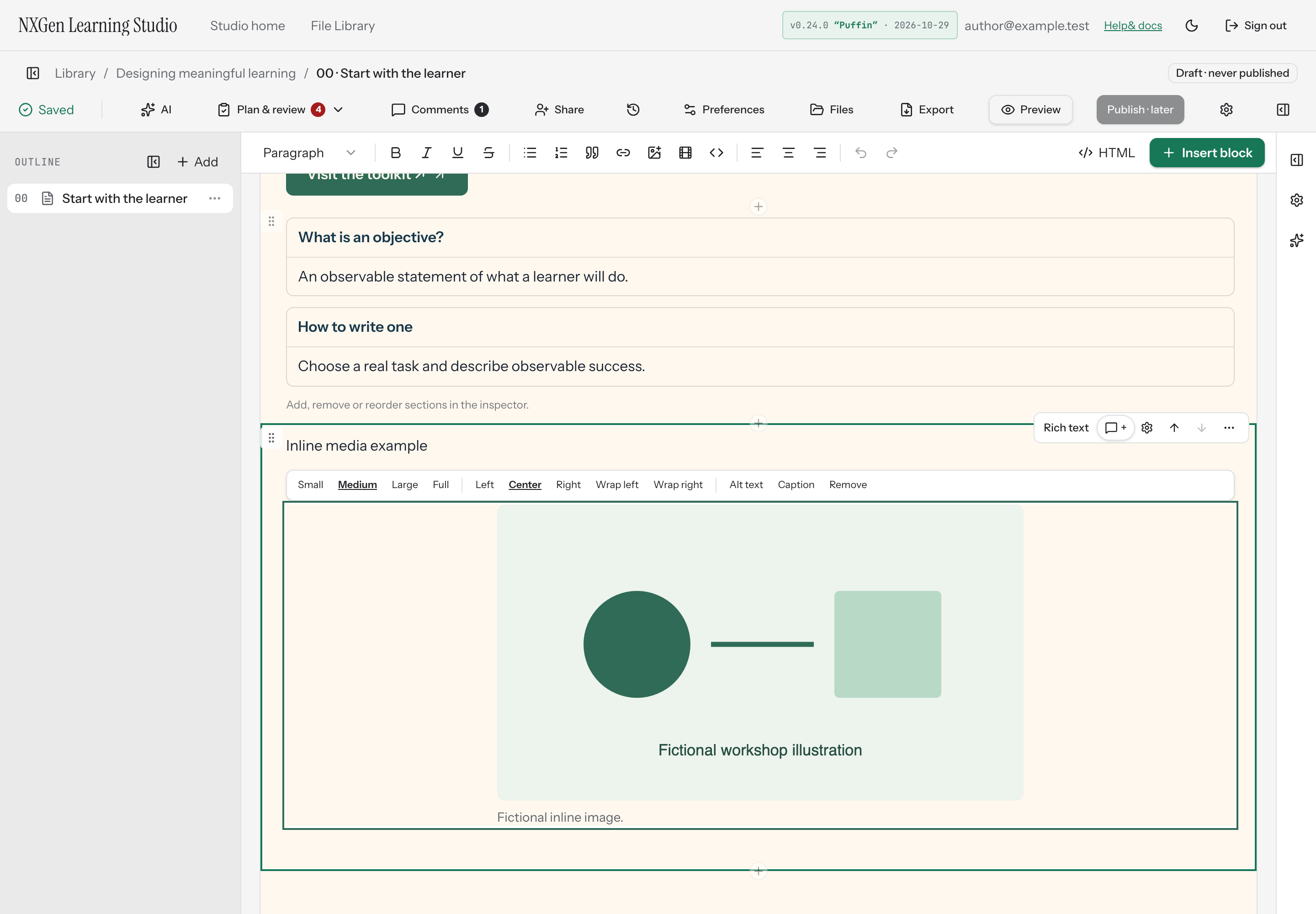
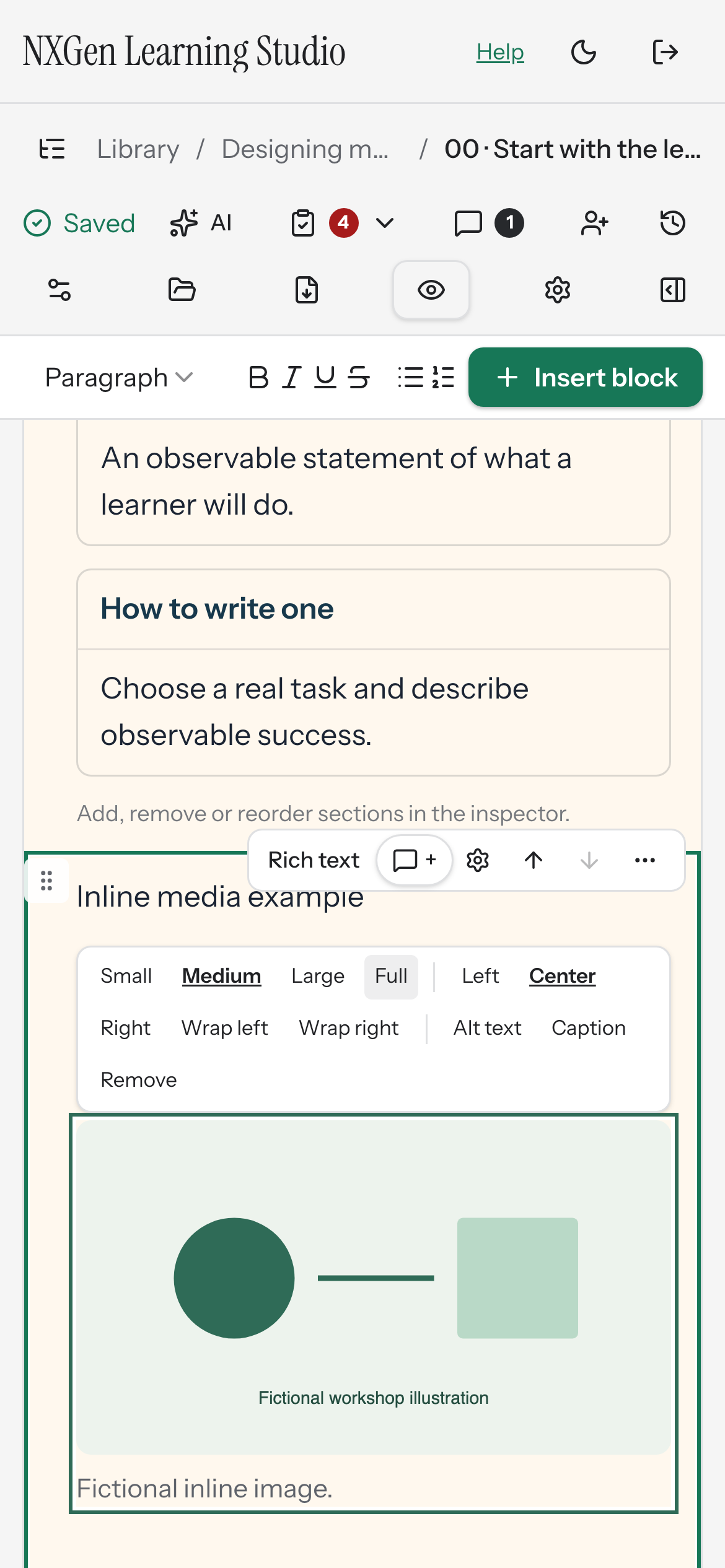
Section titled “Edit inline media in rich text”Inline images and videos appear inside rich-text blocks, callouts, quotes, and panel items. Selecting an inline image or video in the editor displays an options toolbar directly above it.
How to use it
Section titled “How to use it”- Select an inline image or video in a rich-text block. You can move the text cursor to the media with the arrow keys. When the media is selected, the editor highlights it with a ring and shows the options toolbar.
- Use the toolbar buttons to adjust the media:
- Size: choose Small, Medium, Large, or Full.
- Alignment: choose Left, Center, or Right (sets alignment with no text wrapping).
- Wrap (images only): choose Wrap left or Wrap right to float the image beside the text. Wrapping automatically reduces Full-size images to Small.
- Alt text (images only): opens a prompt to set alternative text. Leave empty for decorative images.
- Caption: opens a prompt to set a caption displayed under the media.
- Remove: deletes the inline media from the rich text.
- Changes apply immediately and are saved with your document.
To insert an existing private image or video, use Insert image or Insert video in the text formatting toolbar, then Choose existing file. Course Files contains files uploaded or linked to this course; Files Library contains all files in your account. Inline images also support device uploads or external HTTPS URLs. Inline videos also support YouTube, Vimeo, Loom, or native HTTPS file URLs. Both inline images and videos are draggable within the rich-text editor.
Availability and limits
Section titled “Availability and limits”Inline media editing is available only when the rich-text editor is in editable mode (the editor canvas). Learners see the rendered media without any toolbar. Text wrapping is available for inline images but not inline videos. The size, alignment, wrap, alt text, caption, and remove controls are the only inline editing affordances; uploading or replacing the underlying media file is done through the block inspector for standalone media blocks, not through the inline toolbar.