Learning Studio / features
Reveal the active page in the outline
Open the outline and scroll to the page you're currently editing.
Reveal the active page in the outline
Section titled “Reveal the active page in the outline”When you’re editing a long course, the page you’re working on can scroll out of view in the outline. Use Reveal active page to bring it back into sight.
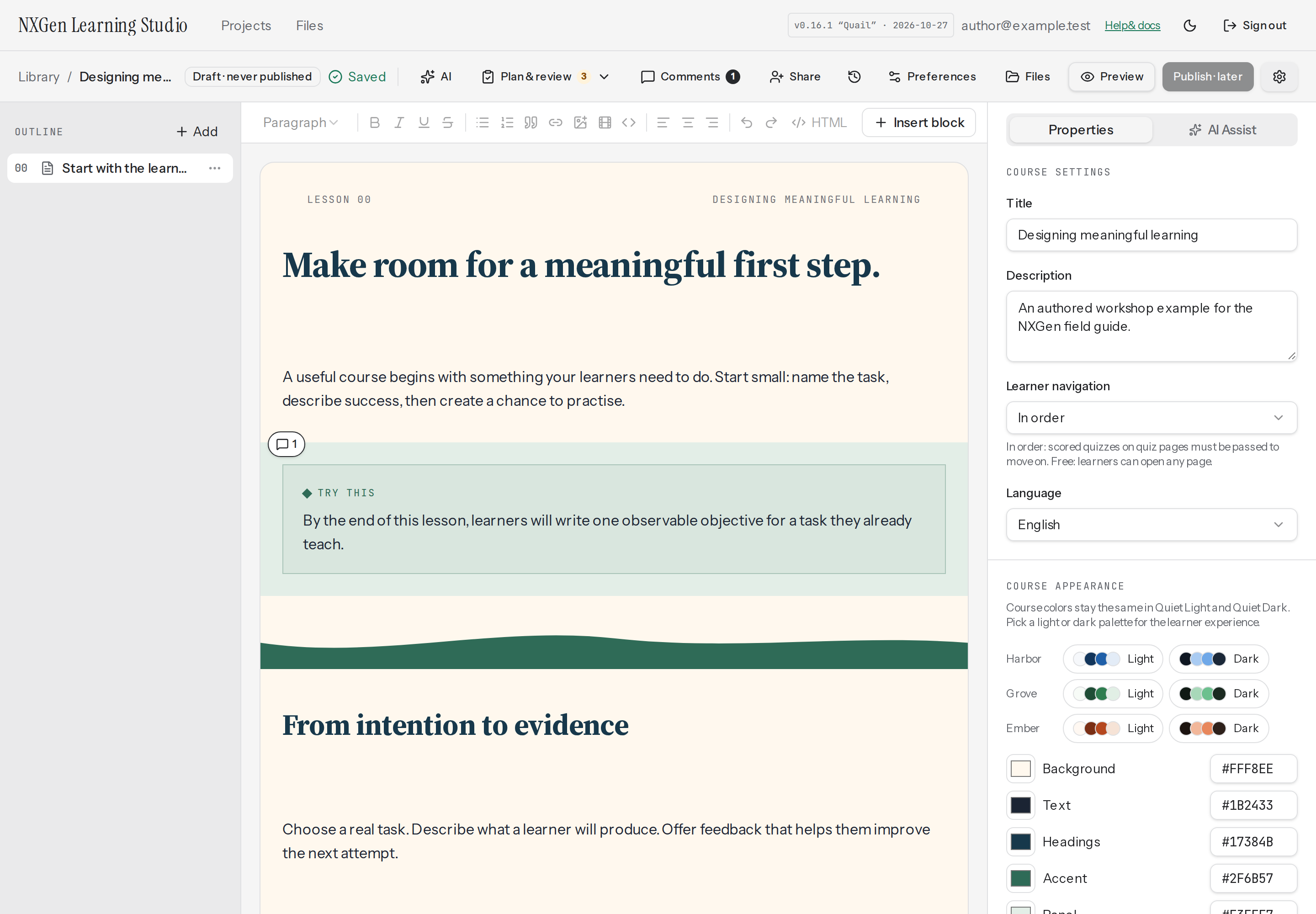
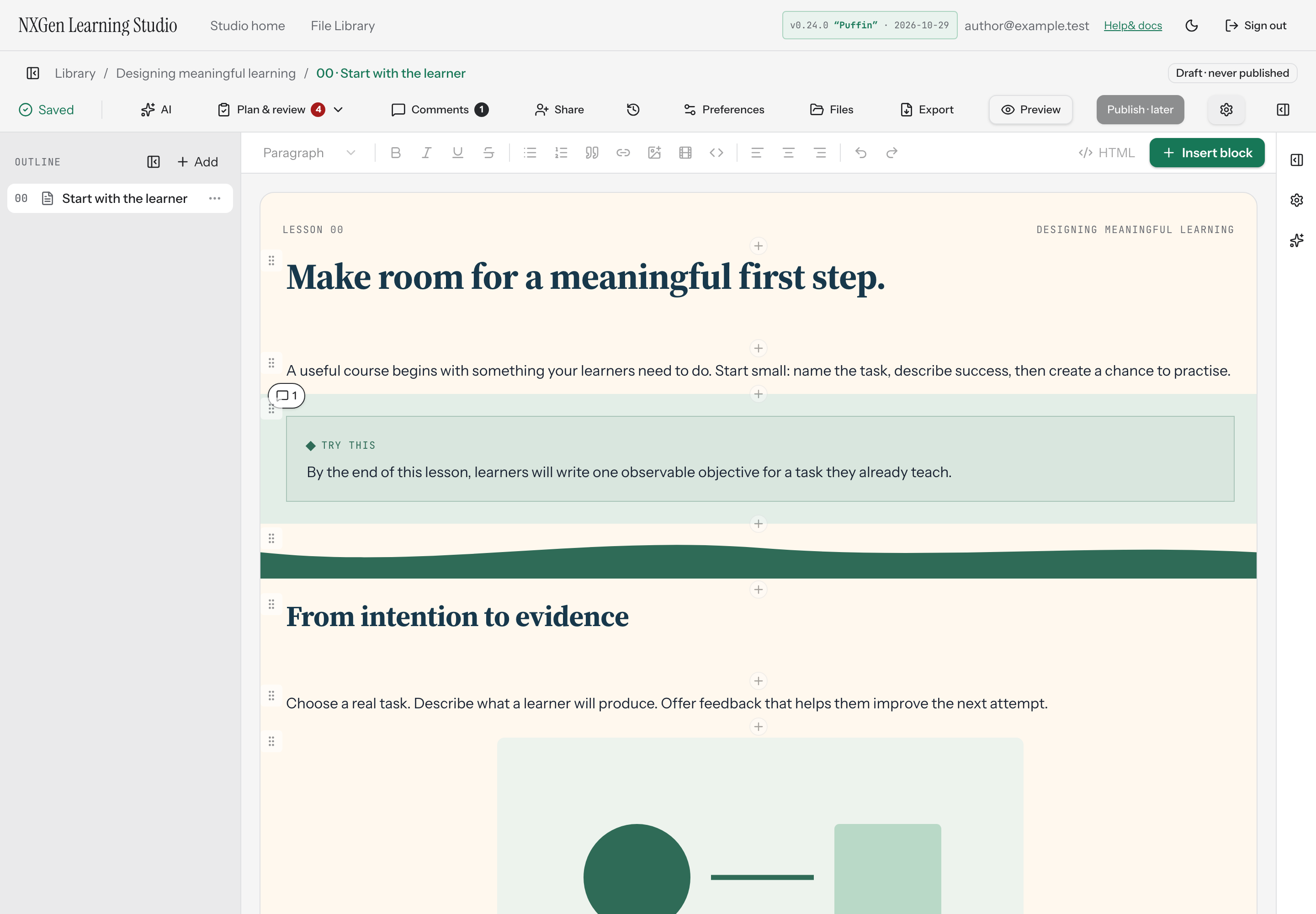
The page label in the breadcrumb bar doubles as a button. Click it to open the outline (if collapsed) and scroll the outline to the page you’re currently editing. This is the quickest way to reorient yourself when you’ve navigated deep into a course.
How to use it
Section titled “How to use it”- In the editor toolbar, find the breadcrumb showing your course title and current page label.
- Click the page label. The outline opens if it was closed, and the active page scrolls into view.
- The active page is highlighted in the outline so you can confirm which page you’re on.
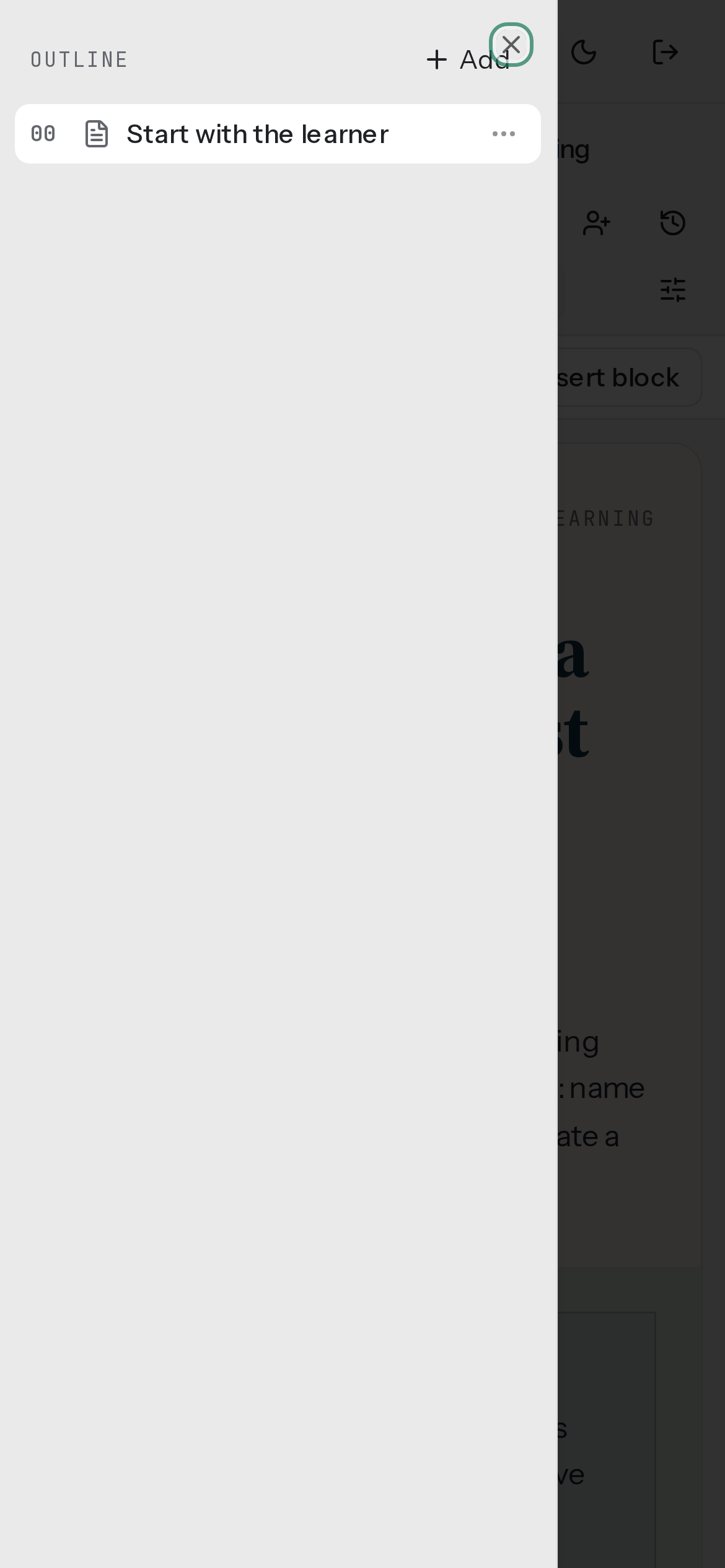
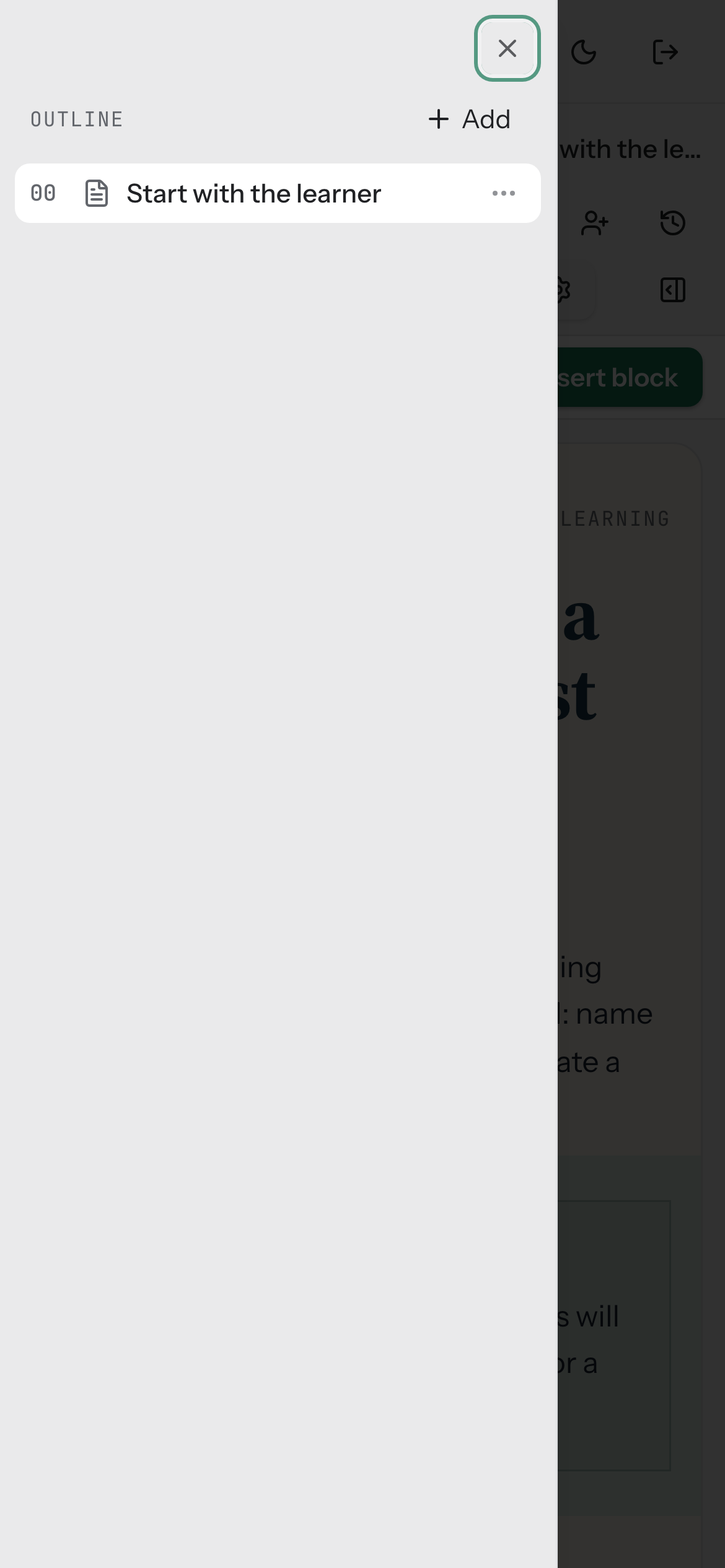
On mobile, tapping the page label opens the outline as a sheet and scrolls to the active page. Closing the sheet returns you to the canvas.
Availability and limits
Section titled “Availability and limits”Reveal active page is available wherever the editor breadcrumb is shown. It works on both desktop and mobile layouts. On desktop, opening the outline via this action also persists the outline as expanded; closing it separately persists the collapsed state. On mobile, the outline opens as a temporary sheet and does not change your desktop outline preference.