Learning Studio / features
Manage workspace items and folders
Use validated, idempotent operations to create, rename, duplicate, archive, and delete courses, and manage folders and private labels.
How workspace operations work
Section titled “How workspace operations work”Workspace operations let you manage courses and folders in your course library. Each operation — creating, renaming, duplicating, archiving, deleting, or moving a course, and creating, renaming, or deleting a folder — goes through a single validated, idempotent path. Operations carry an idempotency key so that retrying with the same key replays the original result instead of applying the change a second time.
Every operation is validated before it is applied. If a course or folder no longer exists, the operation returns a not_found status. If a locked sample course is targeted for archiving or deletion, the operation returns a locked status with a message explaining why it was refused.
How to use it
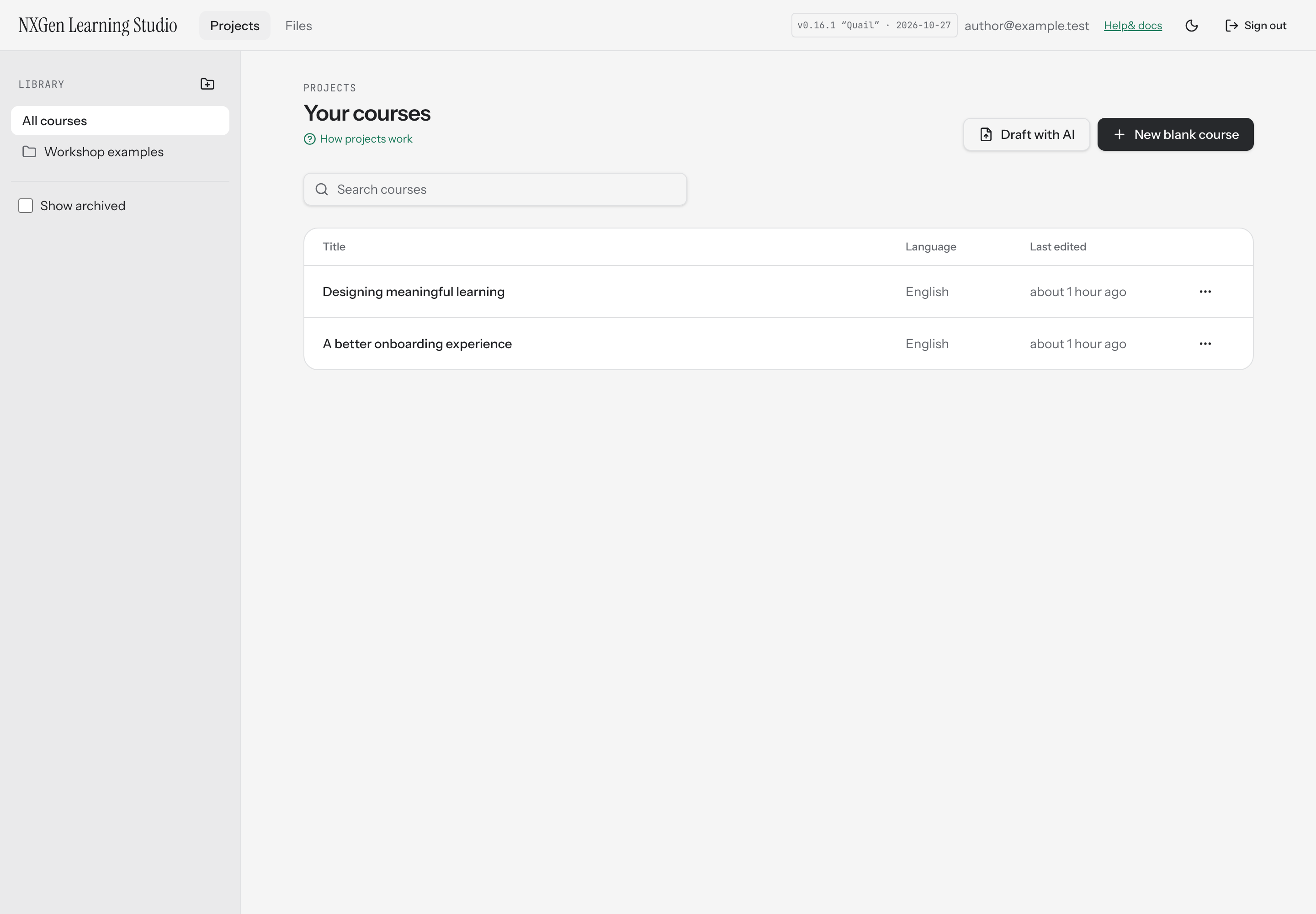
Section titled “How to use it”From Studio home, you can:
- Create a course — choose Create course, enter a title, and select Create and open to start editing immediately.
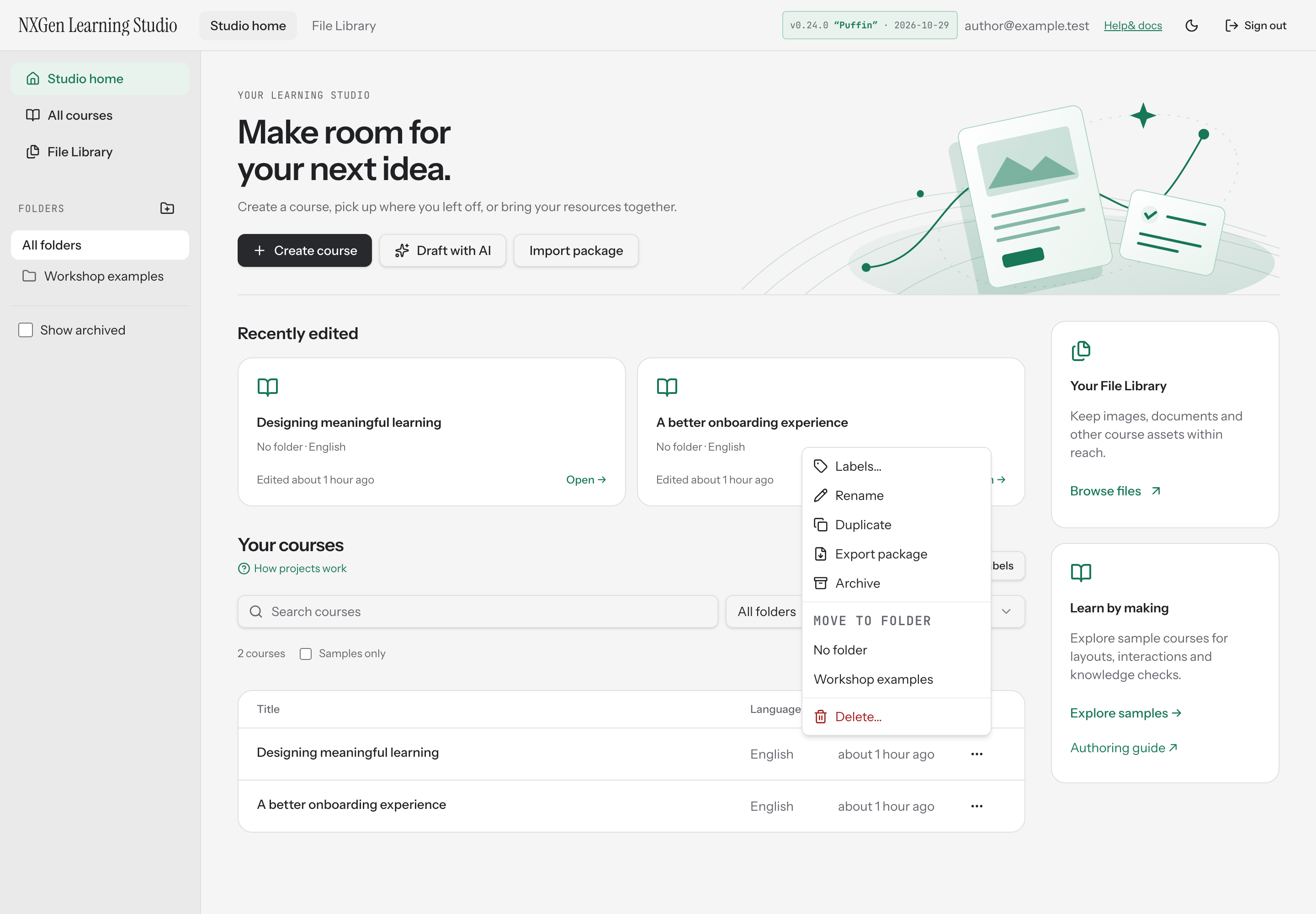
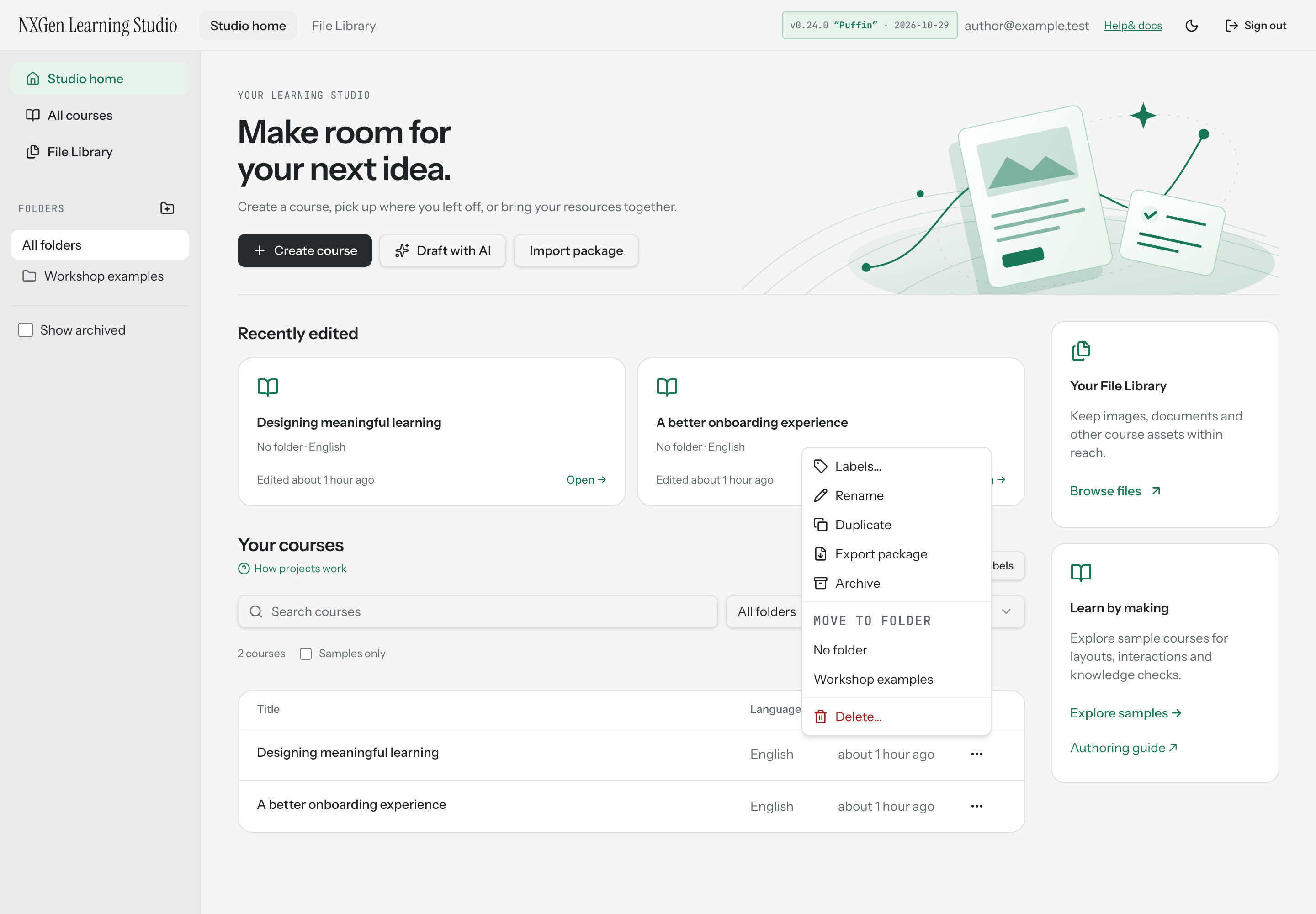
- Rename a course — open the actions menu for a course and choose Rename.
- Duplicate a course — open the actions menu and choose Duplicate. The copy is created with “(copy)” appended to the title.
- Archive or restore a course — open the actions menu and choose Archive or Restore. Archived courses are hidden from the main list; they are not deleted. Use Show archived in the sidebar to view them.
- Move a course to a folder — open the actions menu and choose a folder from the Move to folder section, or select No folder to move it to the top level.
- Delete a course — open the actions menu and choose Delete…, then confirm. Deletion is permanent and removes the course, its pages, and its history. Archive instead if you might need the course later.
- Create a folder — choose the folder icon in the sidebar, enter a name, and save.
- Manage folders — folders organize your courses. Deleting a folder moves its courses to the top level; the courses themselves are not deleted.
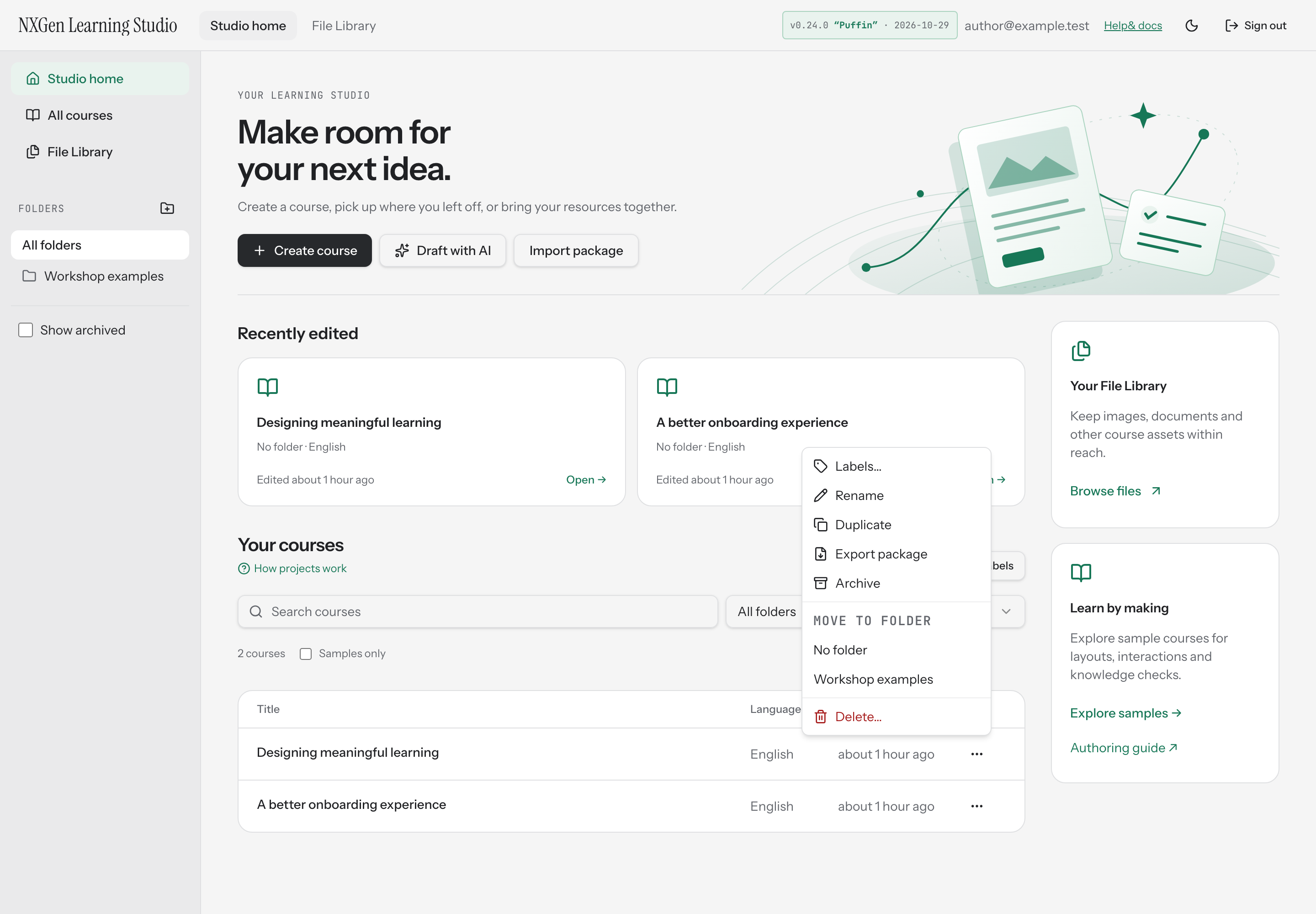
Labels
Section titled “Labels”Manage labels creates, renames, and deletes your private labels. A course’s Labels… action adds or removes assignments. These operations use the same retry-safe workspace path. They do not edit course content, create a course version, or change its last-edited time. See Find and organize your courses for the steps and privacy boundaries.
Availability and limits
Section titled “Availability and limits”Workspace operations are available to authenticated users for courses they own. Courses shared with you for review are listed separately and cannot be modified through these operations.
Built-in sample courses carry a locked shell marker. Their pages are editable, but the sample course itself cannot be archived or deleted. The actions menu reflects this: archive and delete options are replaced with a note that the sample is locked.
Folder names can be up to 120 characters. Course titles can be up to 200 characters. Idempotency keys must be 8–100 characters.
Safely retry an uncertain workspace operation
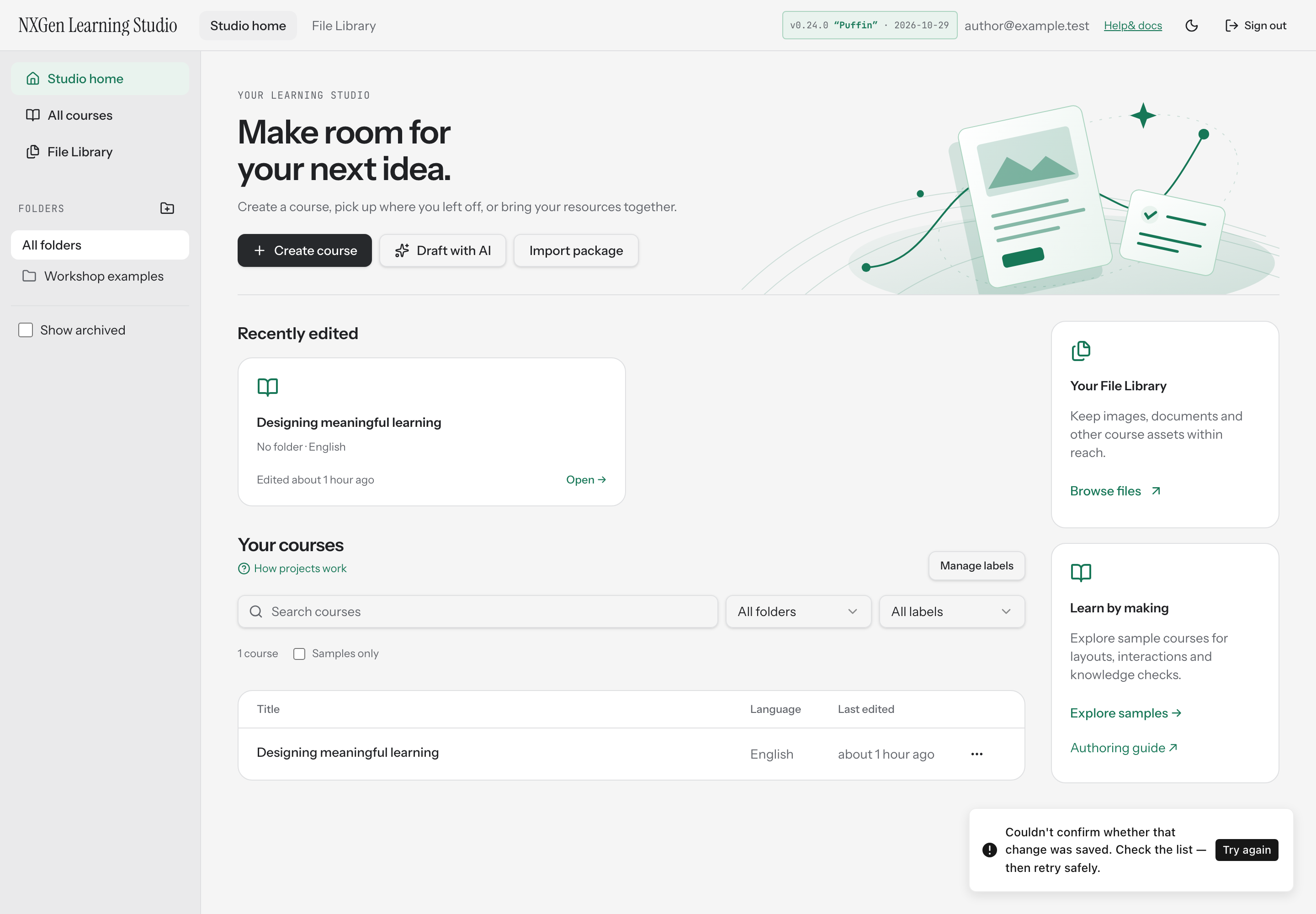
Section titled “Safely retry an uncertain workspace operation”If a workspace operation can’t be confirmed — for example, because of a network error — NXGen tells you what happened and offers a safe retry. The retry reuses the same idempotency key and the same frozen operation payload, so the server replays the original result rather than applying the change twice.
When you see the message “Couldn’t confirm whether that change was saved. Check the list — then retry safely.”, review your course list to see whether the change already took effect. If it did, no further action is needed. If it didn’t, choose Try again to retry safely with the same key.