Learning Studio / features
View contextual help in the inspector
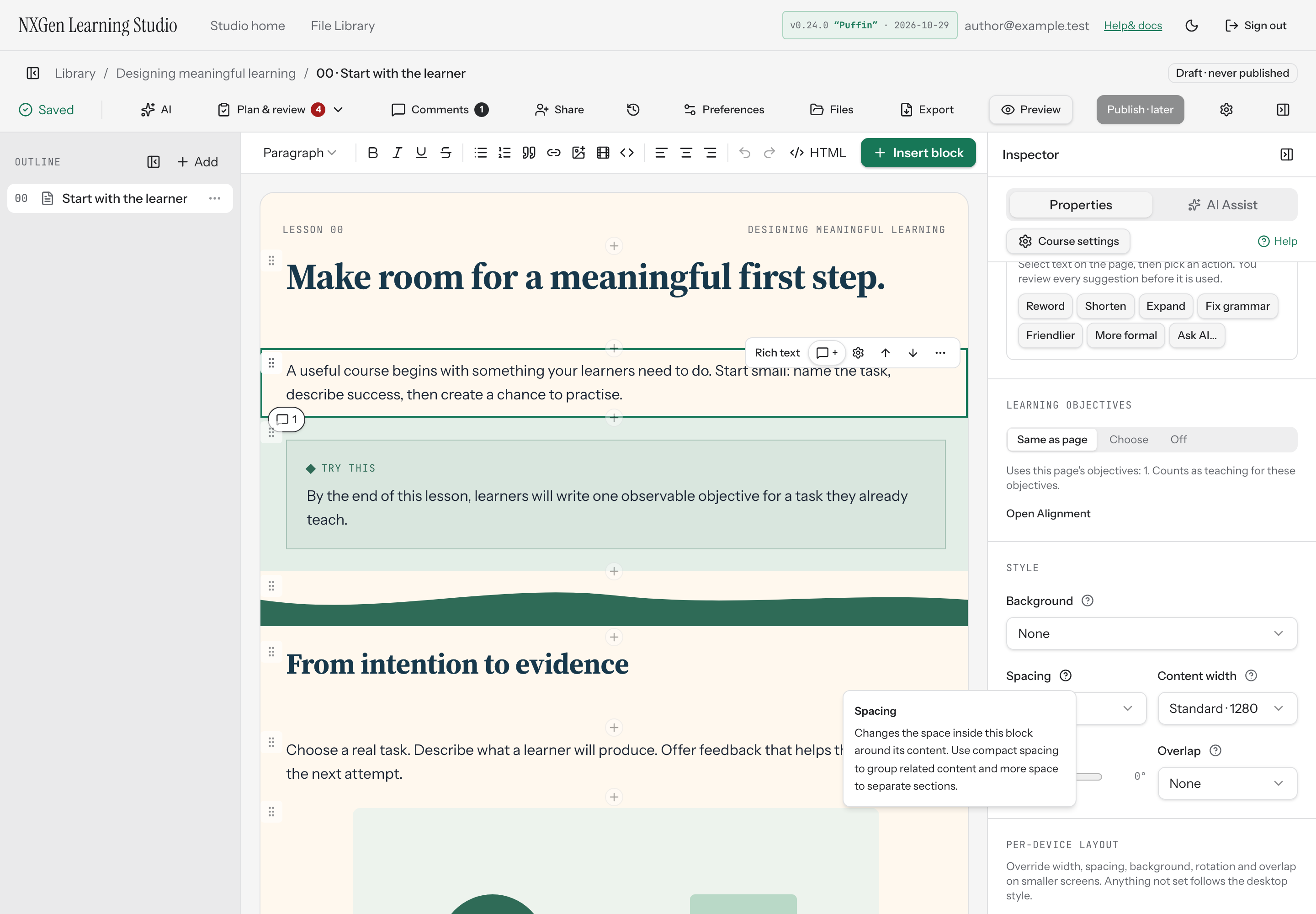
Hover or focus a help icon next to an inspector field label to read a short explanation, or click it to pin the help popover open.
View contextual help in the inspector
Section titled “View contextual help in the inspector”When a field in the inspector has a help icon next to its label, hover or focus the icon to read a short explanation in a tooltip. Click or tap the icon to pin the help popover open so you can read it at your own pace.
How to use it
Section titled “How to use it”- Select a block, section, or course in the canvas to open its properties in the inspector.
- Look for a help icon next to any field label that has one.
- Hover or keyboard-focus the icon to see a brief tooltip.
- Click or tap the icon to pin a popover open with the same explanation.
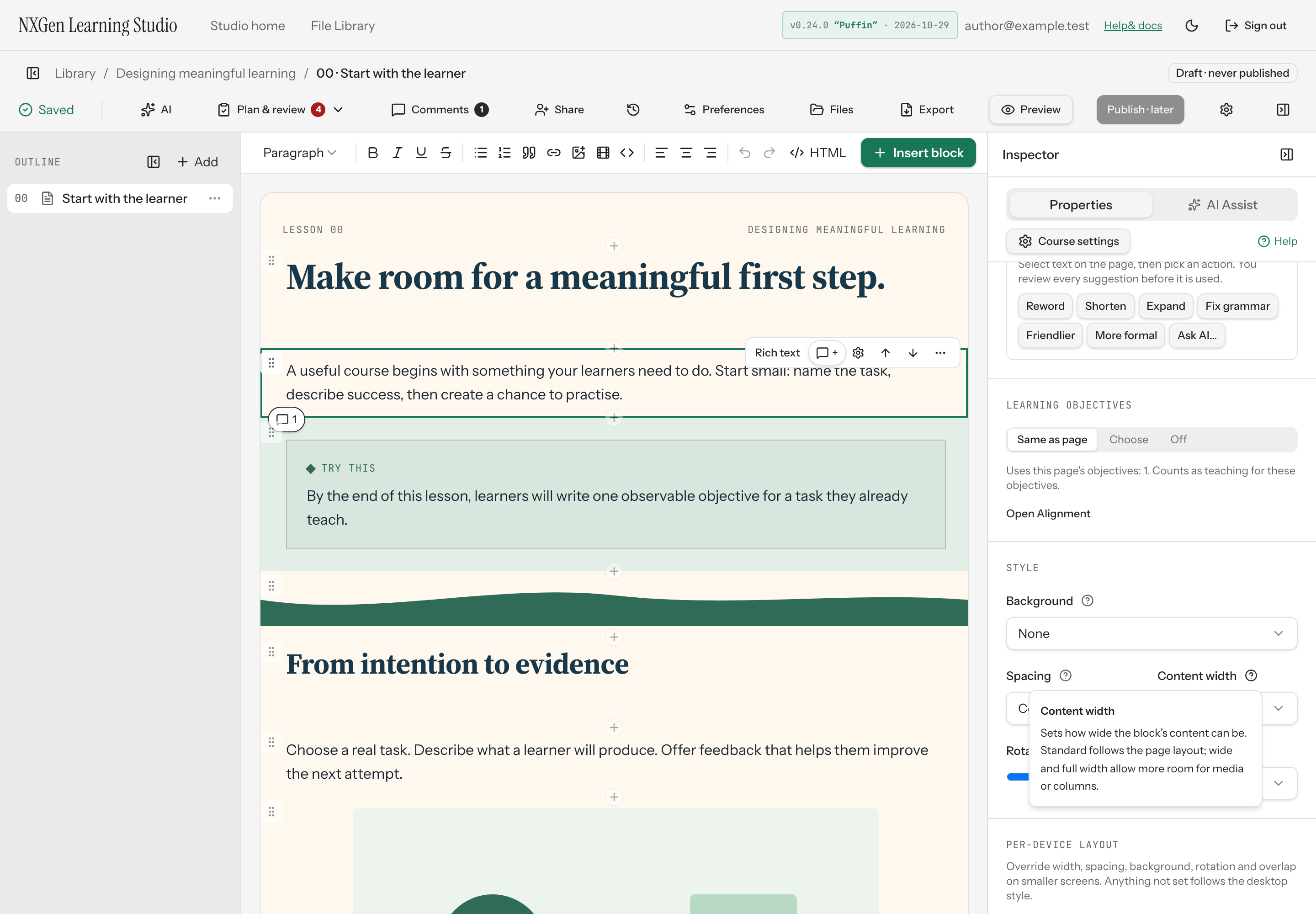
Not every field has a help icon. Fields with built-in explanations include Background, Spacing, Content width, Rotation, Overlap, Size, Alignment, Fit, and Column widths. Fields with a hint below the control also provide that explanation through the help icon.
Availability and limits
Section titled “Availability and limits”Contextual help is available in the inspector for fields that have predefined explanations. The tooltip appears after a short delay and closes when you move away. The pinned popover stays open until you click or tap elsewhere. Both the tooltip and popover adjust their position to fit the available space, which is useful on smaller screens where the inspector has limited room.