Learning Studio / features
Navigate the formatting toolbar by keyboard
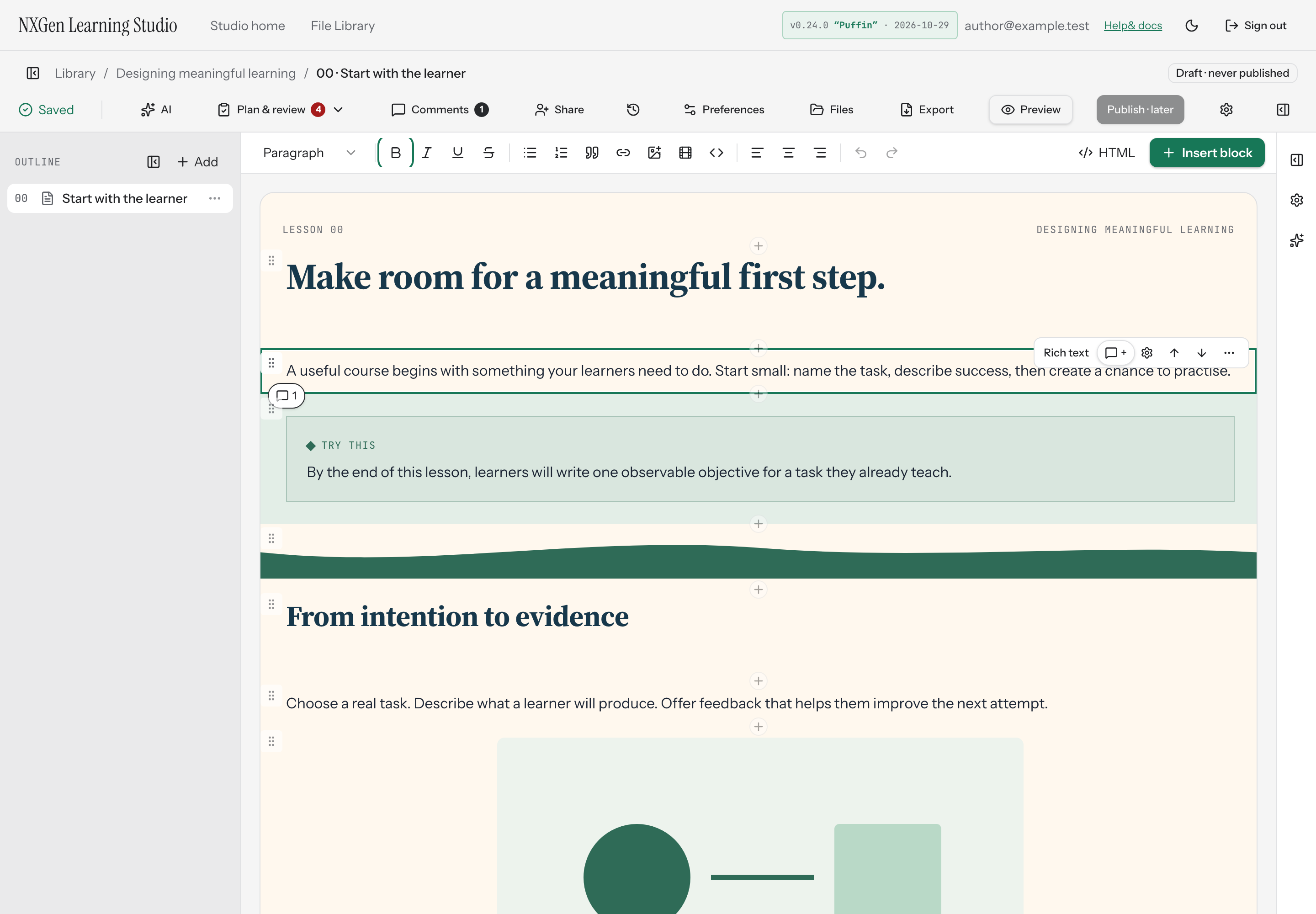
Move between enabled toolbar controls with a single Tab stop, then use Arrow Left/Right, Home, and End.
Move through the formatting toolbar without leaving the keyboard
Section titled “Move through the formatting toolbar without leaving the keyboard”The text formatting toolbar is a single Tab stop. Once you Tab to it, you can move between enabled controls with Arrow Left and Arrow Right, or jump to the first or last control with Home or End.
How to use it
Section titled “How to use it”- While editing a rich-text block, press Tab until focus lands on the formatting toolbar.
- Press Arrow Left or Arrow Right to move between enabled controls. Arrow movement wraps around from the last control back to the first, and vice versa.
- Press Home to jump to the first enabled control, or End to jump to the last.
- Press Enter or Space to activate the focused control.
Disabled controls are skipped automatically, so arrow keys only land on controls you can act on.
Availability and limits
Section titled “Availability and limits”- Keyboard navigation applies to enabled buttons and the paragraph-style selector on the formatting toolbar.
- The toolbar receives focus as one Tab stop; individual controls do not each require a separate Tab press.
- If you open a popover form, such as the link or image dialog, text-editing keys work normally and are not intercepted by toolbar navigation.
- When no editor is active, formatting controls are disabled and cannot be reached by arrow keys.