Learning Studio / features
Hide or show a block from learners
Temporarily hide a block from learners while keeping it in your course.
Hide or show a block from learners
Section titled “Hide or show a block from learners”Sometimes you want to keep a block in your course but not show it to learners yet — for example, content you’re still drafting or a section you want to hold back for a later release. You can toggle a block’s visibility without deleting it.
How to use it
Section titled “How to use it”- Select the block on the canvas.
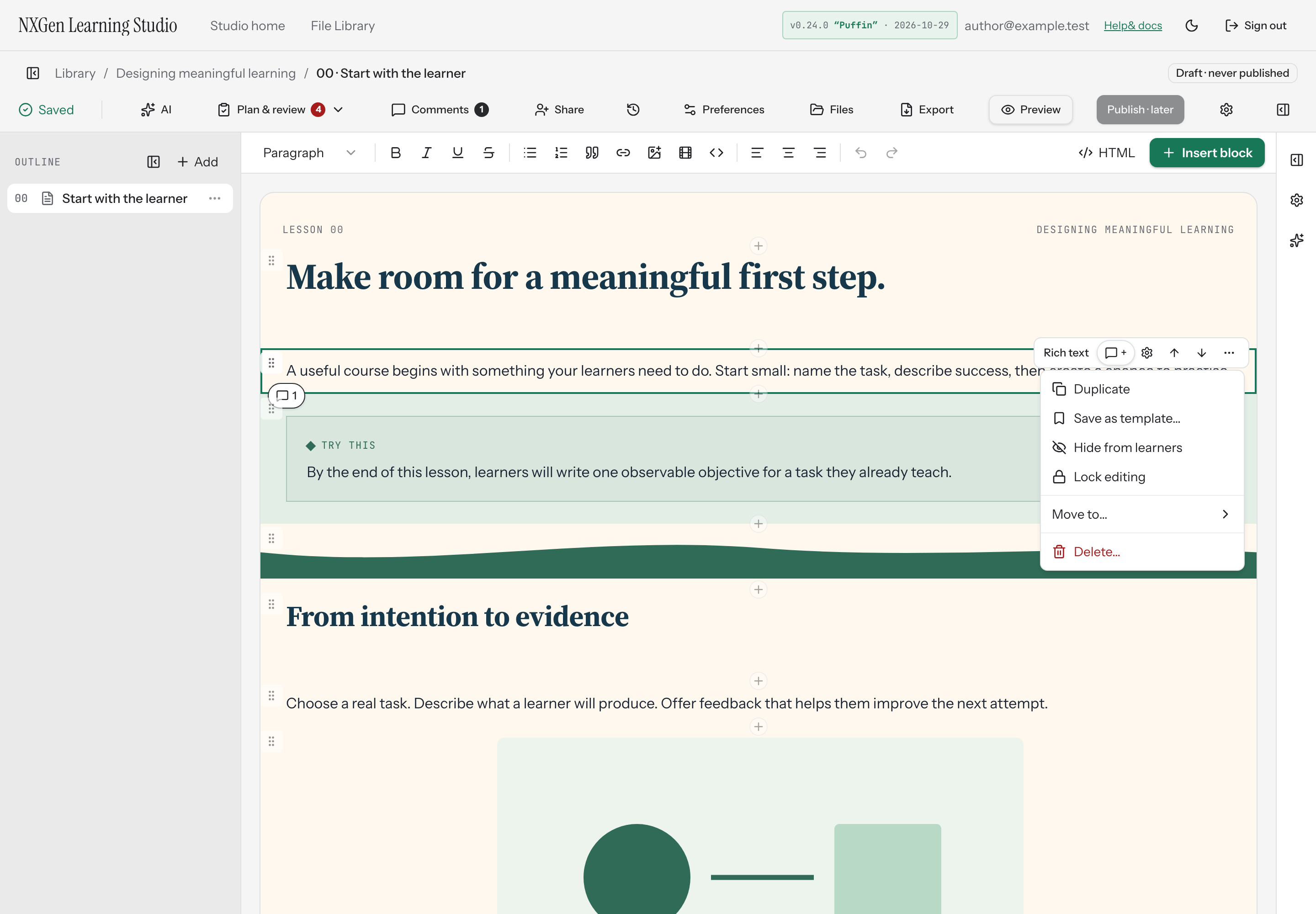
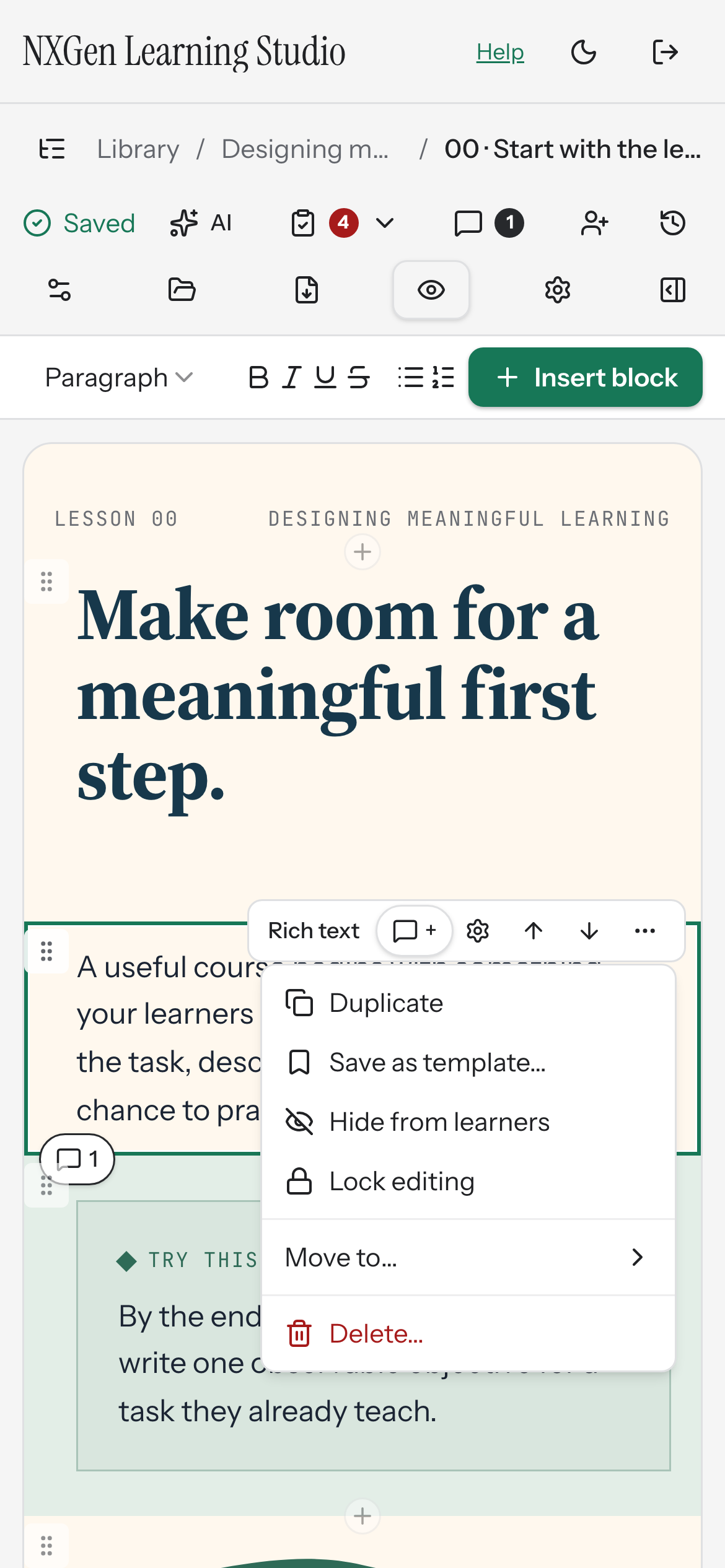
- Open the more actions menu (the ⋯ button in the block toolbar).
- Choose Hide from learners. A persistent Hidden from learners banner and dashed border mark the block on the canvas. Its content stays readable while you edit.
- To show the block again, open the same menu and choose Show to learners.
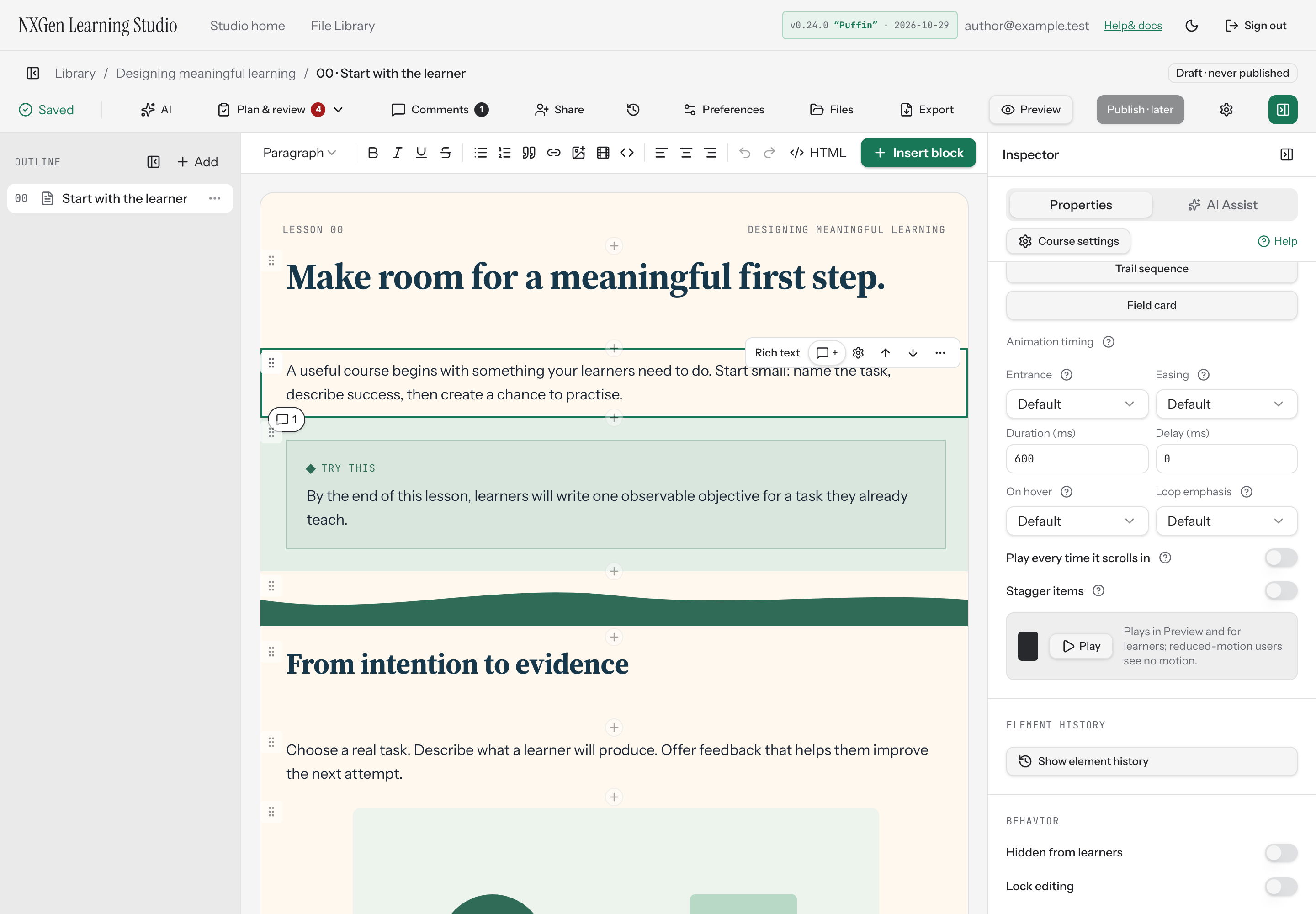
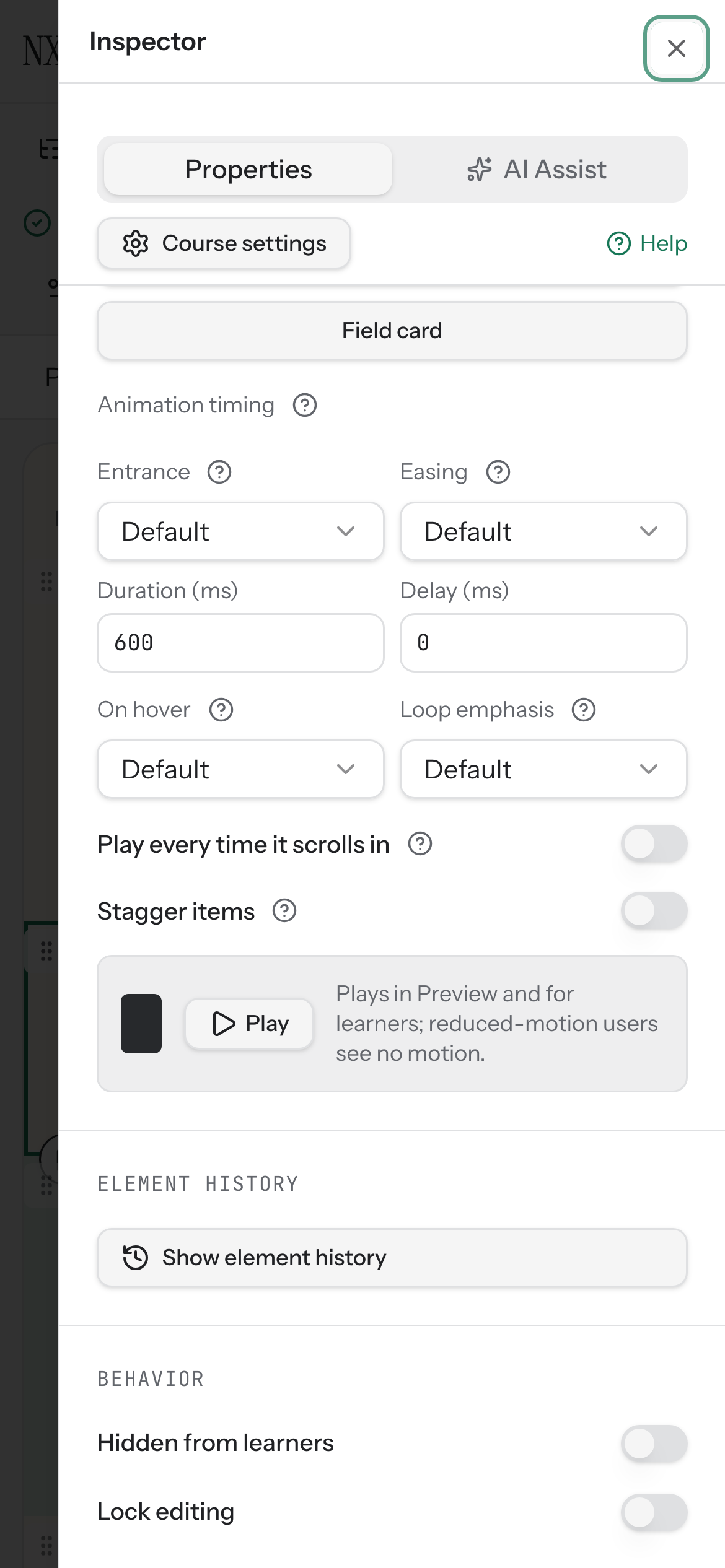
You can also toggle visibility from the Inspector. With the block selected, go to the Behavior group and use the Hidden from learners switch.
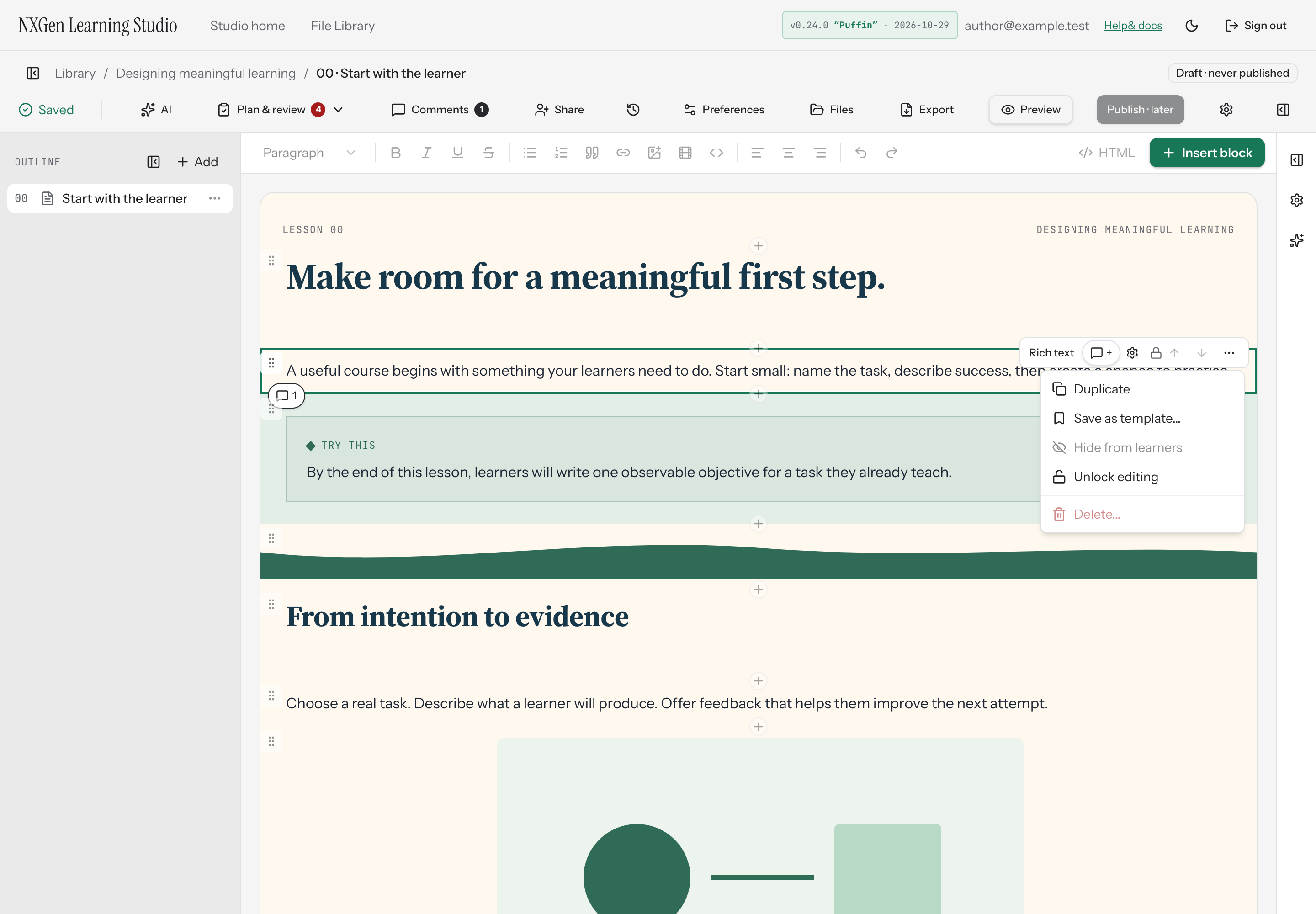
If a block is locked, the Hide from learners menu item is disabled. Unlock the block first to change its visibility.
Availability and limits
Section titled “Availability and limits”- Hidden blocks stay in your course structure and remain visible to you in the editor — they’re just kept from learners.
- Locking a block prevents the visibility toggle from being used until the block is unlocked.
- Toggling visibility is a manual author action. There is no automatic scheduling or date-based release for hidden blocks.