Learning Studio / features
Use the Learning Design workspace
Plan, write objectives, and check alignment in one full-screen workspace.
Learning Design brings course planning together in one full-screen workspace. Use it to plan pages with a blueprint, write and classify objectives, and check that each objective is taught and assessed.
Open the workspace
Section titled “Open the workspace”- In the studio, open Plan & review in the toolbar.
- Under Learning Design, choose Blueprint, Goals & objectives, or Alignment.
The workspace opens on the tab you chose, and you can switch tabs at any time. In Course settings, the Learning objectives group also has Goals & objectives and Alignment links that open the workspace.
The open tab is part of the page address, such as ?design=goals, ?design=blueprint, or ?design=alignment. Refreshing the page or sharing that link with someone who can open the course keeps the same tab open.
Read the header
Section titled “Read the header”The header shows the course title and a coverage summary:
- The number of objectives.
- How many objectives are fully covered, meaning taught and assessed.
- The number of alignment gaps. Choose the gaps chip to open Alignment showing only rows with gaps. When nothing is missing, the chip reads No gaps and is disabled.
Undo and Redo in the header work on your course edits while the workspace is open.
What each tab is for
Section titled “What each tab is for”- Blueprint plans the brief and the page sequence, then builds the pages. See Plan before you build.
- Goals & objectives holds the course goal, the audience, and the objective list. Select an objective to edit its wording, set its framework levels, and see where it is Taught on, Practiced in, and Assessed by.
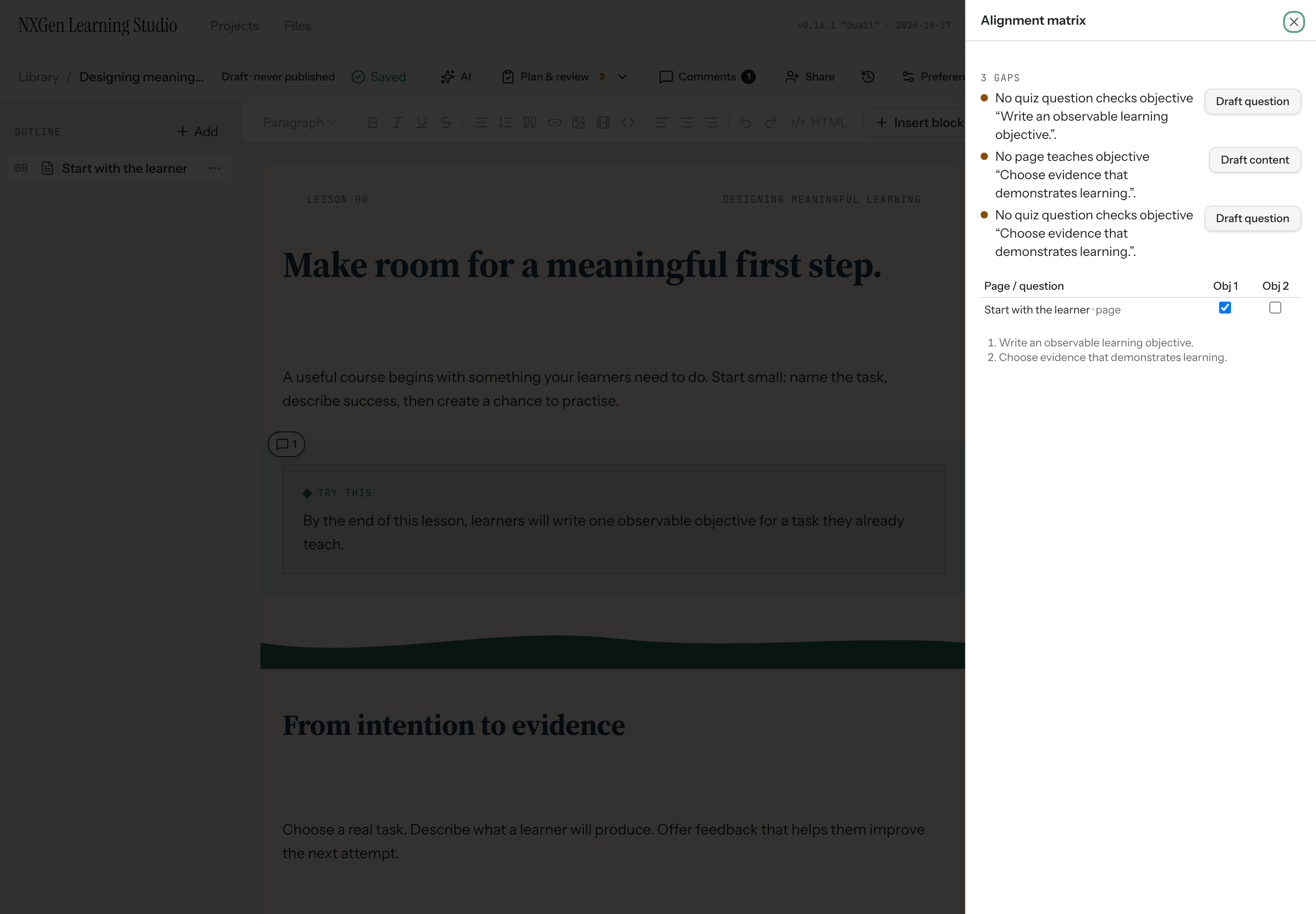
- Alignment shows a matrix of pages, blocks, and questions against objectives, with a gap list beside it. See Connect objectives to evidence.
On a phone, Goals & objectives shows the objective list first; choose an objective to open its details and All objectives to go back. Alignment shows one expandable card per objective instead of the matrix.
Move between the workspace and the canvas
Section titled “Move between the workspace and the canvas”When you choose Open, Open page, or Open question, the workspace closes and the canvas shows that page or question. A banner reads “You jumped to the canvas from Learning Design” and names the tab. Choose Back to Learning Design to return to that tab, or Dismiss to hide the banner.
A blueprint build or an AI gap suggestion keeps running if you close the workspace or switch tabs. The result waits for you when you come back.
Use coverage as a starting point
Section titled “Use coverage as a starting point”Coverage is structural: it shows what is linked, not whether learners have mastered it. Use the gaps to decide where to look, then read the linked pages and questions to judge whether they teach and check what the objective describes.