Learning Studio / features
Configure copy-prompt blocks
Set the title, prompt text, and optional note for a copy-prompt block.
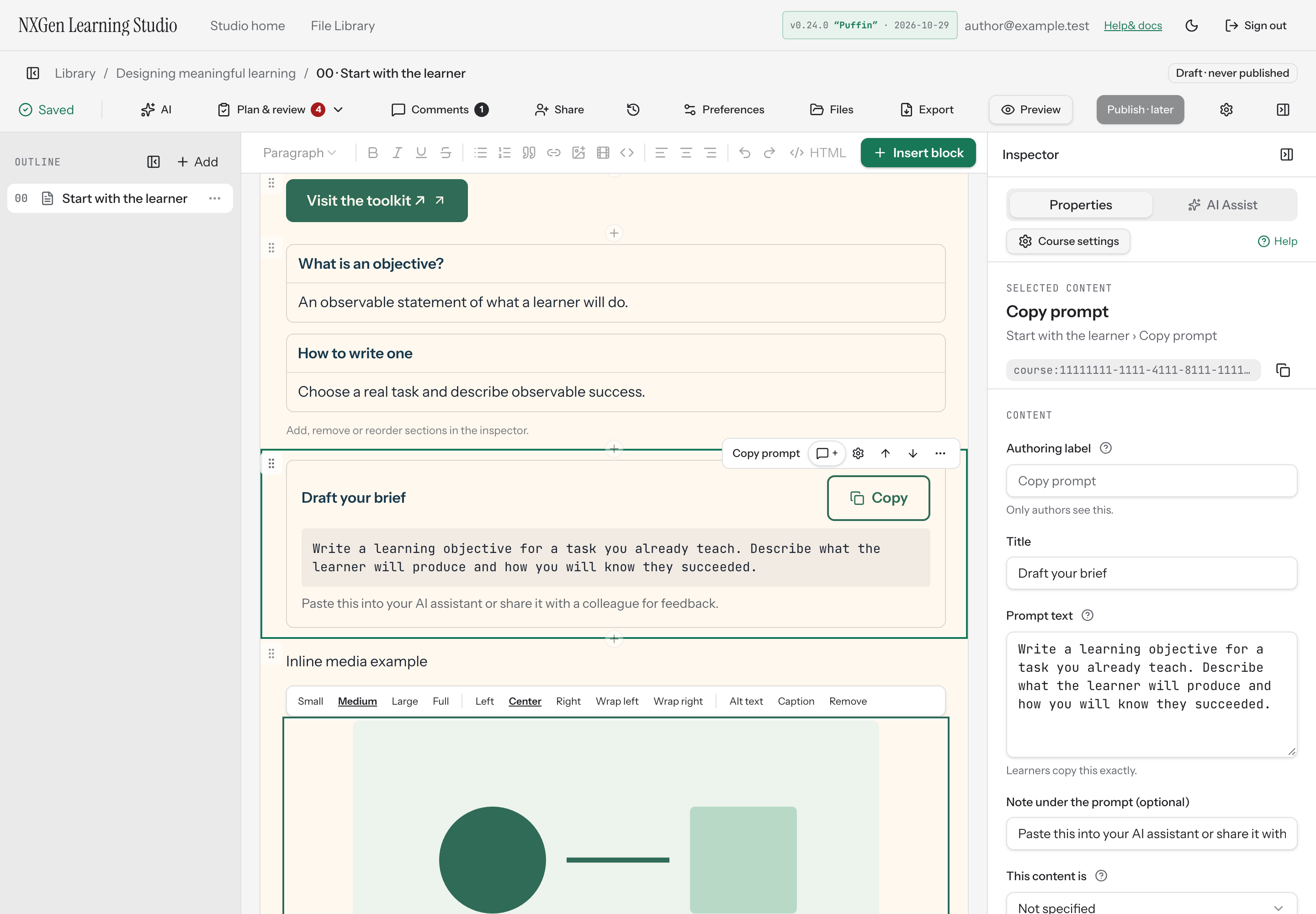
Configure a copy-prompt block
Section titled “Configure a copy-prompt block”A copy-prompt block gives learners a ready-to-copy prompt or snippet with a Copy button. Use it when you want learners to paste an exact prompt into another tool.
To add one, open the Insert block menu on a page and choose Copy prompt from the Interactive group.
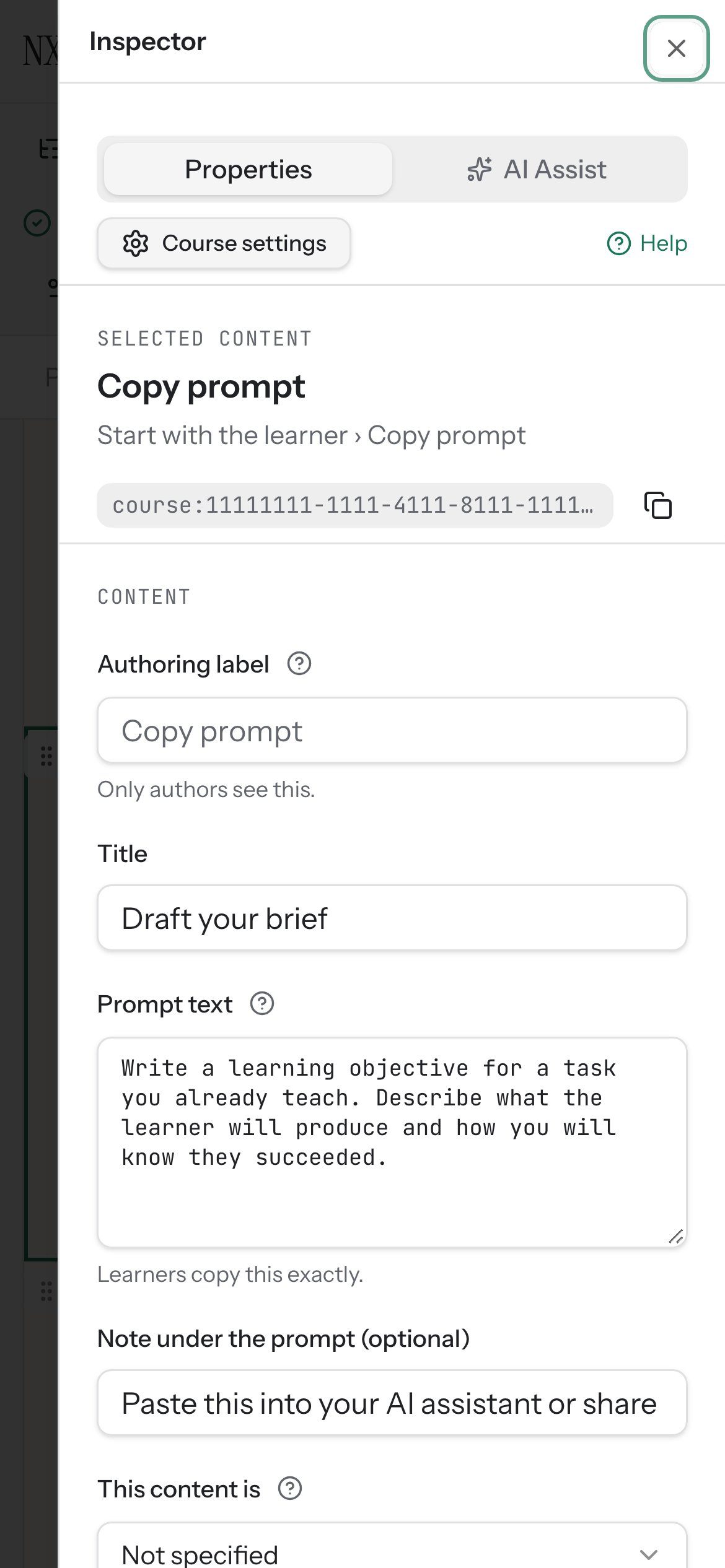
Select the block on the canvas, then use the Properties panel to configure it:
- Set a Title. This is the heading learners see above the prompt. The title is limited to 120 characters.
- Write the Prompt text. Learners copy this exactly, so check it for accuracy. The text is limited to 8,000 characters.
- Optionally add a Note under the prompt (optional) for extra context or instructions.
How learners use it
Section titled “How learners use it”Learners see the title, the prompt text in a monospace block, and a Copy button. When they press it, the prompt text is copied to their clipboard so they can paste it wherever they need it. The optional note appears below the prompt.
Availability and limits
Section titled “Availability and limits”- The title is limited to 120 characters.
- The prompt text is limited to 8,000 characters.
- The note has no character limit.
- The block never gates learner progress.