Learning Studio / features
Build a page with Aster
Start with a reading-focused composition, then choose a light or dark course appearance.
Aster gives you a ready-spaced starting page and an optional violet course appearance. Use Aster Cover to introduce a course or Aster Editorial for an explanation, worked example, and practice activity. Both contain editable sample content about writing useful AI briefs.
Add a starting page
Section titled “Add a starting page”- Open your course. In the outline, choose Add.
- Under Built-in, choose Aster Cover or Aster Editorial.
- Replace the sample headings, explanations, and activities with your content.
- Open Preview and check desktop, tablet, and phone sizes.
The new page uses ordinary blocks. Adding it leaves your existing pages, course colors, and fonts unchanged. The composition includes a maximum reading frame of 820 pixels, with narrower side padding on tablet and phone. Long content grows vertically; it isn’t cropped to a fixed page height.
Choose a light or dark appearance
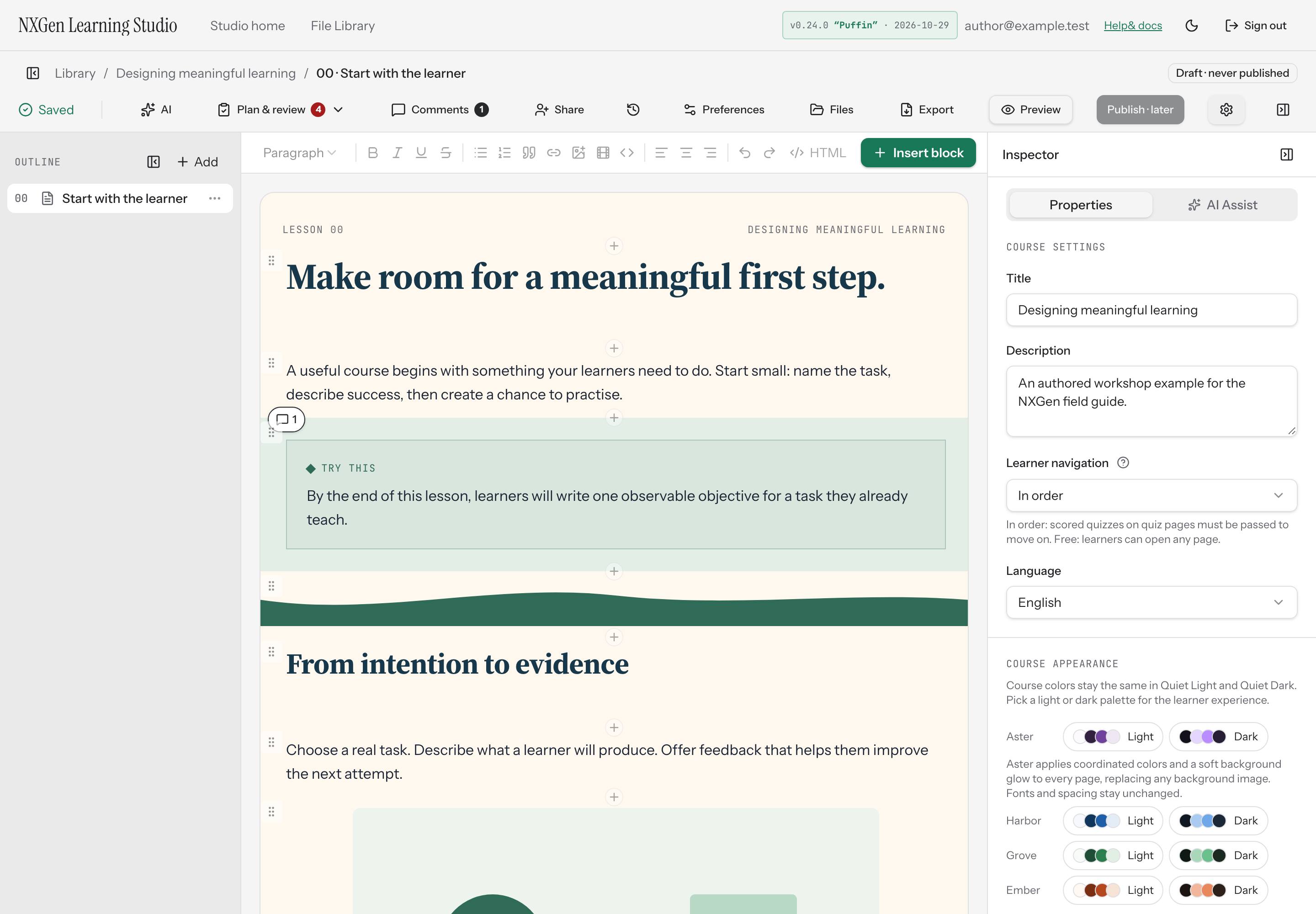
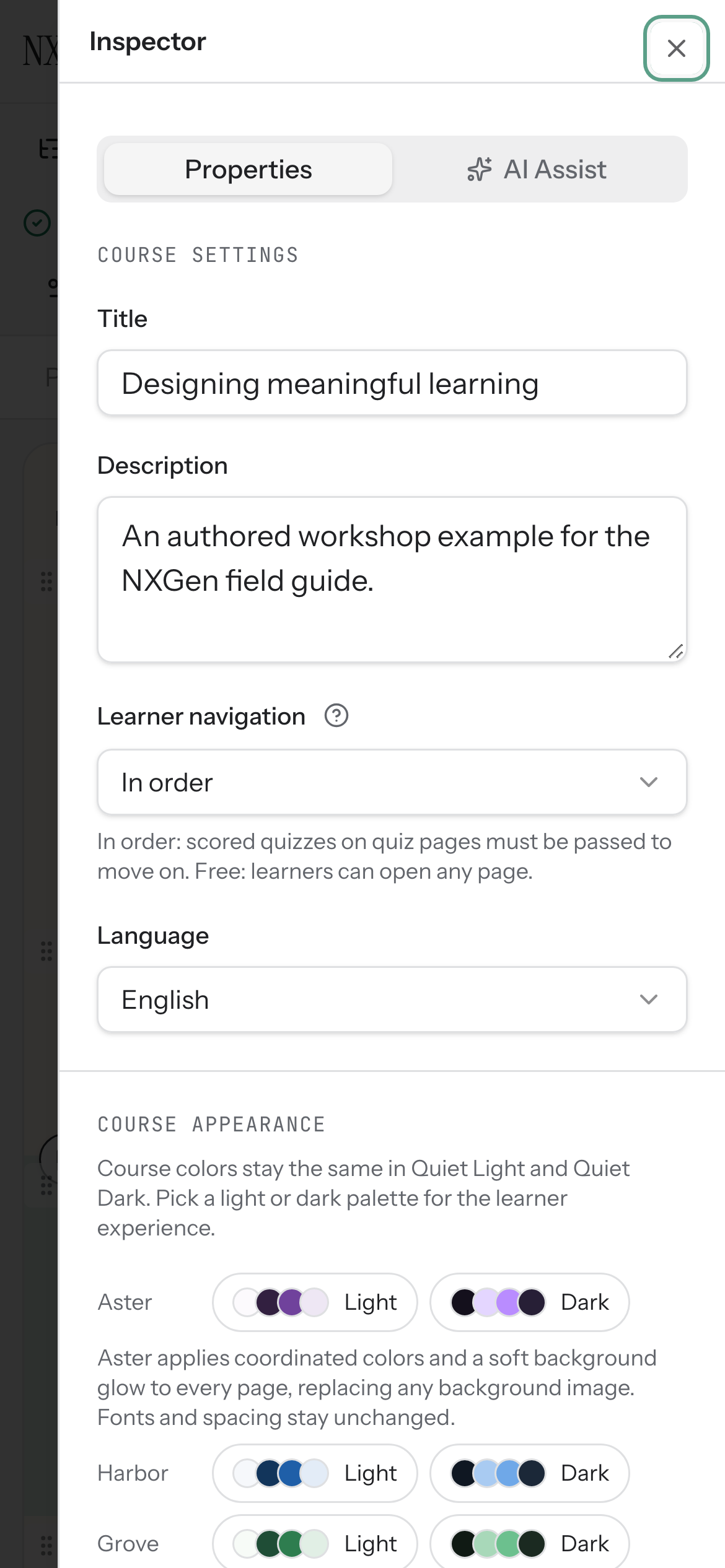
Section titled “Choose a light or dark appearance”Open Course settings, find Course appearance, then under the Aster row choose Light or Dark. Light combines a near-white lilac background with plum text and a violet accent; Dark uses a plum-black background with lighter violet accents. Both include a soft radial glow near the bottom of the page.
This changes colors and the background gradient across every page in the course, including pages you made without Aster. It replaces any course background image. Your fonts, widths, spacing, and device settings stay as they were. Use the editor’s undo command if you want to reverse the change.
Aster Light and Dark are author-selected course appearances. They don’t switch automatically with the learner’s device, and changing the app’s Quiet Light/Dark preference doesn’t recolor your course.
Adjust the glow or spacing
Section titled “Adjust the glow or spacing”For the glow alone, open Page layout → Background gradient and choose Aster Light halo or Aster Dark halo. None removes the gradient without changing the course colors. When combining a gradient with your own palette, check that text and links remain easy to read. Saved brand palettes store colors, not the gradient.
Select a block to adjust it in the existing Properties pane. For exact maximum width, padding, and typography, enable Developer Mode in Preferences and use Developer Mode · advanced style. You don’t need Developer Mode to insert an Aster page or edit its content. The preset already supplies its side insets; basic padding controls can add extra padding inside them.
Reuse a composition
Section titled “Reuse a composition”Save a finished page or block as a template using Reuse blocks and pages. Each inserted copy is independent.
Aster currently supplies starting values, rather than an ongoing page rule. New ordinary blocks use their own defaults; they don’t automatically pick up the surrounding Aster spacing. Duplicate a styled block or insert a saved block template when you want matching geometry. There is no Aster layout lock: you can edit content and layout with the existing controls.