Learning Studio / features
View element history
Review the edit history of a selected block in the inspector.
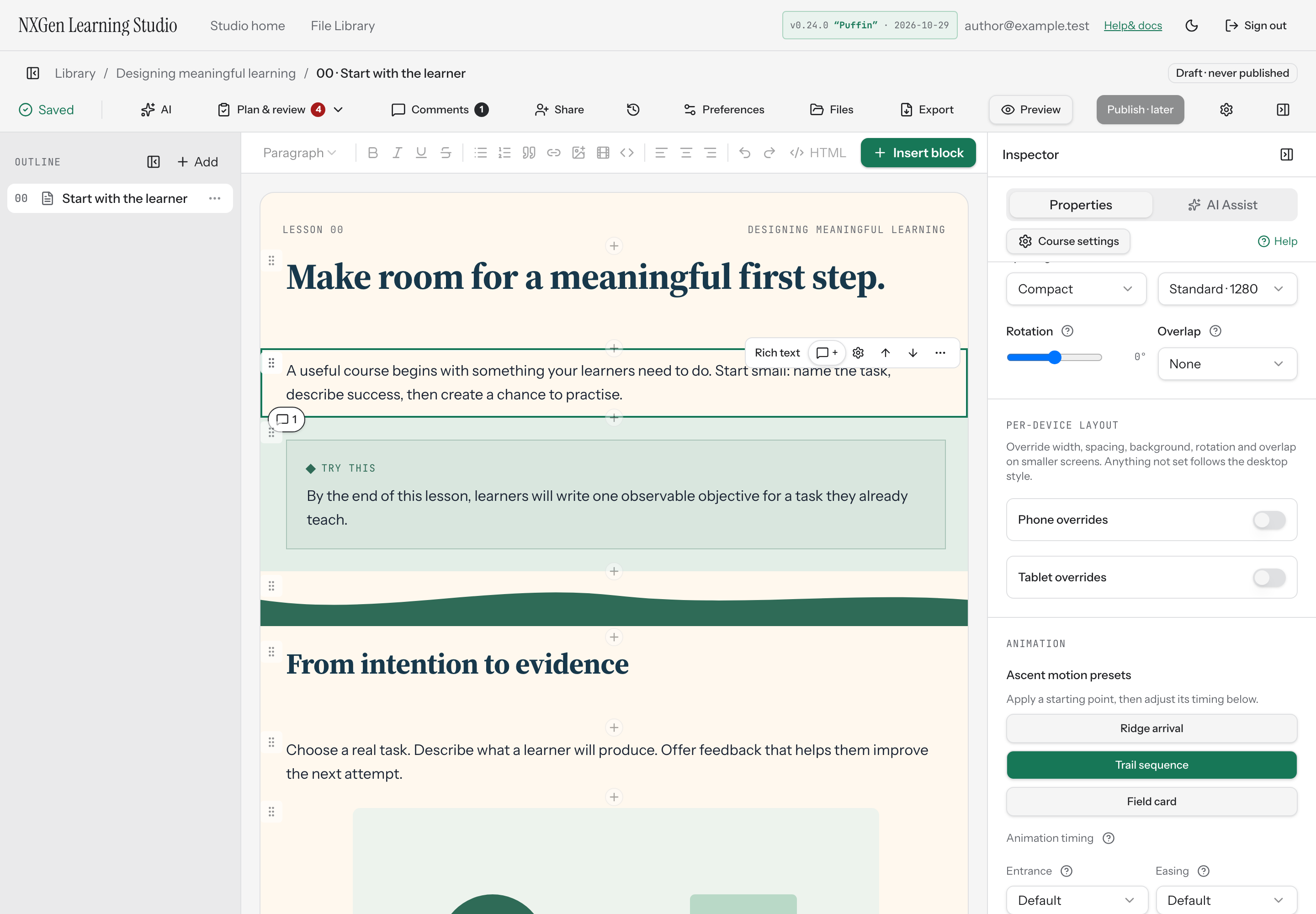
Review a block’s edit history
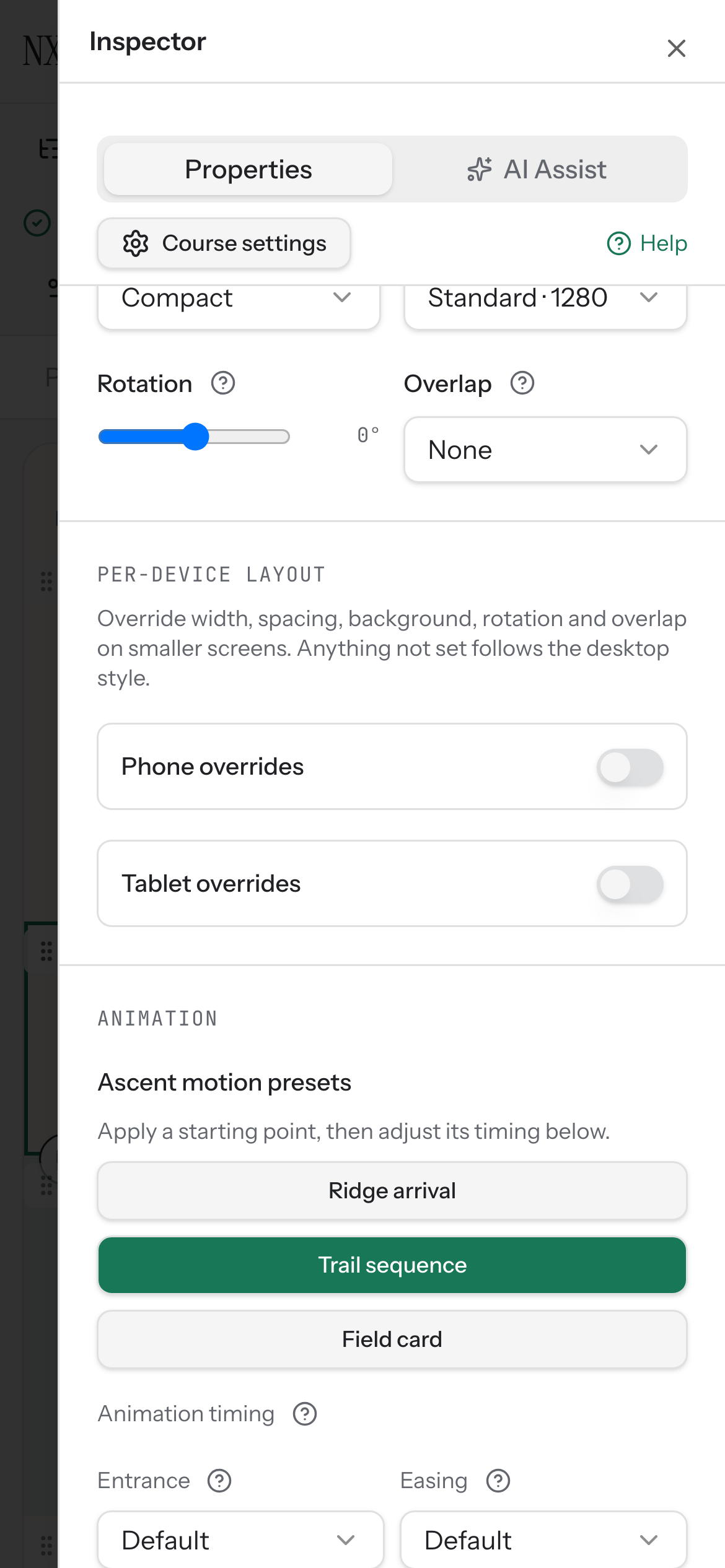
Section titled “Review a block’s edit history”When you select a block in the inspector, the Element history group lists saved changes for that block. Each entry shows a short label, the saved version number, who made the change (You, AI, or Agent), and when it happened.
Select Show element history to expand the list. The history loads from your course’s saved versions, so it appears only after the block has been saved at least once.
How to use it
Section titled “How to use it”- Select a block on the canvas to open its properties in the inspector.
- Scroll to the Element history group and select Show element history.
- Review the list of saved changes for that block. If there are more than 20 entries, select Load more to load the next page.
- To restore the block from a saved version, select the restore button (the circular arrow) next to an entry. This finds the closest saved version at or before that entry and applies the block’s properties from that version.
- If the restore succeeds, you’ll see a confirmation message noting the saved version it came from. Undo is available after a restore.
Restoring overwrites the block’s current properties with those from the saved version. If no saved version holds the block at the chosen point, the restore won’t apply and you’ll see a message explaining why.
Availability and limits
Section titled “Availability and limits”- Element history is available for every block type when a block is selected in the inspector.
- The list loads in pages of 20 entries and only after you expand it.
- Restore is disabled while a restore is in progress or when the block is locked.
- If the block is locked, unlock it in the Behavior group before restoring.
- Restore applies the block’s properties from the closest saved version at or before the selected entry — it does not restore the exact point-in-time state if no snapshot matches.