Learning Studio / features
Configure image blocks
Upload or link an image, mark it decorative or provide alt text, set caption, fit, rounded corners, border, click-to-enlarge, and link.
Add and configure an image block
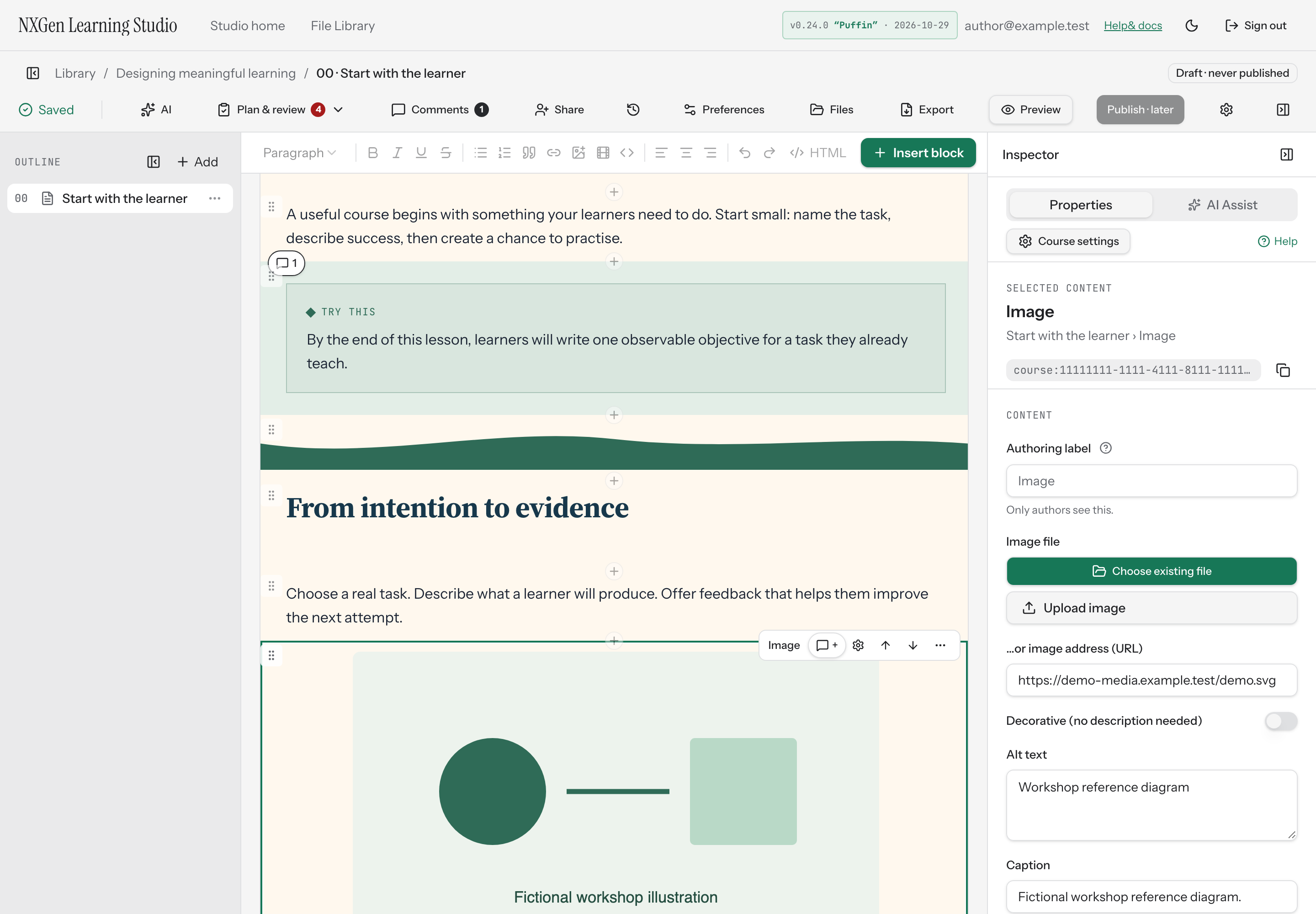
Section titled “Add and configure an image block”Add an image block when a picture helps learners understand a concept, recognize an interface, or stay oriented. Select an image block on the page to configure it in the inspector.
How to use it
Section titled “How to use it”- Upload or link an image: Use Choose existing file to reuse an image from Course Files or Files Library, Upload image to choose a new file, or enter a URL in …or image address (URL). Uploaded images are stored with your course. If you use a URL, it must start with
https://. - Provide a description or mark the image decorative: If the image conveys information, write Alt text that describes what learners need to know. If it is purely decorative, turn on Decorative (no description needed) — the image is hidden from screen readers and no alt text is required.
- Add a caption: Use Caption for a short label that appears with the image.
- Choose how the image fills its frame: Set Fit to Fill frame (crop) or Show whole image.
- Adjust size and alignment: Use Size and Alignment to control how the image sits on the page. When Size is Full width, alignment is not available.
- Refine the appearance: Toggle Rounded corners, Border, and Click to enlarge as needed.
- Optionally link the image: Enter an
https://URL in Link when clicked (optional). The link opens in a new tab and replaces the click-to-enlarge behavior, so that toggle is disabled when a link is set.
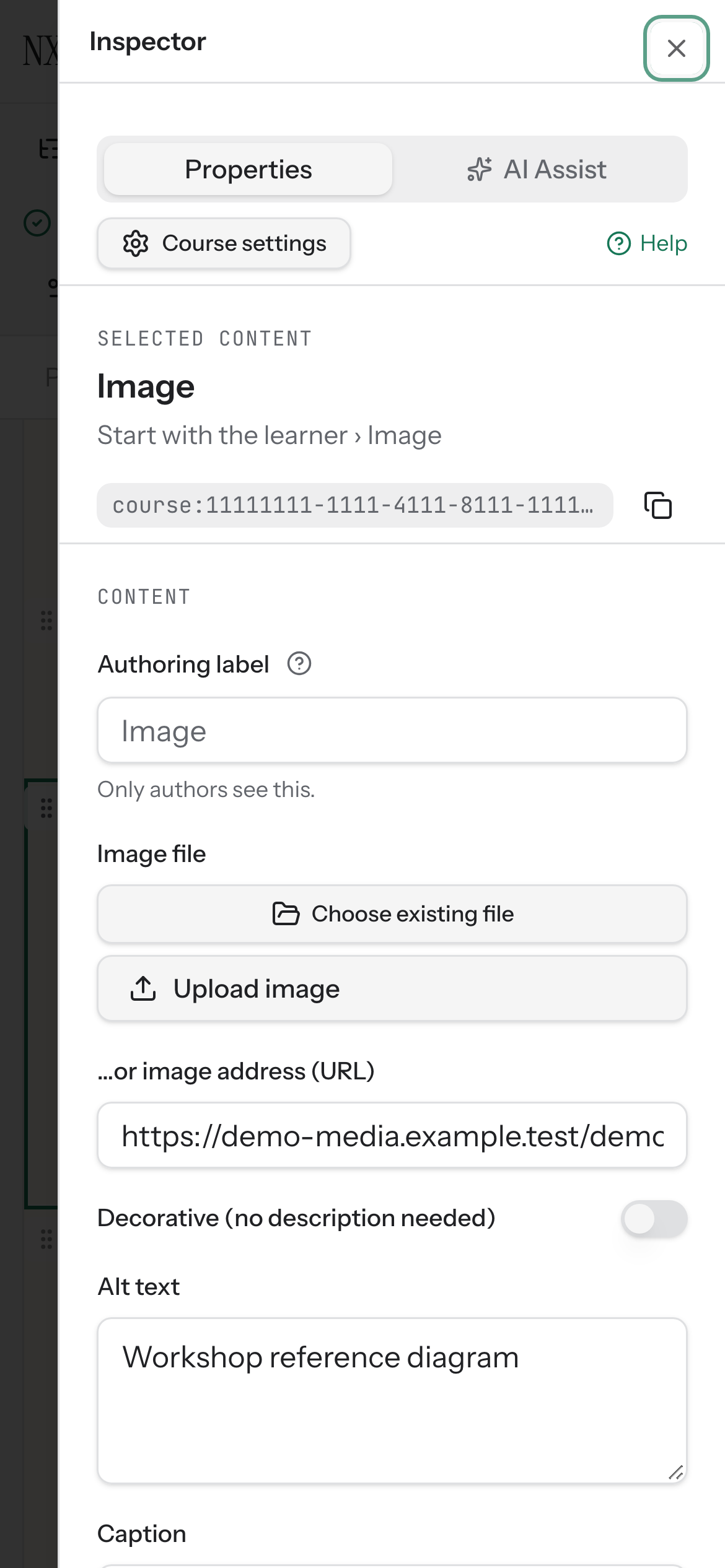
Use Search existing files to find an image by filename. The picker shows image files only. Reusing a library image links the same private resource to this course; replacing the resource later updates all its uses.
Availability and limits
Section titled “Availability and limits”Image links must use https://. Uploaded image files are stored privately with your course media. The authoring label is only visible to authors, not learners.