Learning Studio / features
Configure button blocks
Set the label, link address, style, and alignment of a button block in the inspector.
Configure a button block
Section titled “Configure a button block”A button block gives learners a clear, labeled link to an external resource. Use it when you want to send learners somewhere specific — a registration page, a reference site, or a tool to try.
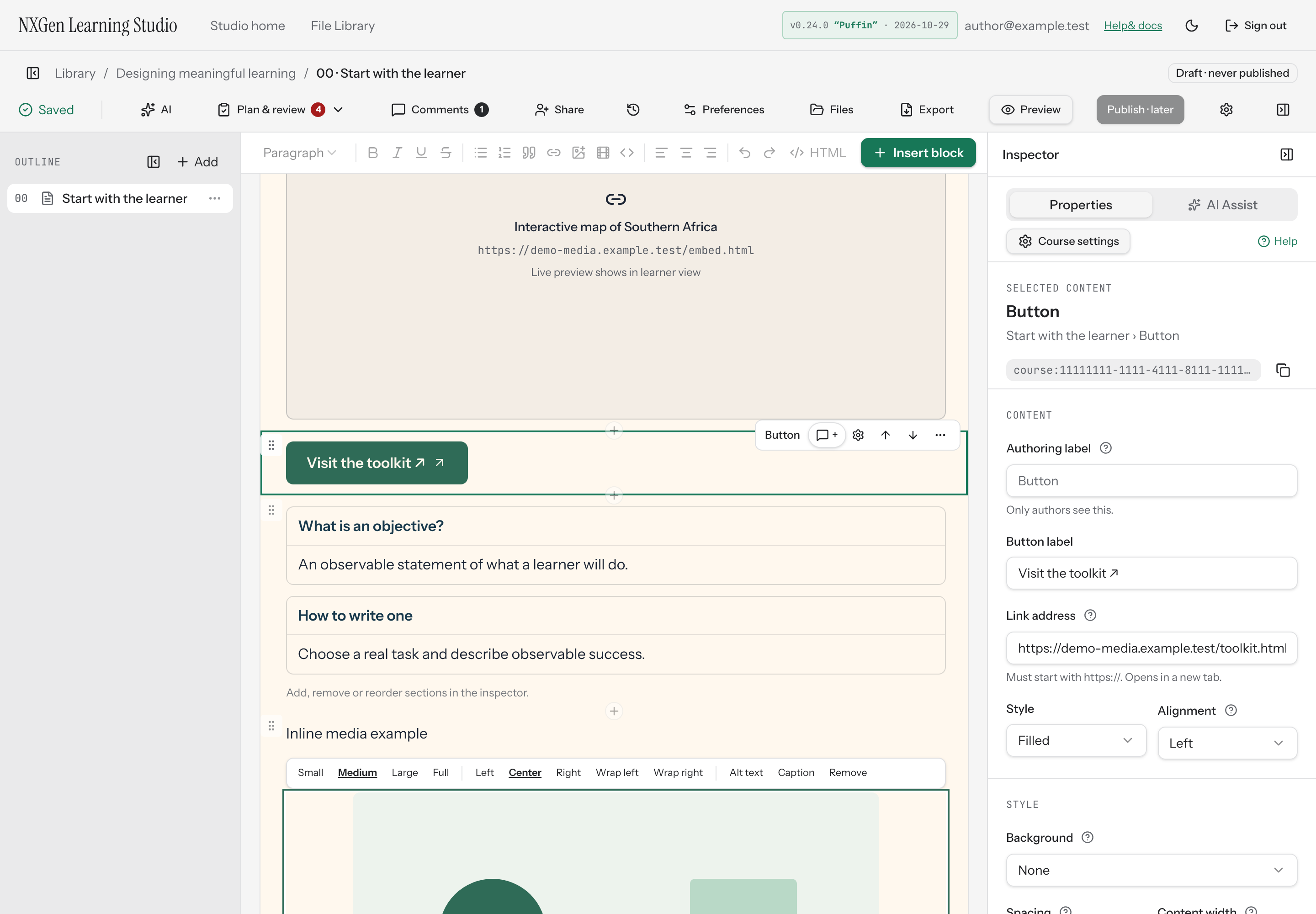
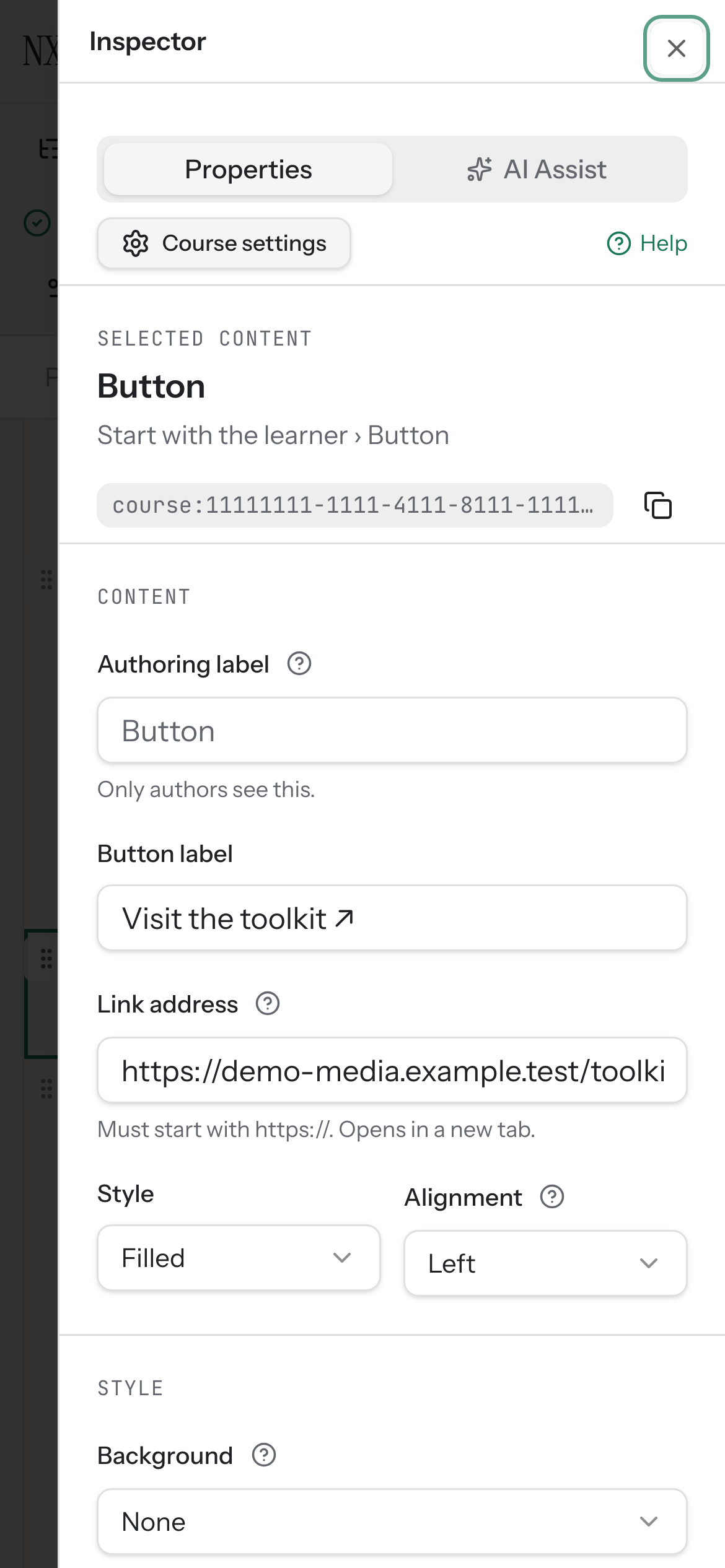
- Select a button block on the page. The inspector shows its properties.
- In Button label, write the text learners will see on the button. The label is limited to 80 characters.
- In Link address, paste the destination URL. The address must start with
https://— the button opens in a new tab. - Under Style, choose Filled for a solid button or Outline for a bordered button.
- Under Alignment, choose Left, Center, or Right to position the button on the page.
If the link address doesn’t start with https://, the inspector shows a warning and the address won’t save.
How to use it
Section titled “How to use it”A button works well at the end of a page or section, where learners are ready to act on what they’ve read. Keep the label short and action-oriented — for example, “Register now” or “Try the demo” — so learners know what to expect before they click.
Buttons open external links in a new tab. There’s no built-in option to link to another page within the same course.
Availability and limits
Section titled “Availability and limits”- Button blocks are available in the course editor and visible in the learner preview.
- The Button label field accepts up to 80 characters.
- The Link address must be an
https://URL; other addresses won’t save. - Style options are limited to Filled and Outline. There are no additional color or size controls specific to buttons.
- Alignment options are Left, Center, and Right.
- Buttons always open links in a new tab; there’s no setting to change this.
How button blocks open external links
Section titled “How button blocks open external links”In the learner preview, a button with a valid URL renders as a link that opens the destination in a new tab with rel="noopener noreferrer". In the editor, or when no link address is set, the button is non-interactive so you can select and edit it without navigating away.