Learning Studio / features
Manage review comment threads
List review threads filtered by status, create new comment threads on sections and blocks, reply to existing threads, and resolve or reopen threads.
Manage review comment threads
Section titled “Manage review comment threads”Review comment threads let you and your reviewers leave feedback pinned to specific blocks on the canvas. You can filter threads by status, create new threads on blocks, reply to existing threads, and resolve or reopen them.
View and filter threads
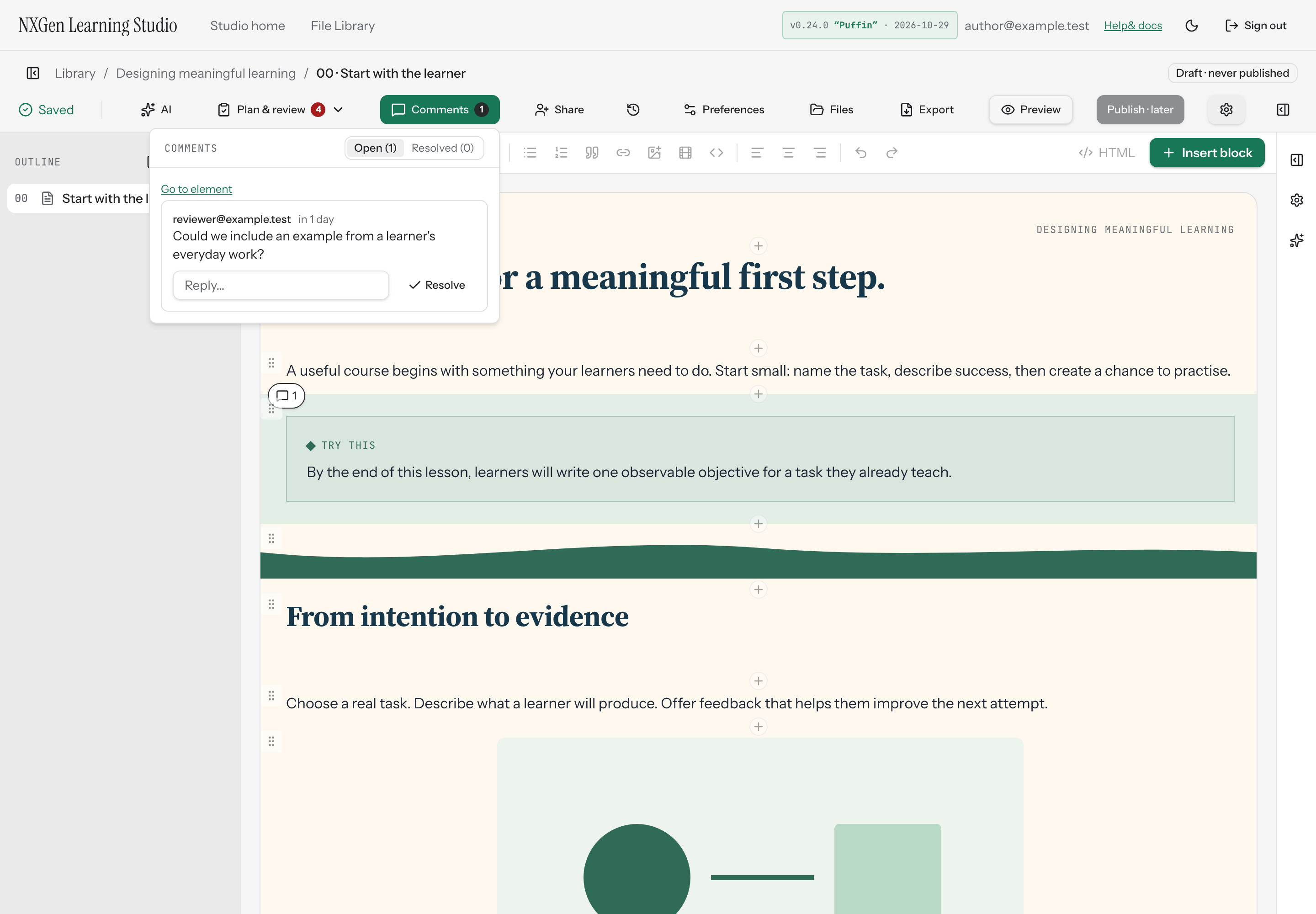
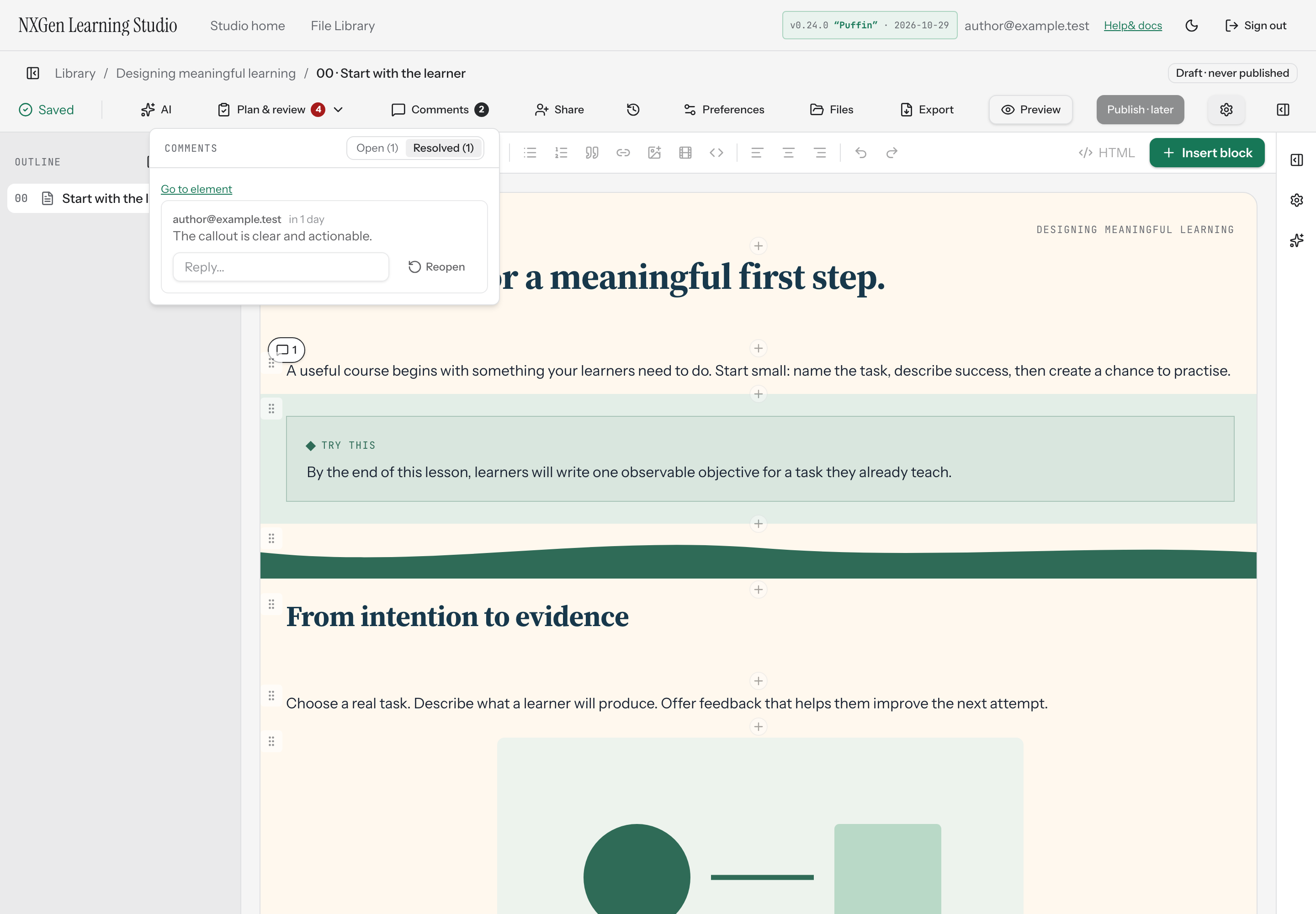
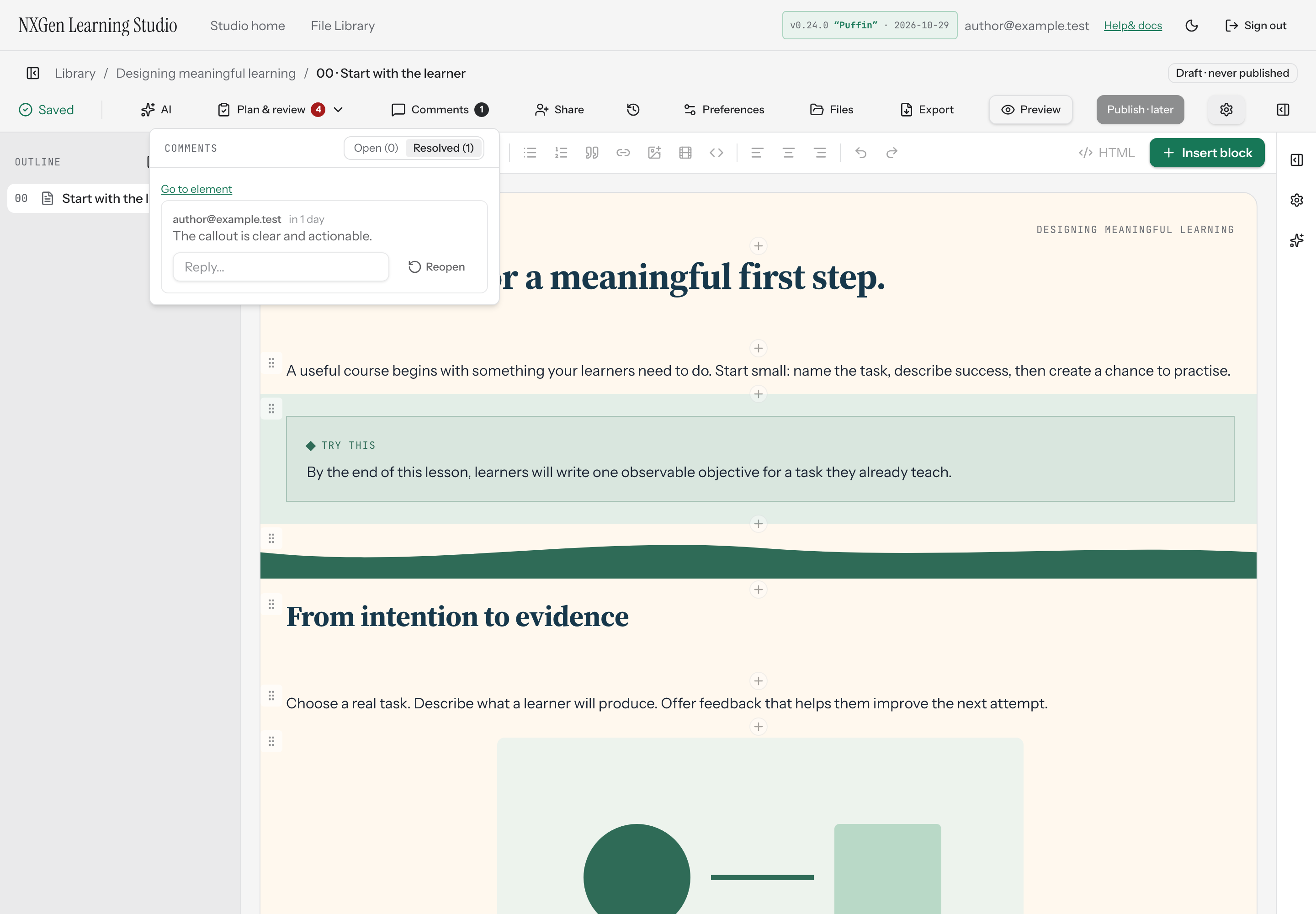
Section titled “View and filter threads”Open the Comments button in the studio toolbar. The panel lists all review threads for the course with two filter tabs — open and resolved — each showing the number of threads in that state. Switch between tabs to narrow the list.
An unread count on the Comments button reflects replies posted since you last opened the panel. Opening the panel marks those replies as seen.
When a thread’s block still exists on the canvas, the panel shows a Go to element link beneath the thread. Select it to close the panel and scroll the canvas to that block. If the block has been removed, the panel shows Element removed instead.
Create a new thread
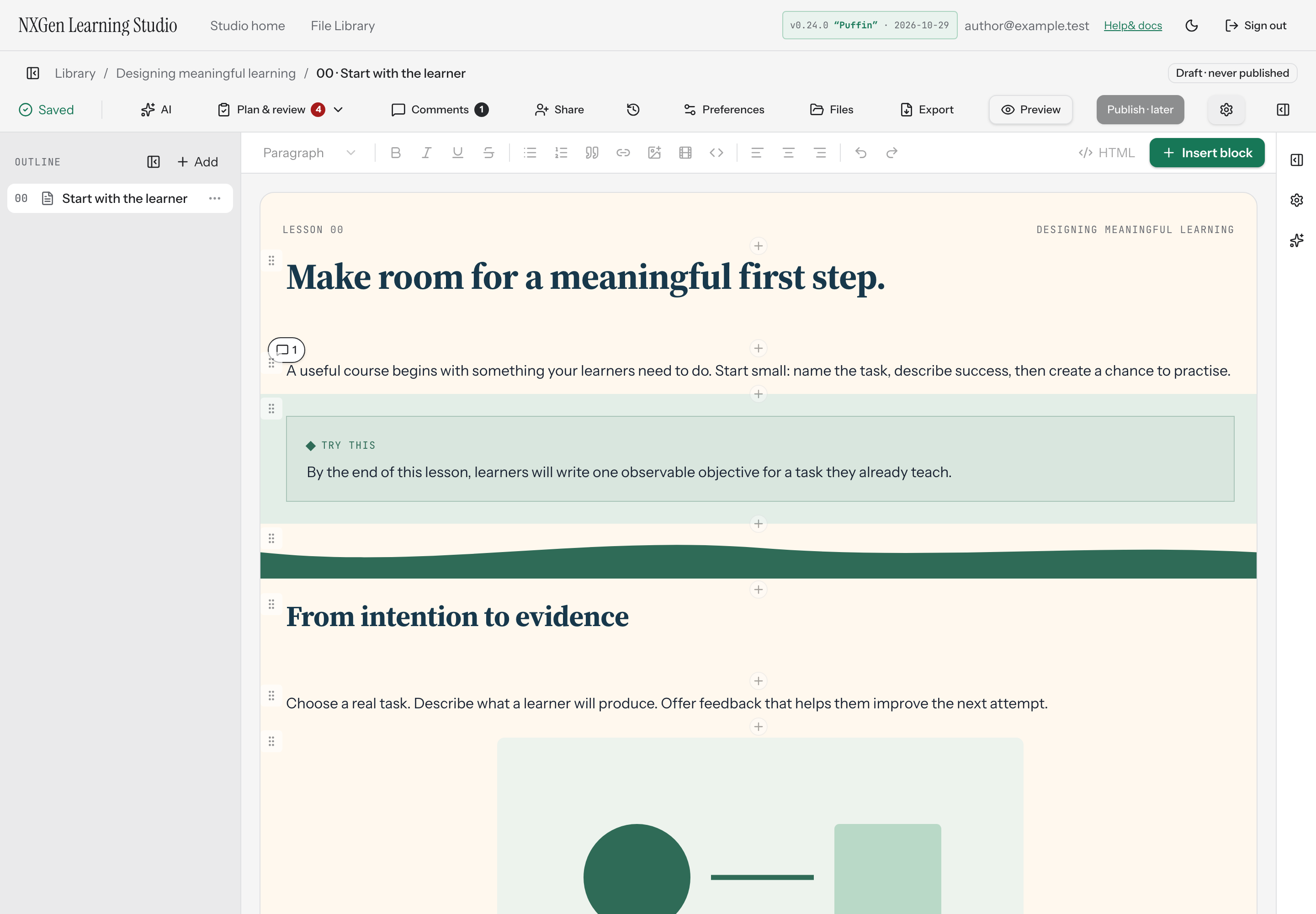
Section titled “Create a new thread”Hover over a block on the canvas and click the comment pin button that appears. Write your feedback in the Leave feedback on this element… field and select Comment. The thread is pinned to that block.
Reply to a thread
Section titled “Reply to a thread”Open the comment popover for a block, or use the Comments panel. Type in the Reply… field and press Enter to post your reply.
Resolve or reopen a thread
Section titled “Resolve or reopen a thread”In any thread view, select Resolve to mark a thread as resolved, or Reopen to return it to open status.
Mention a reviewer
Section titled “Mention a reviewer”Type @ followed by an email address in a comment or reply. People who can be mentioned include invited reviewers and anyone who has already commented on the course.
Invite reviewers
Section titled “Invite reviewers”Select Share in the studio toolbar, enter a reviewer’s email, and choose Invite. Reviewers can view the course and leave comments but can’t edit content. Only the course owner can invite reviewers.
Availability and limits
Section titled “Availability and limits”- Comment threads are available to the course owner and invited reviewers.
- Comments are pinned to individual blocks; there is no course-wide comment thread.
- The comments list is limited to 200 threads per course.
- Comment and reply text is capped at 4,000 characters.
- Threads update in real time while you have the studio open.