Learning Studio / features
Format rich text with the text toolbar
Apply paragraph styles, inline formatting, lists, links, inline images and video, alignment, and undo/redo using the text formatting toolbar.
Format rich text with the text toolbar
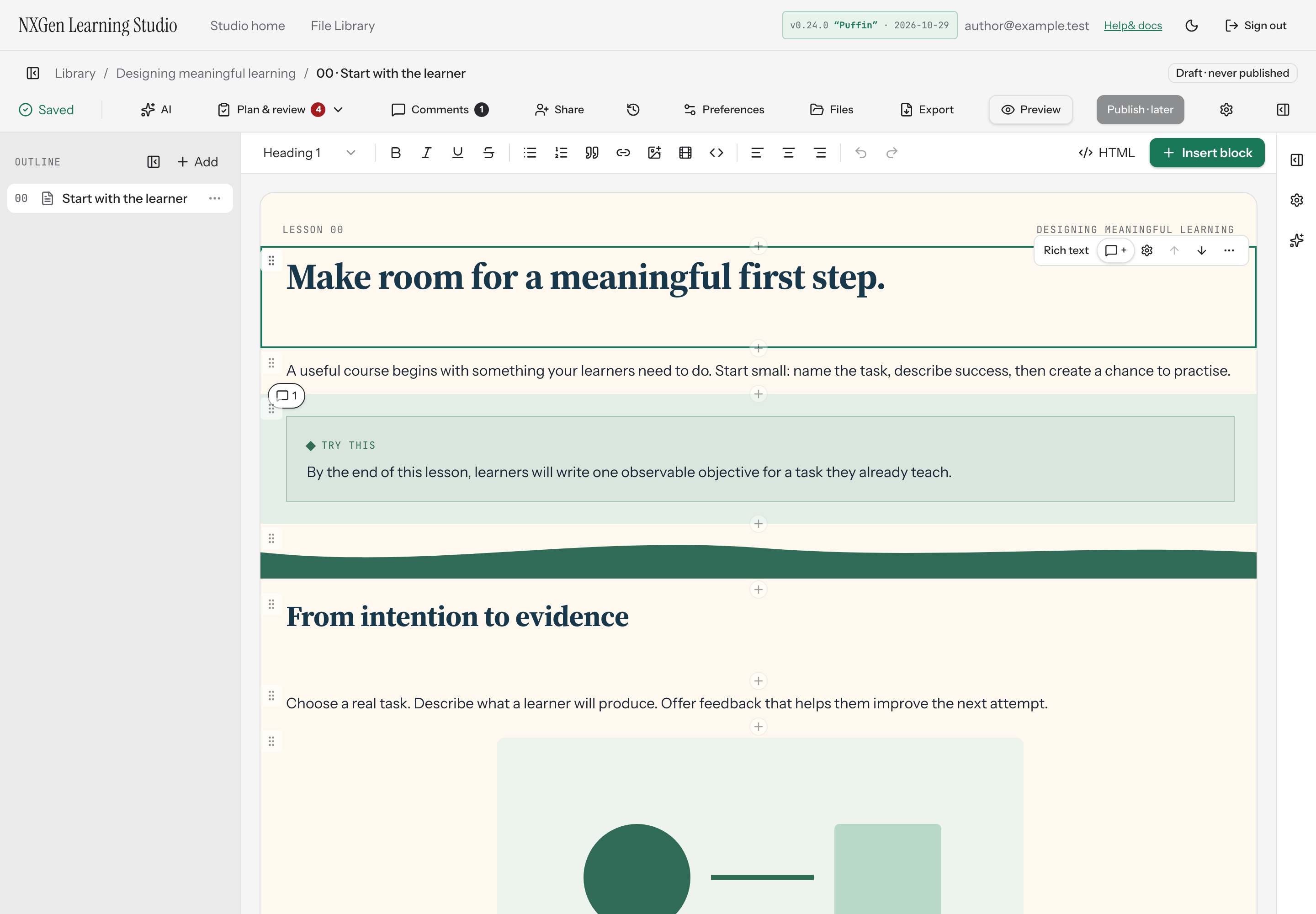
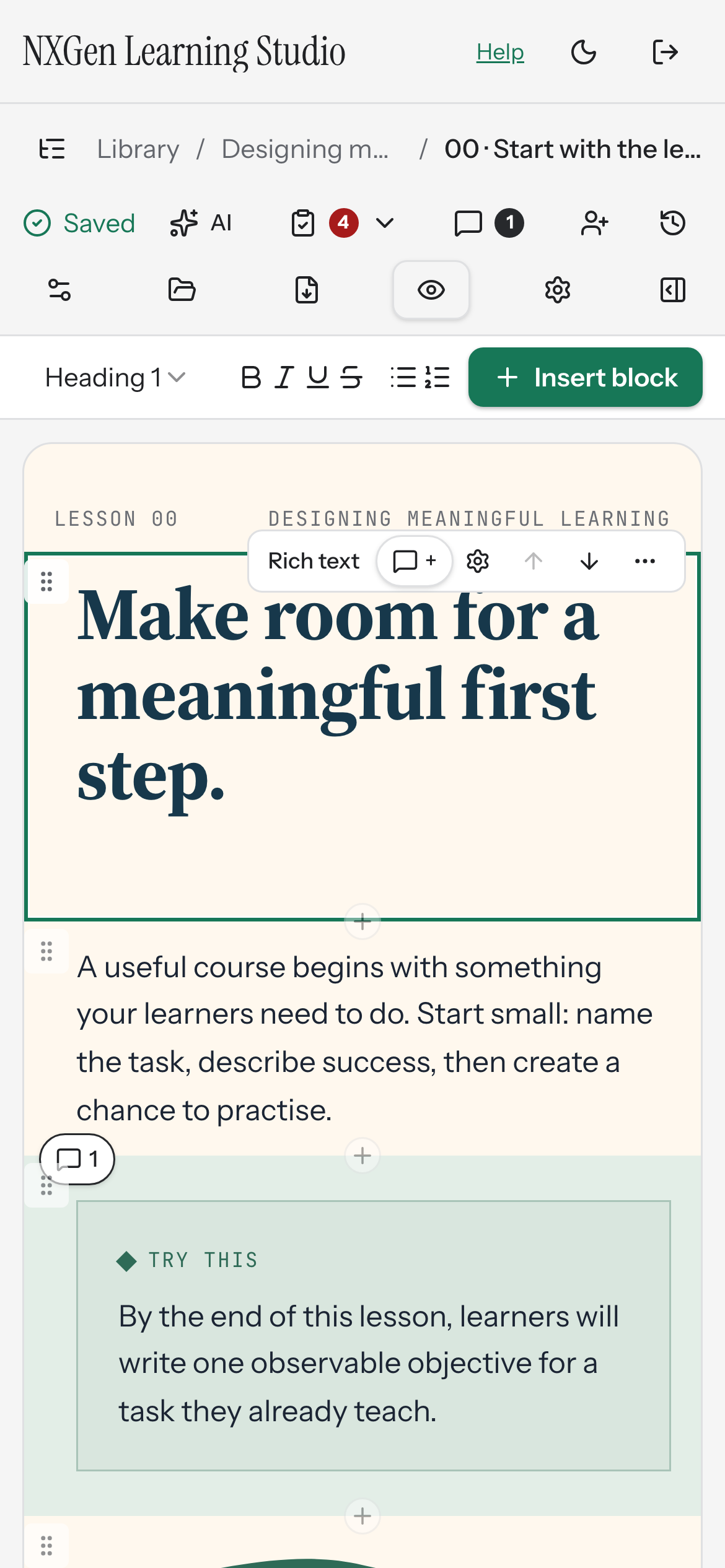
Section titled “Format rich text with the text toolbar”When you select a text block on the canvas, the text toolbar lets you apply paragraph styles, inline formatting, lists, links, images, videos, alignment, and undo/redo without leaving the editor.
How to use it
Section titled “How to use it”Select a text block on the canvas to make the toolbar active. Most controls act on the current selection or the line your cursor is on.
Paragraph styles — Choose Paragraph, Heading 1–4, or Quote from the style selector.
Inline formatting — Use Bold, Italic, Underline, Strikethrough, or Inline code.
Lists and quotes — Toggle Bulleted list, Numbered list, or Quote.
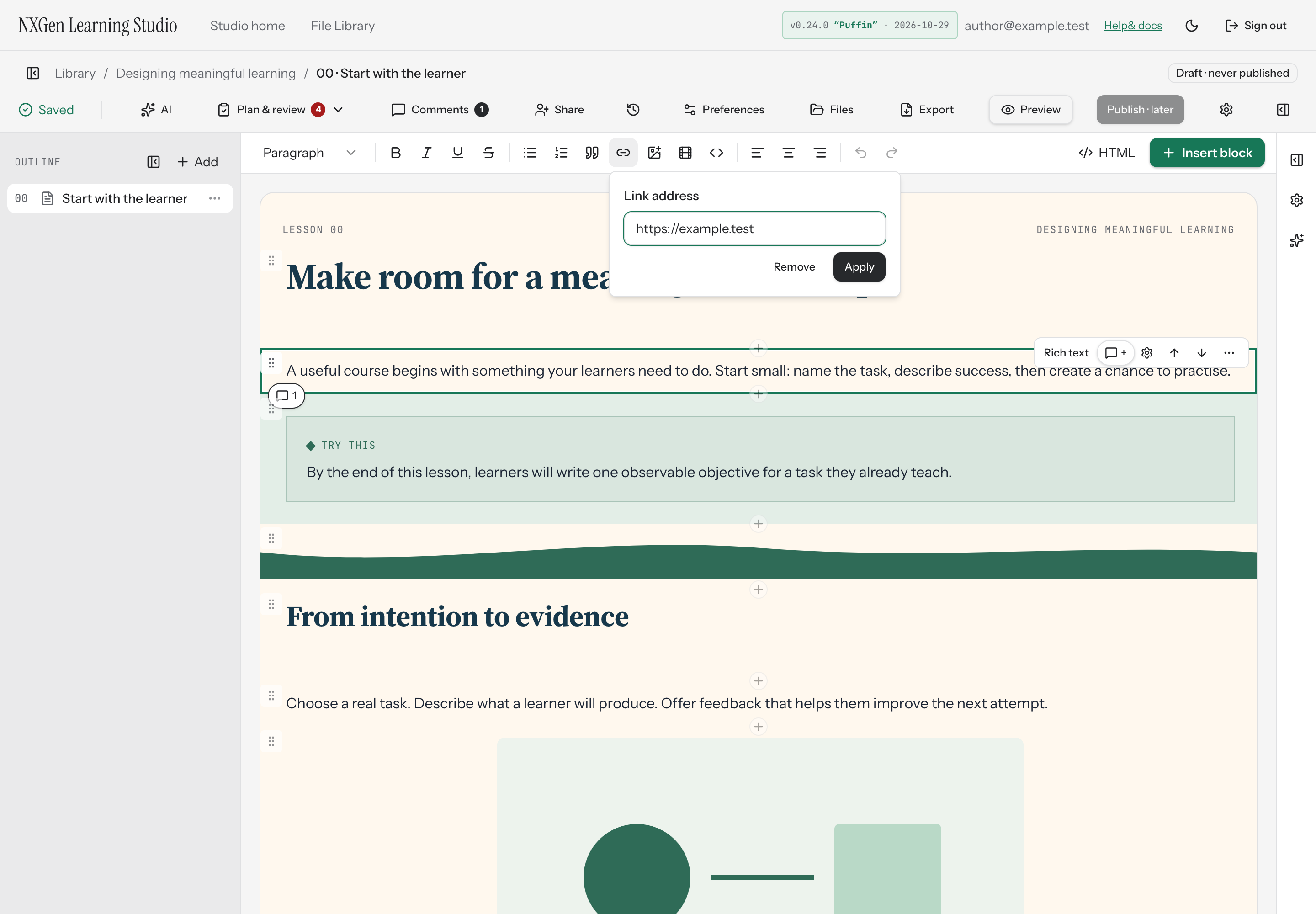
Links — Choose Link to open the link popover. Enter a URL; if you omit the protocol, the editor prefixes https://. Choose Remove to clear an existing link.
Images — Choose Insert image to open the image popover. You can insert an image by its HTTPS URL, upload a file from your device, or select Choose existing file. The picker separates Course Files from your account-wide Files Library; search by filename and choose Use file. After inserting, click the image to adjust size, wrap, alt text, and caption.
Videos — Choose Insert video to open the video popover. Paste an HTTPS link from YouTube, Vimeo, or Loom, or a direct video file URL. To reuse a private video, select Choose existing file, find it in Course Files or Files Library, and choose Use file. For start time, captions, and privacy options, use a Video block instead.
The picker shows files that match the media type. Choosing a library file links the same resource to your course without another upload. Replacing that file later updates every place it is used. See Manage files and fonts for replacement and recovery details.
Alignment — Use Align left, Align center, or Align right.
Undo and redo — Use Undo and Redo to step through changes. You can also press Ctrl/Cmd+Z to undo and Ctrl/Cmd+Shift+Z (or Ctrl/Cmd+Y) to redo.
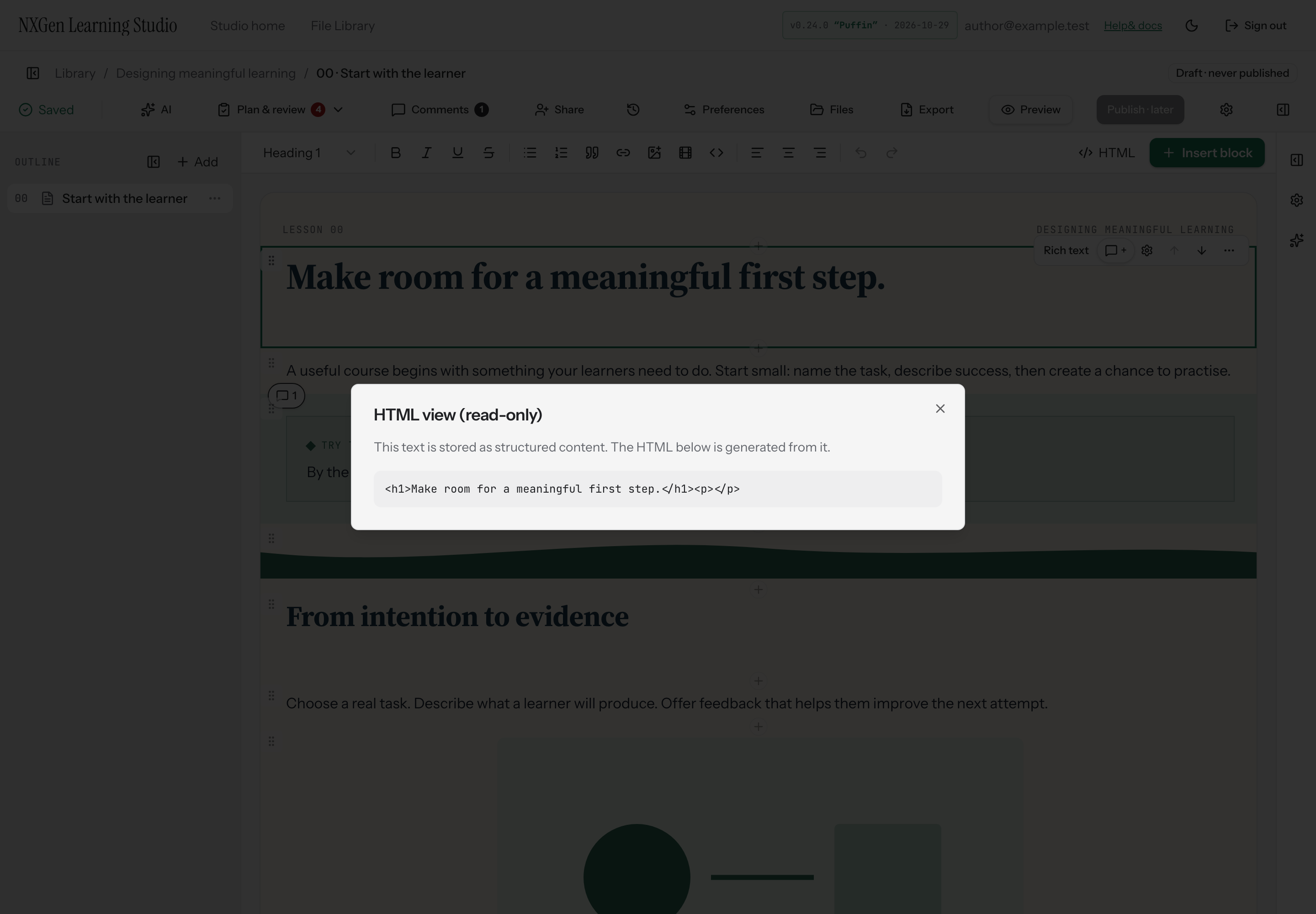
HTML view — Choose HTML to open a read-only dialog showing the HTML generated from your structured content. This view is for inspection only; you can’t edit the HTML directly.
Availability and limits
Section titled “Availability and limits”The toolbar appears above the canvas when a rich-text editor has focus. Most controls are disabled until a text block is selected. Image addresses must start with https://; video links must also be https:// and from a recognised provider (YouTube, Vimeo, Loom) or a direct video file URL. The HTML view is read-only.