Learning Studio / features
Move a block to another page
Relocate a block from one page to a different page in your course using the more-actions menu.
Move a block to another page
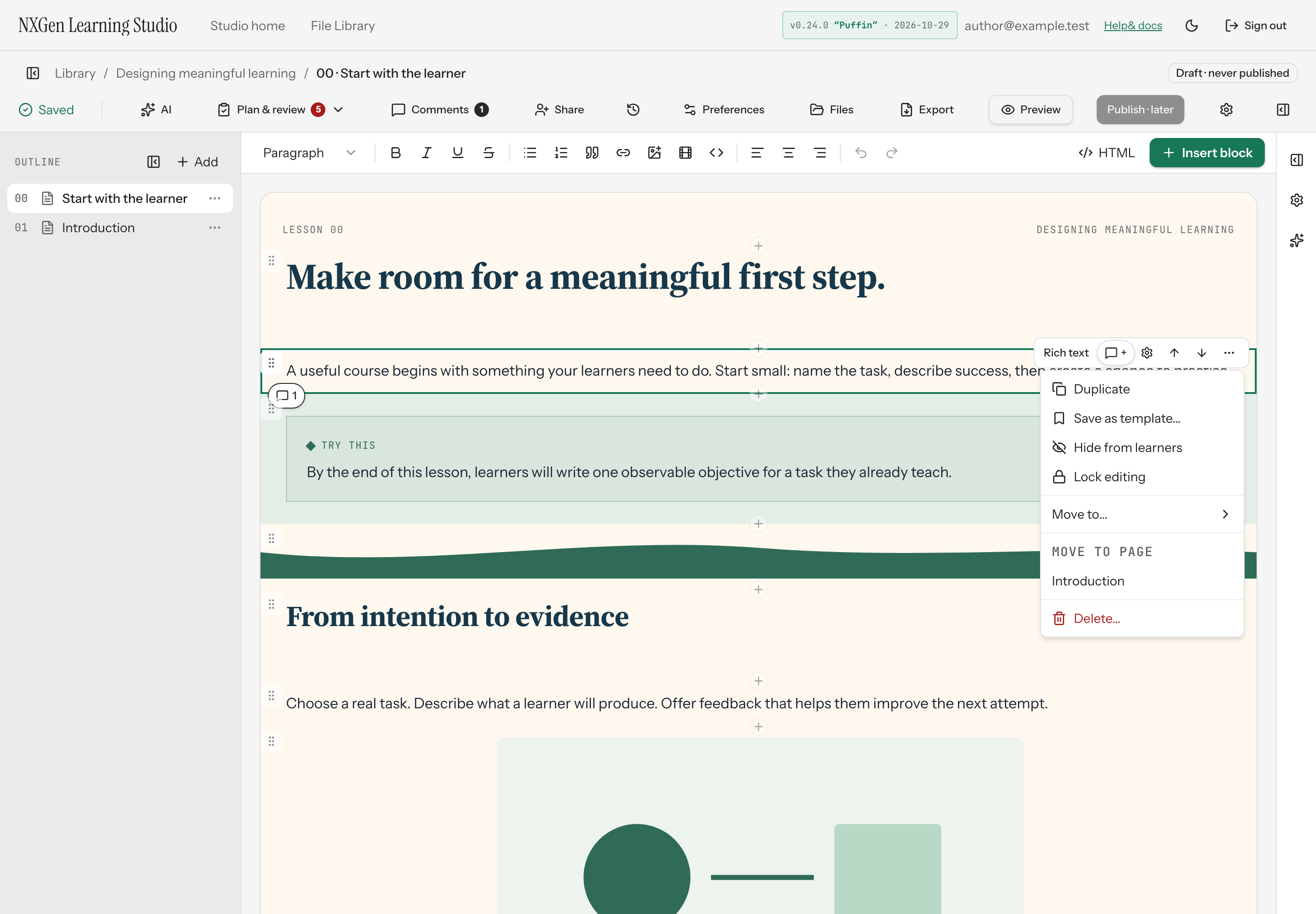
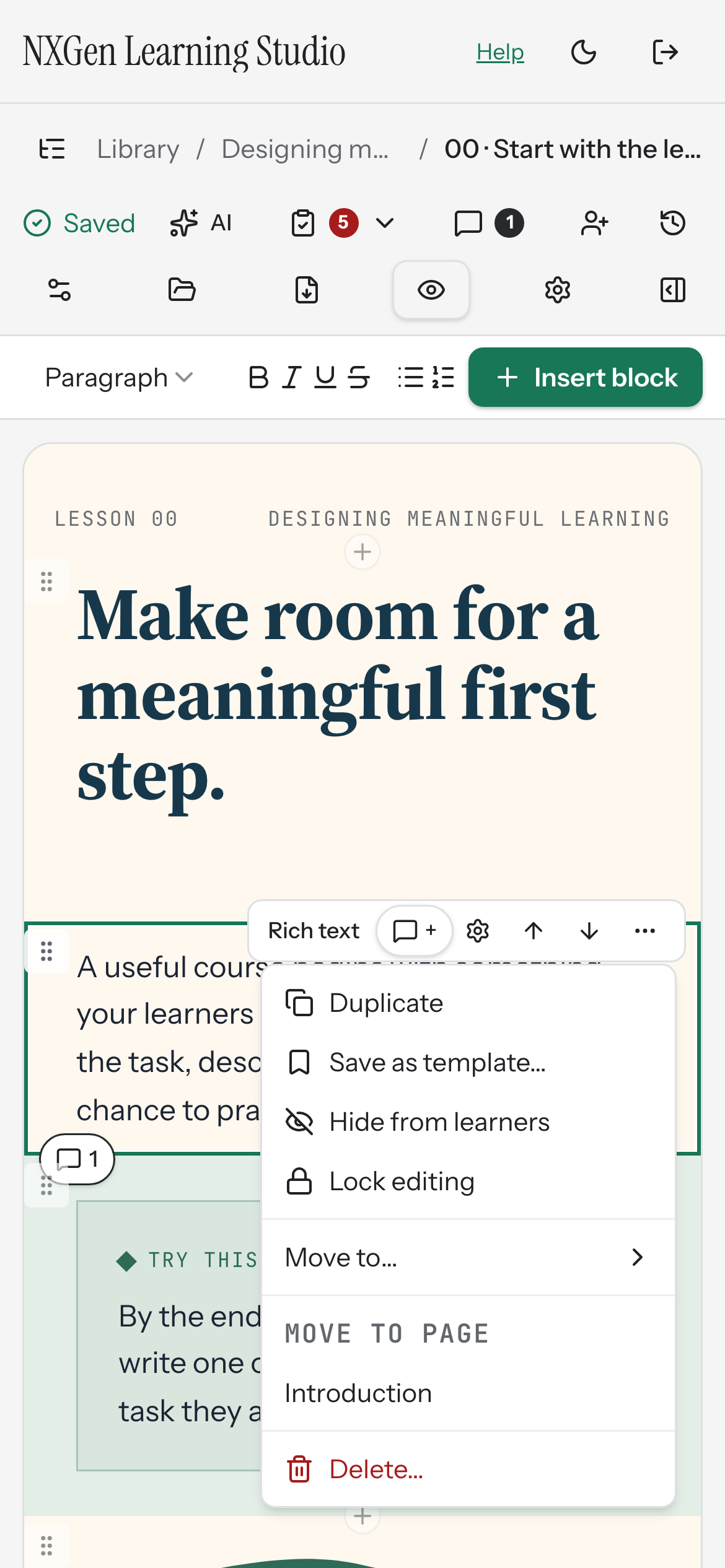
Section titled “Move a block to another page”Use the Move to page list in a block’s more-actions menu to relocate a block from its current page to a different page in your course. The block is appended to the end of the target page.
How to use it
Section titled “How to use it”- Select the block you want to move.
- Open the more-actions menu (the ⋯ button) for that block.
- Under Move to page, choose the destination page from the list.
The block moves to the end of the selected page. You can use Undo to bring it back to its original location.
Availability and limits
Section titled “Availability and limits”- Move to page appears only when your course has at least one other non-chapter page besides the current one. Chapters are excluded from the list.
- The menu lists up to 12 target pages. If your course has more pages, only the first 12 are shown.
- Locked blocks cannot be moved. Unlock the block first, then move it.