Learning Studio / features
View pending AI change markers on canvas blocks
See visual markers and badges on canvas blocks and insertion points that have pending AI proposed changes, then click an insertion marker to open the AI review panel.
Recognize pending AI changes on the canvas
Section titled “Recognize pending AI changes on the canvas”When AI Assist proposes changes, the canvas shows where they would land so you can find them before applying anything.
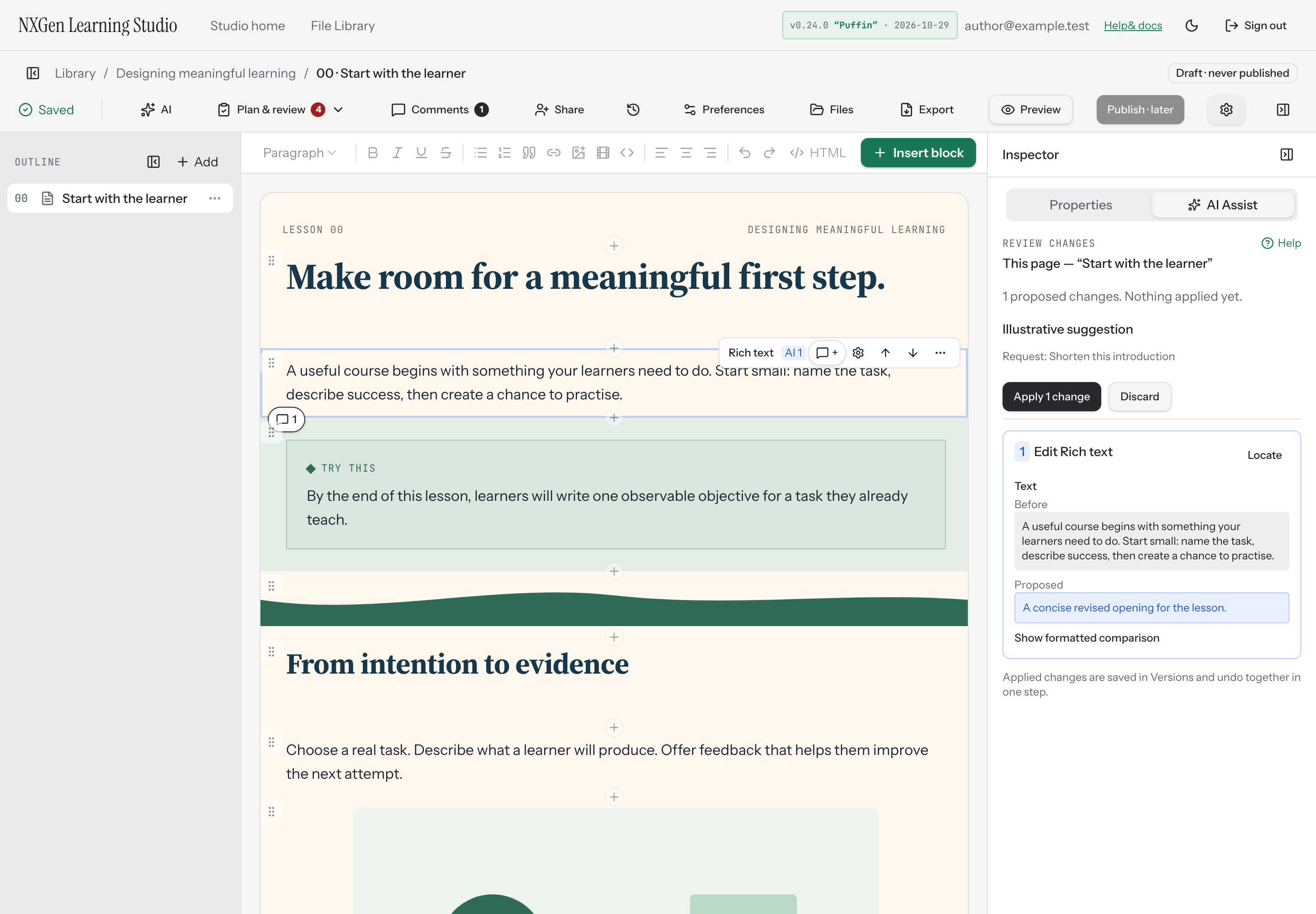
- Block updates and removals: A block with pending changes gets an info-colored ring and an
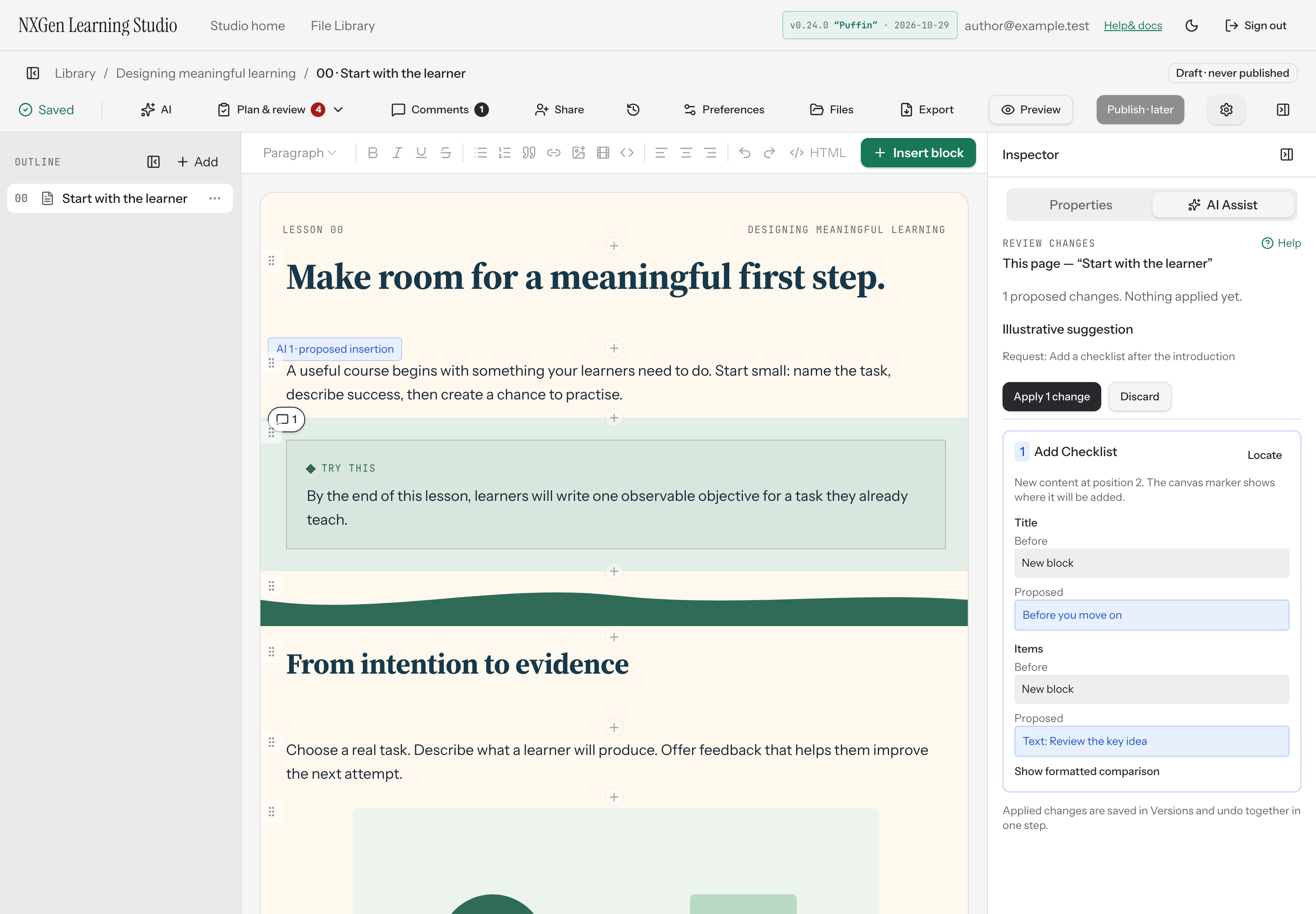
AI {numbers}badge in its toolbar listing the proposal numbers. Nothing is applied yet. - Proposed insertions: A marker labeled
AI {number} · proposed insertionappears at the position where a new block would be added.
How to use it
Section titled “How to use it”- Look for the
AI {numbers}badge on a block or theAI {number} · proposed insertionmarker between blocks. - Click the insertion marker, or open AI in the inspector, to review the proposed changes.
- In AI Assist, inspect each change and choose Apply or Discard. Applied changes are saved to Versions and undo in one step.
Availability and limits
Section titled “Availability and limits”AI Assist works on one page at a time. It does not edit the cover, and locked blocks are unavailable for requests. If the course changes while a suggestion is pending, the suggestion becomes stale and cannot be applied; discard it and request a new review.