Learning Studio / features
View and edit section properties
Select a page in the outline to edit its title or hide it from learners.
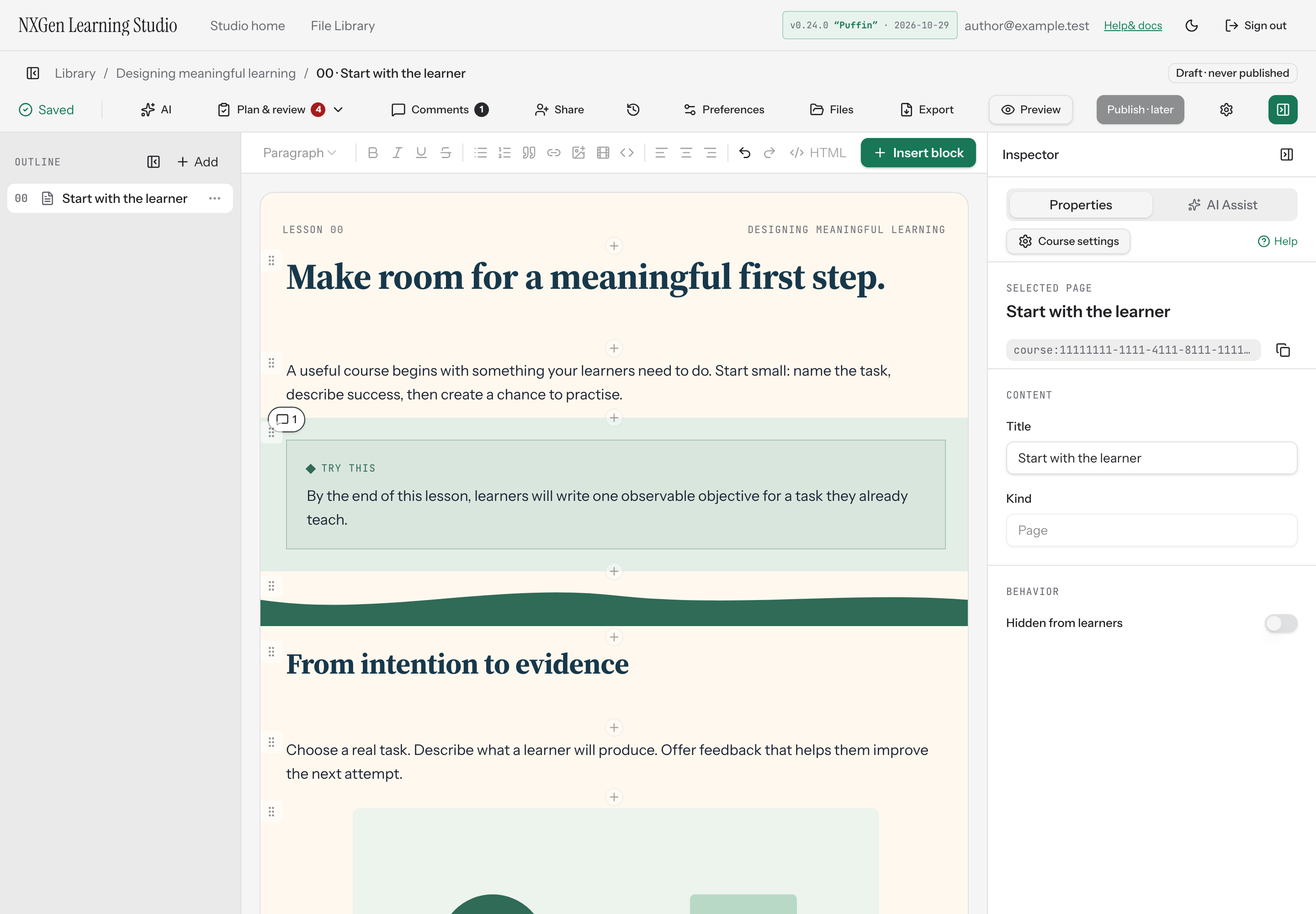
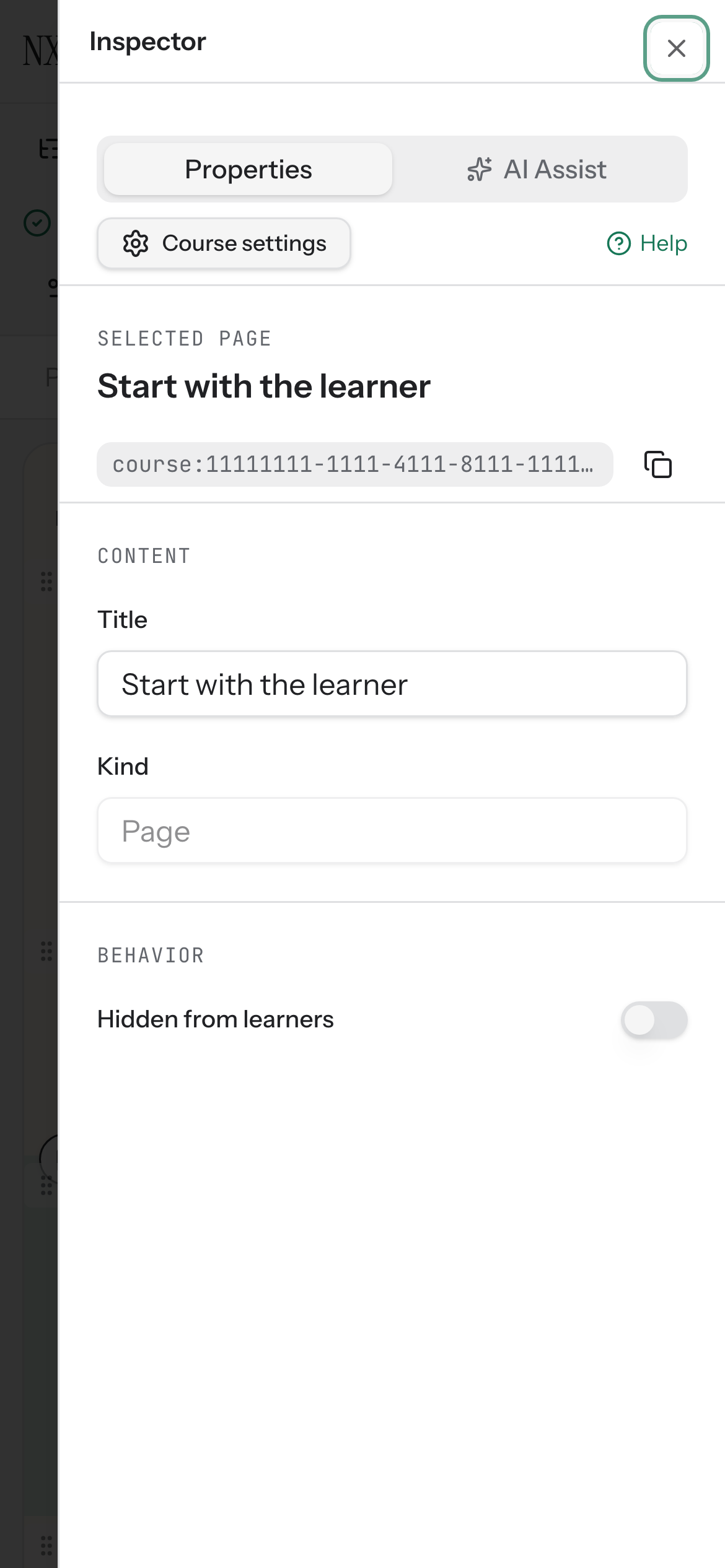
Edit section properties for a selected page
Section titled “Edit section properties for a selected page”When you select a page in the outline, the inspector shows its section properties. You can rename the page or hide it from learners. The page kind (Page, Cover, Chapter, or Quiz) is display-only.
How to use it
Section titled “How to use it”- In the outline, select the page you want to edit.
- In the inspector, edit the Title field to rename the page.
- To hide the page from learners, toggle Hidden from learners.
When a page is hidden, learners skip it in preview and navigation. You can also hide a page from its outline row menu using Hide from learners.
If the selected page is a quiz page, add a quiz block to it. Learners must pass every quiz on a quiz page before they can continue.
Availability and limits
Section titled “Availability and limits”Section properties are available for any selected page in the outline. The Kind field is read-only — you set the kind when creating the page, and it cannot be changed from the inspector. The Title field accepts up to 200 characters.