Learning Studio / features
Configure a download block
Upload a file for learners to download and set the button heading and description.
Configure a download block
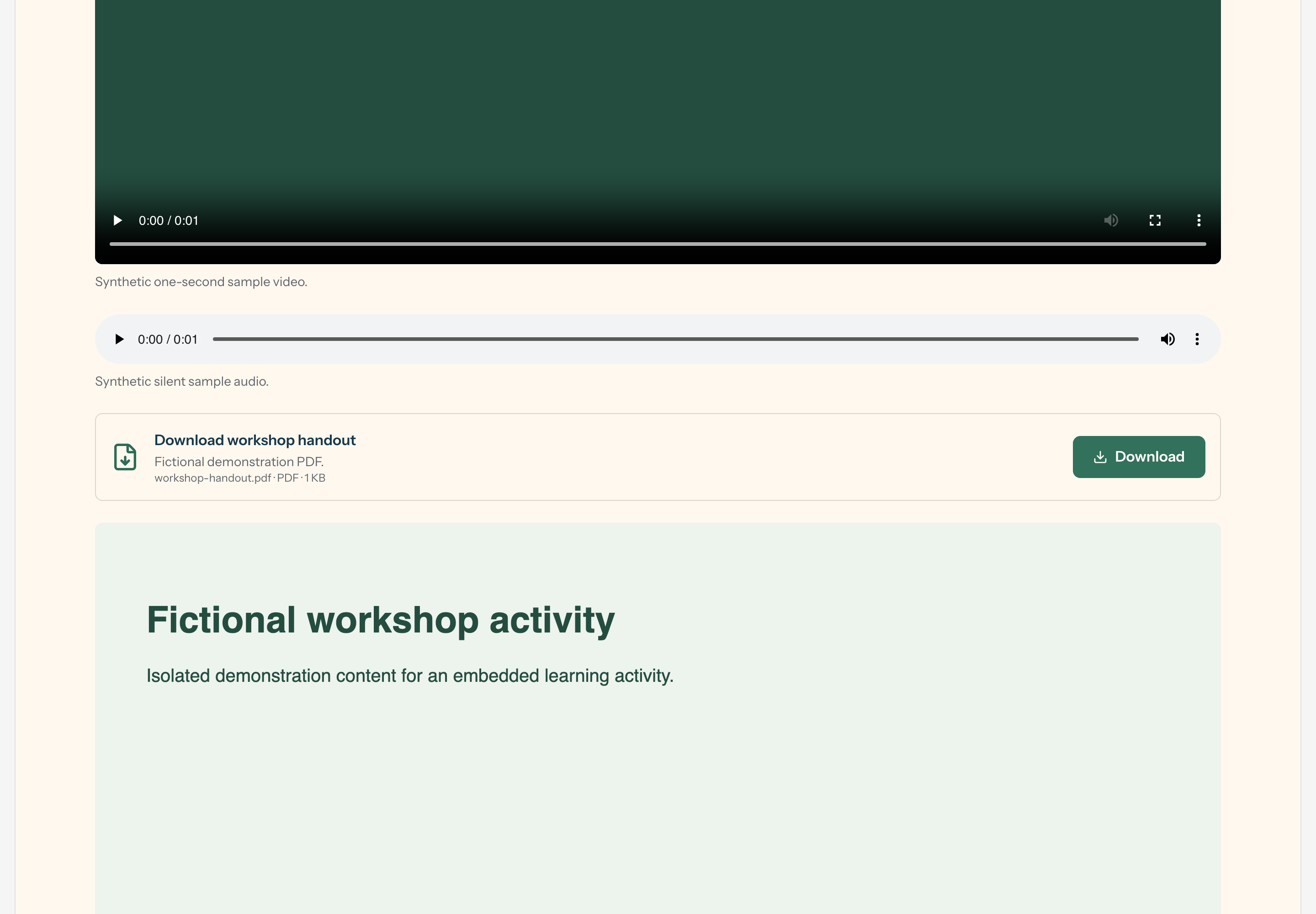
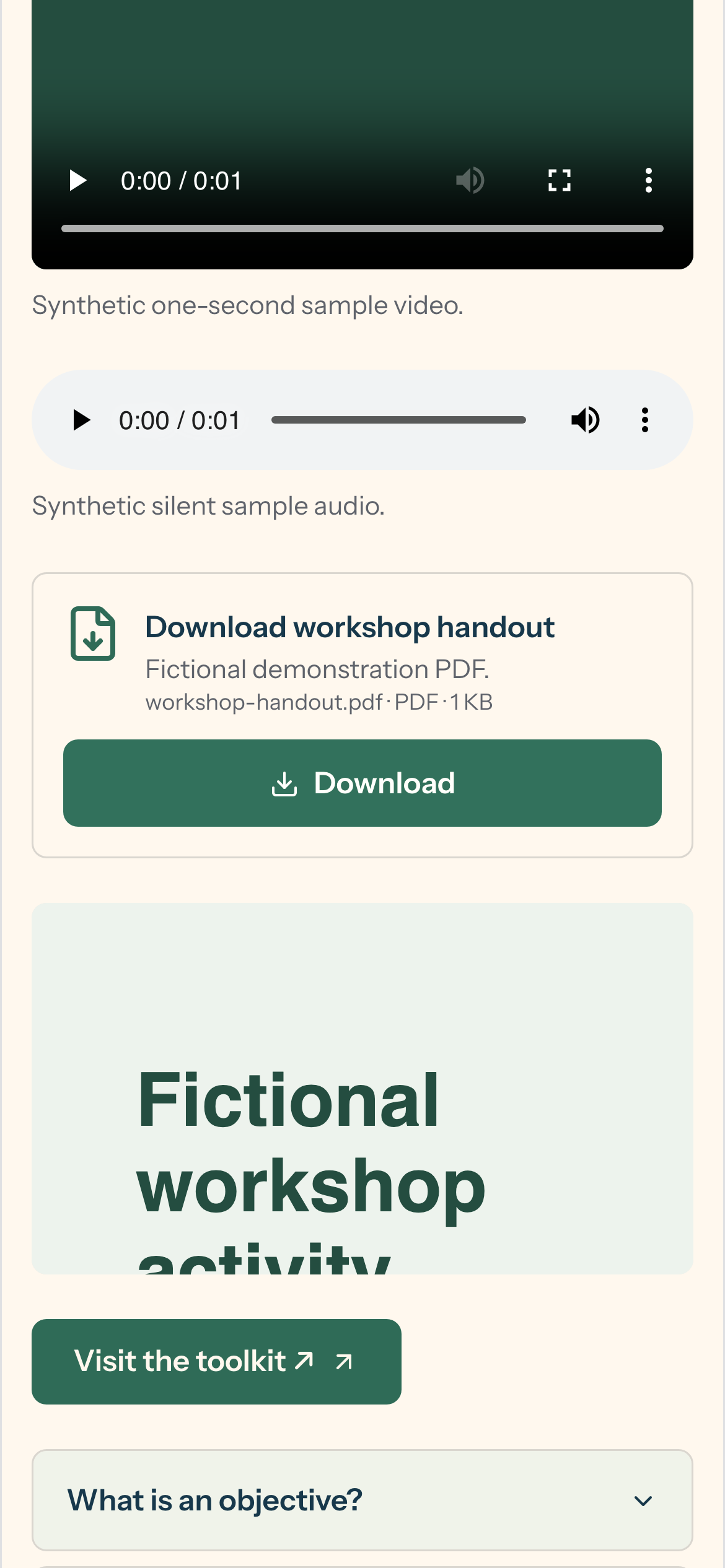
Section titled “Configure a download block”A download block lets you attach a file — such as a worksheet, PDF, or slide deck — that learners can save to their own device. Files are stored privately with your course, and learners receive a short-lived download link when they press the button.
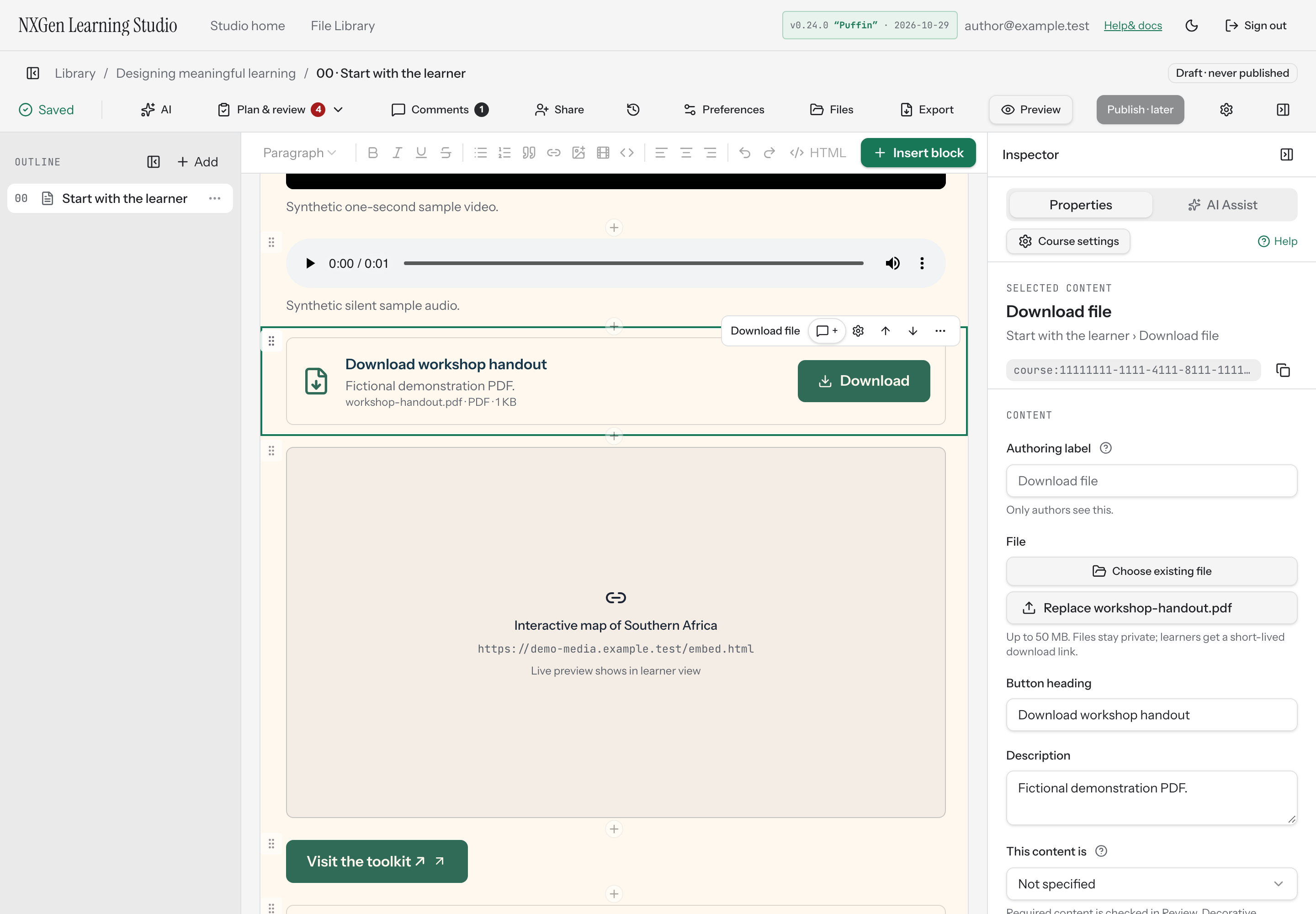
- Select a Download file block on the page, or insert one from the Insert block menu.
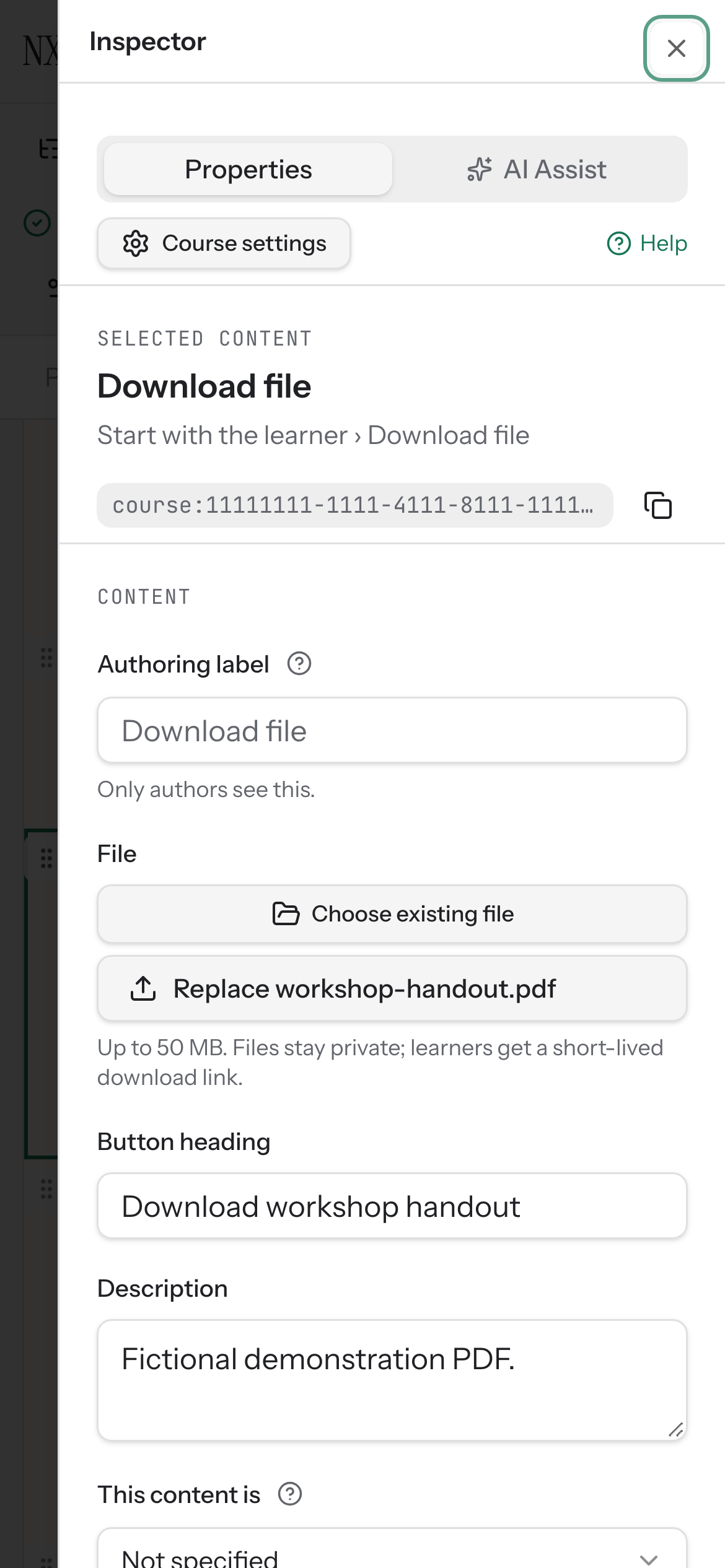
- In the inspector, under File, choose Choose existing file to reuse a resource from Course Files or Files Library, or Upload file to select a new file from your device. Use Search existing files to find a resource by filename. The download picker accepts any file type. The button label shows Replace followed by the file name once a file is attached.
- Enter a Button heading. This is the heading learners see on the download card — keep it short and action-oriented, like “Download the worksheet.”
- Add a Description if you want to give learners context about what the file contains or what to do with it.
- Wait for the save indicator to confirm your changes are saved.
Insert a row of download blocks
Section titled “Insert a row of download blocks”For several files side by side, use the layout gallery instead of inserting blocks one at a time. Open Insert block, choose Browse patterns & layouts, and insert 2 download cards or 3 download cards. Each pattern adds a column row of Download file blocks with placeholder Button heading and Description text that stacks on narrow screens. Attach files and edit labels for each card after inserting.
When to use a download block
Section titled “When to use a download block”Use a download block when learners need a tangible resource they can keep, print, or work from offline — a template, a rubric, a reference sheet, or a slide deck. Pair it with a short instruction so learners know why the file matters and what to do after downloading it.
If the file is essential to the course, set This content is to Required for learners so it appears in Review checks. If it is supplementary, leave it as Not specified or mark it Decorative to hide it from screen readers.
Availability and limits
Section titled “Availability and limits”New uploads must be 200 MB or smaller. Reusing a library file links the original resource without copying it; replacing that resource later updates every place it is used. The block stores the file privately; learners get a short-lived download link rather than a permanent public URL. Download blocks never gate learner progress — they are optional resources.