Learning Studio / features
Recover from save conflicts and failures
Reload the latest server version while retaining supported text edits for copying, or reapply pending edits on top of the latest version when they touch unchanged content.
Recover from a save conflict or failure
Section titled “Recover from a save conflict or failure”Recover your work when a save fails or another session changed the same course. Use retry, reapply, or reload to keep your edits safe.
The editor autosaves your work as you edit. When a save fails or another session changed the same course, a banner appears below the toolbar explaining what happened. Keep the editor open while you decide how to recover.
The recovery options depend on the situation:
- Save failed — The editor couldn’t reach the server, or the server refused the change. Choose Retry to send the same batch again, or Reload saved copy to load the latest version the server has while retaining supported text edits for copying.
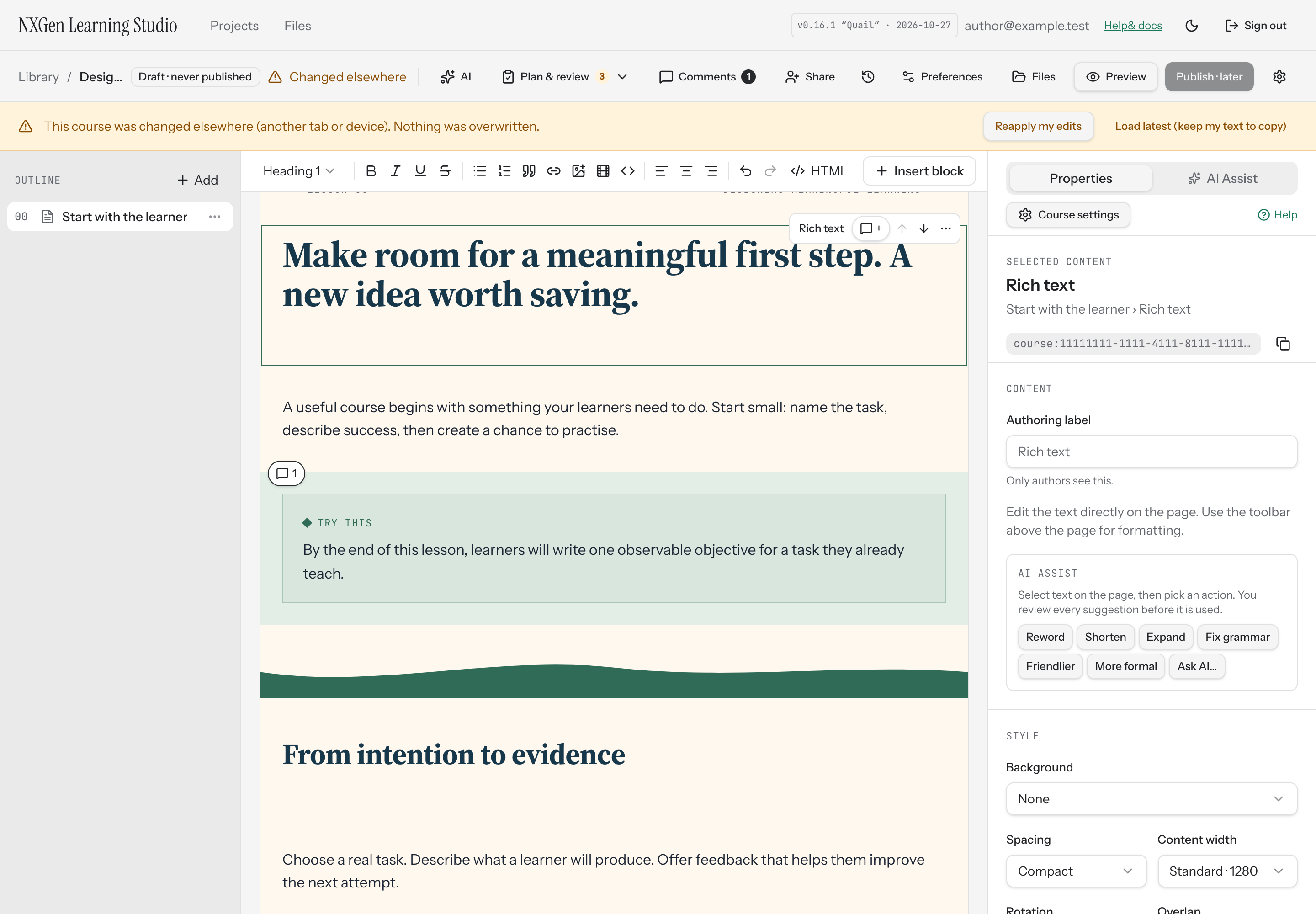
- Changed elsewhere — Another tab or device saved changes to the same course. Choose Reapply my edits to attempt your pending edits on top of the latest version, or Load latest (keep my text to copy) to load the latest version and retain supported text edits for copying.
When you reload or load latest, plain text from pending rich-text document updates and page-title edits can appear in a read-only area above the canvas. New blocks, other fields, media, layout, and formatting are not preserved in this area. Copy or record those changes before reloading. Use Copy text to copy it, then paste it back into the editor after reviewing the latest version. Choose Dismiss once you’ve recovered what you need.
How to use it
Section titled “How to use it”Retry a failed save
Section titled “Retry a failed save”- In the save-failure banner, choose Retry.
- If the save succeeds, the banner closes and the save status returns to Saved.
- If the save fails again, the banner remains. Choose Retry once more, or Reload saved copy to recover onto the latest server version.
Reapply your edits after a conflict
Section titled “Reapply your edits after a conflict”- In the conflict banner, choose Reapply my edits.
- If your edits touch only unchanged content, they’re applied on top of the latest version and saved automatically.
- If some of the same content changed elsewhere, you’ll see a notice advising you to reload and copy your text back instead.
Reload the latest saved copy
Section titled “Reload the latest saved copy”- In the banner, choose Reload saved copy or Load latest (keep my text to copy).
- The editor loads the latest version from the server.
- If supported text edits were captured, they appear in a read-only area. Use Copy text to preserve them.
- Review the latest version and paste your recovered text where needed.
- Choose Dismiss to close the recovered-text area.
Availability and limits
Section titled “Availability and limits”- Recovery options appear only when the save status is Save failed or Changed elsewhere.
- Reapply my edits succeeds only when your pending edits touch content that hasn’t changed on the server. If the same blocks or settings were modified elsewhere, reapply is blocked and you’re advised to reload instead.
- Retrying is safe — the editor won’t apply the same changes twice.
- Reloading replaces your local draft with the latest server version. Supported text edits are shown for copying, but other pending changes and local undo history are cleared. Once you dismiss recovered text, it is no longer available there.
- If your draft changes while a recovery operation is in progress, the operation is cancelled and you’re advised to try again.
- If the course no longer exists or you’ve lost access, the save fails with a message indicating the course is unavailable. Recovery options remain, but reloading may not succeed.