Learning Studio / features
Update course settings and theme
Edit course title, description, language, objectives, navigation mode, and theme tokens including page layout and custom fonts.
Update course settings and theme
Section titled “Update course settings and theme”Course settings control how learners navigate your course and what they see on the cover page. The theme controls colors, fonts, spacing, and page layout across every page.
Open the studio editor for your course, then select Course settings in the inspector panel. If the inspector isn’t visible, select the Course settings button in the toolbar.
Course settings
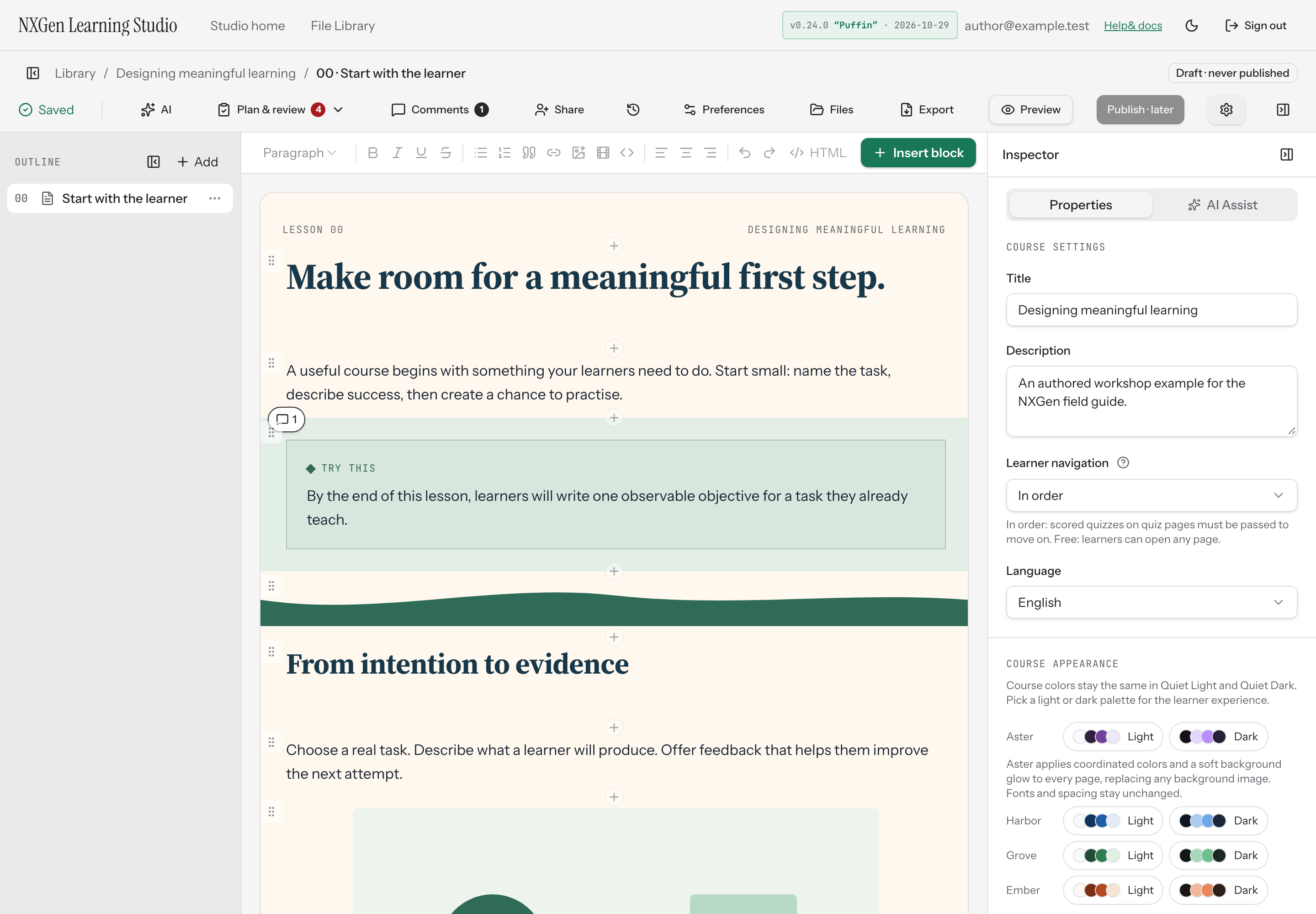
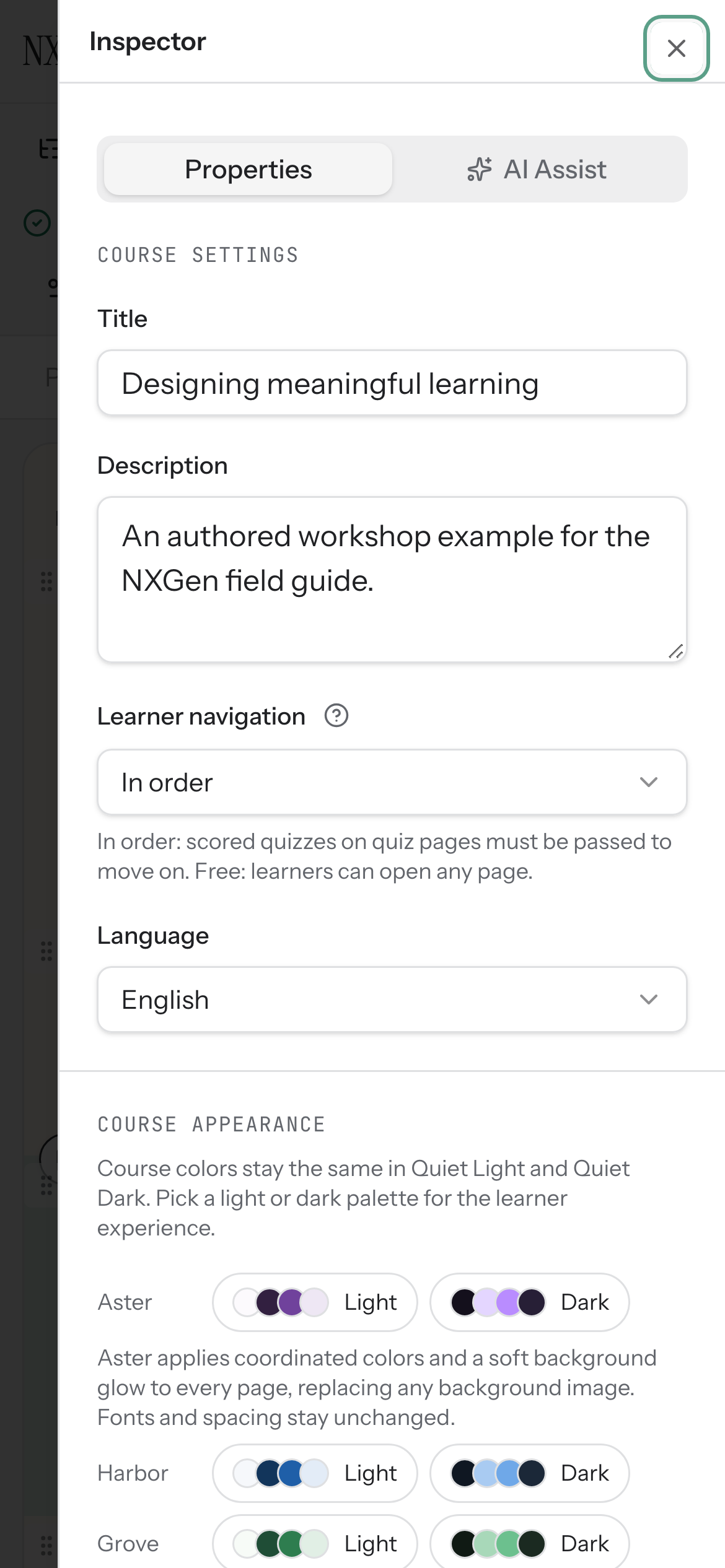
Section titled “Course settings”- Title — The course title shown to learners. Truncated to 200 characters.
- Description — A short summary shown on the cover page. Truncated to 4,000 characters. This is not the Blueprint course goal used for planning; edit Course goal on the Plan & review → Goals & objectives tab or in the Blueprint brief.
- Learner navigation — Choose In order so learners must pass scored quizzes on quiz pages before moving on, or Free so learners can open any page.
- Language — Select from English, Spanish, French, German, Portuguese, or Japanese.
Course appearance
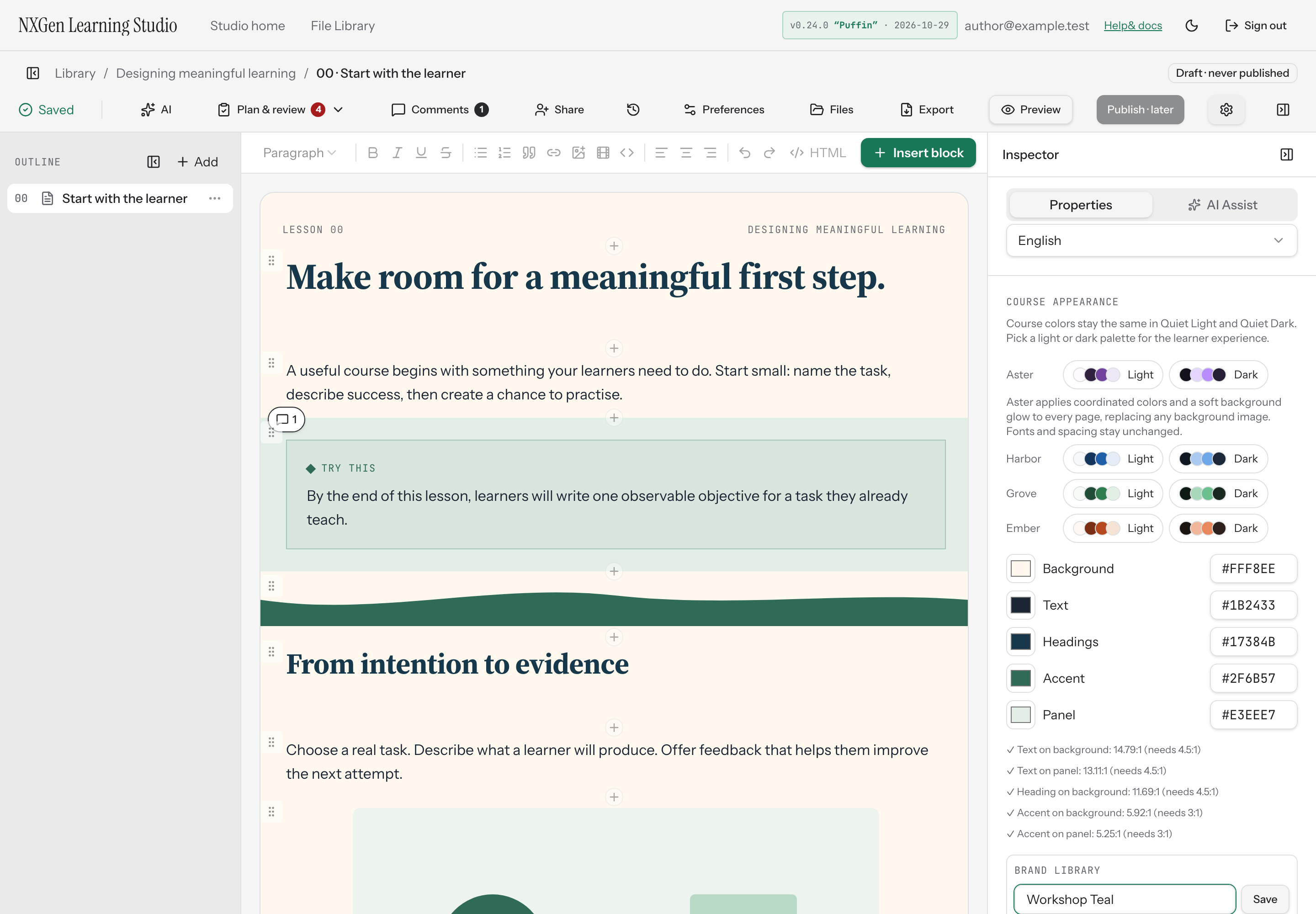
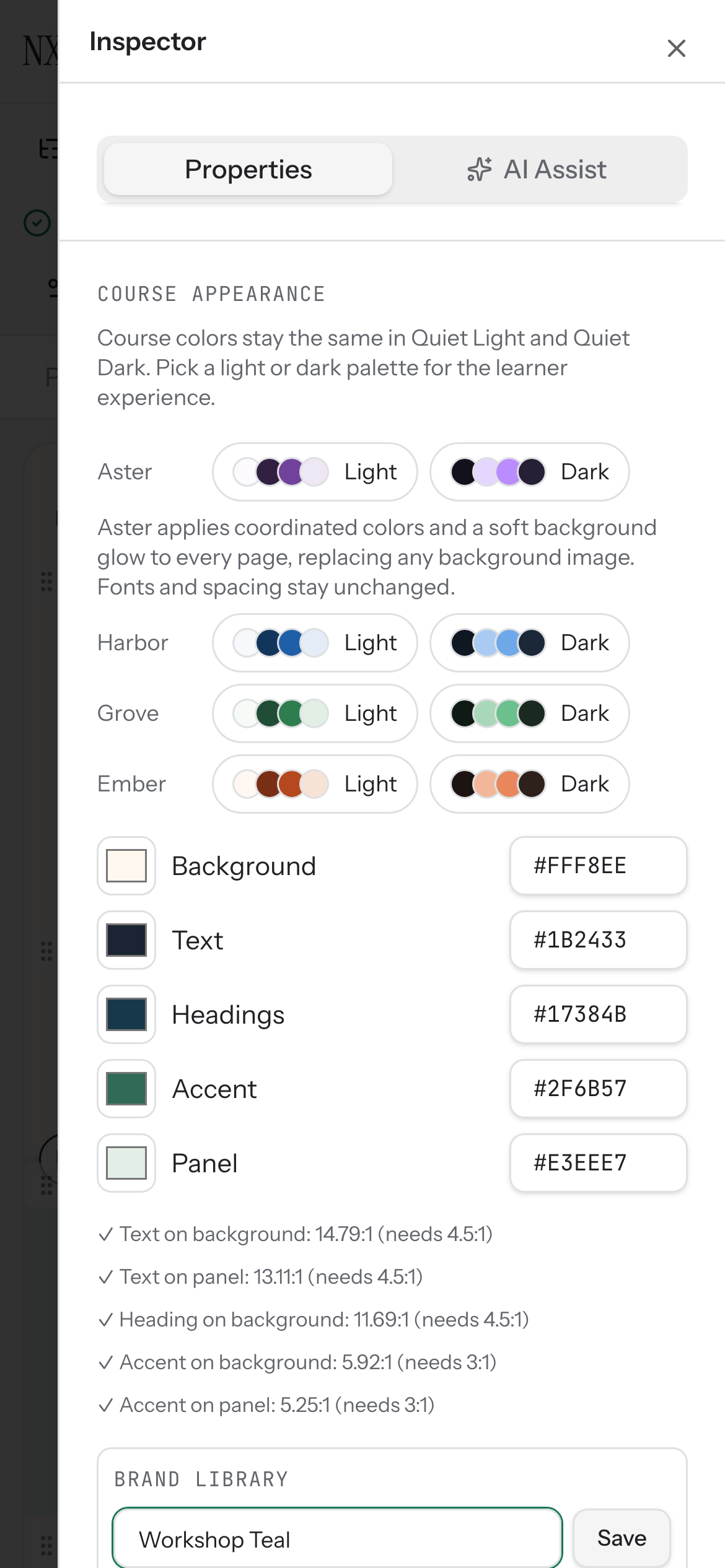
Section titled “Course appearance”Pick a light or dark palette from the built-in families — Harbor, Grove, or Ember — or apply an Aster appearance, which coordinates colors and adds a soft background glow to every page. Aster replaces any background image; fonts and spacing stay unchanged.
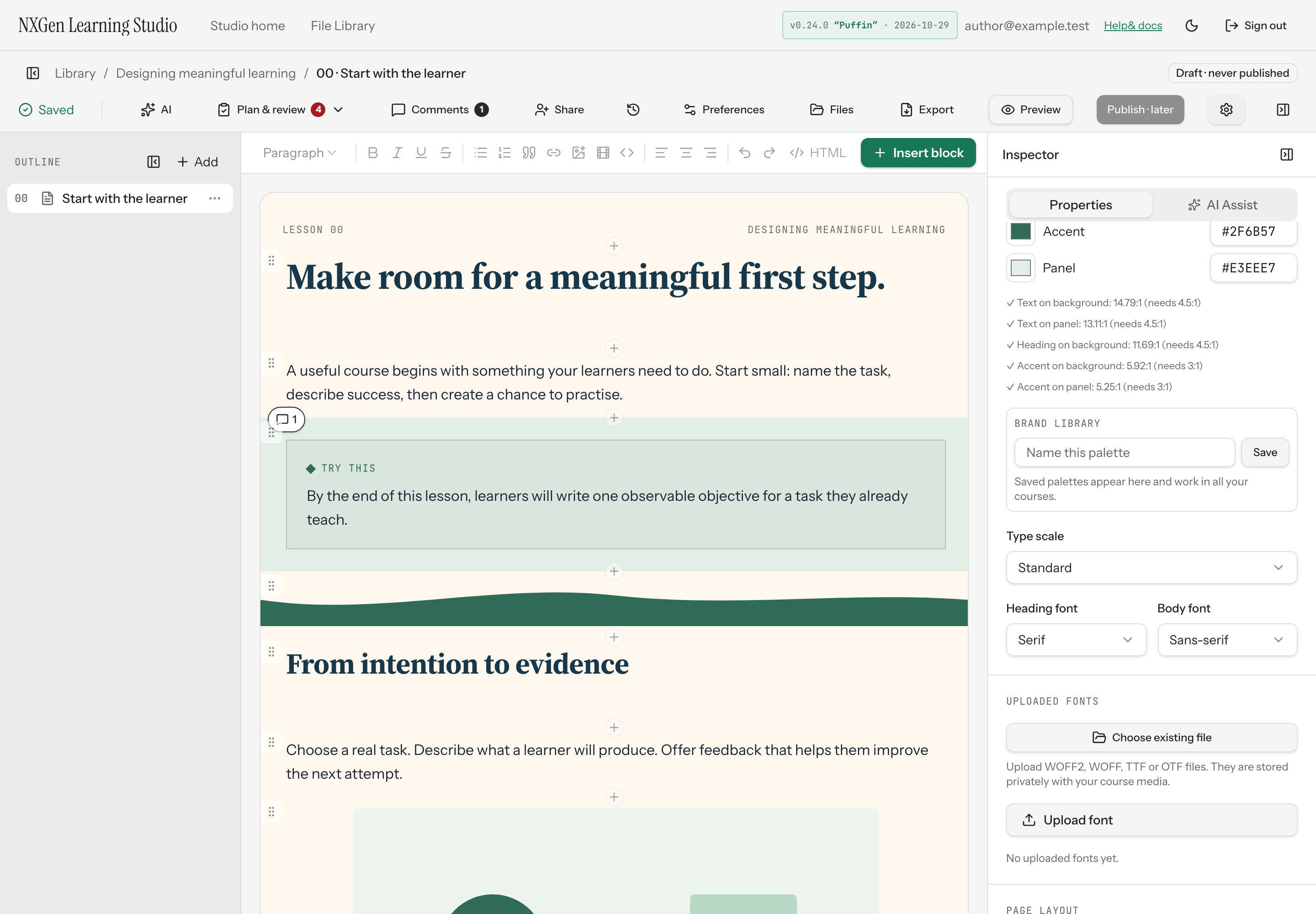
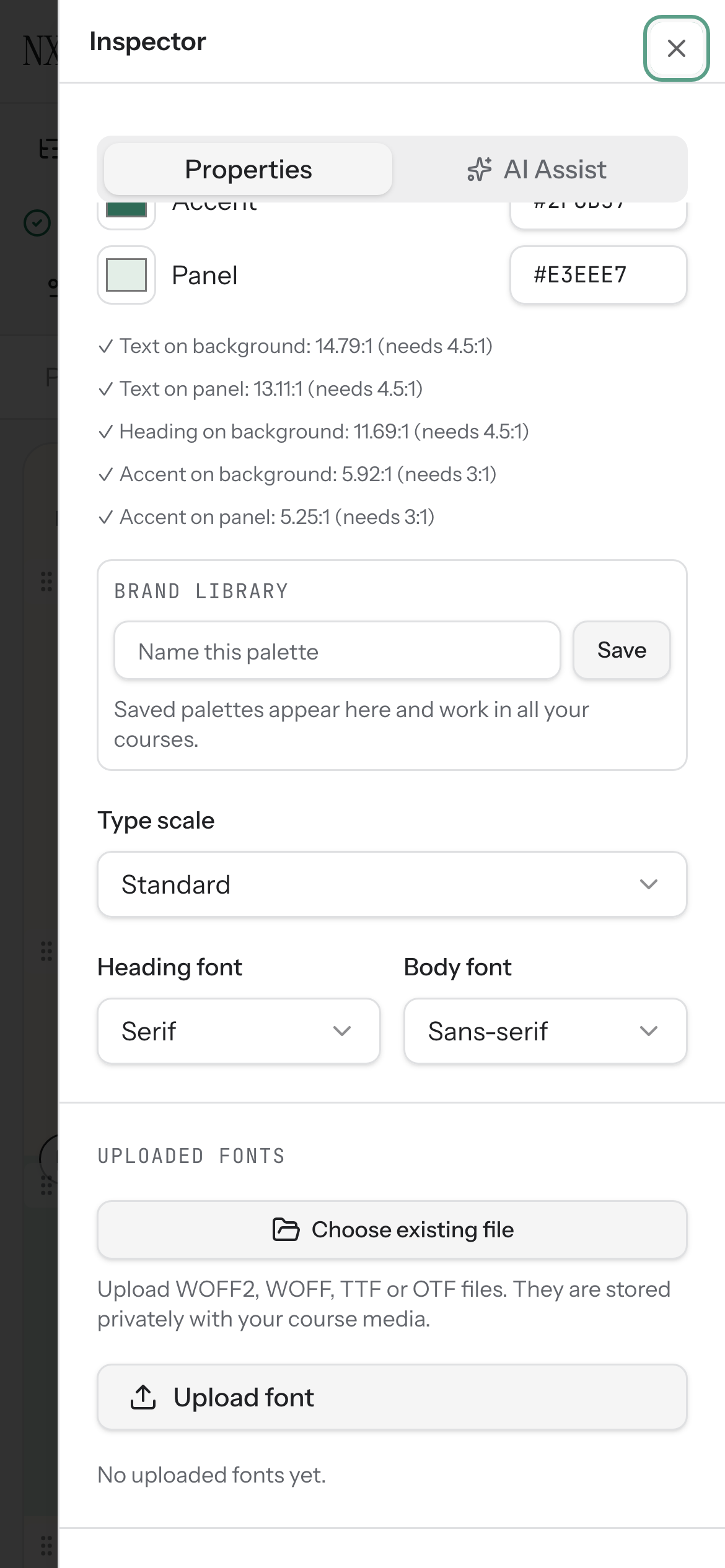
You can also set individual colors for Background, Text, Headings, Accent, and Panel using the hex fields. Contrast checks run live and show whether each color pair meets WCAG AA requirements.
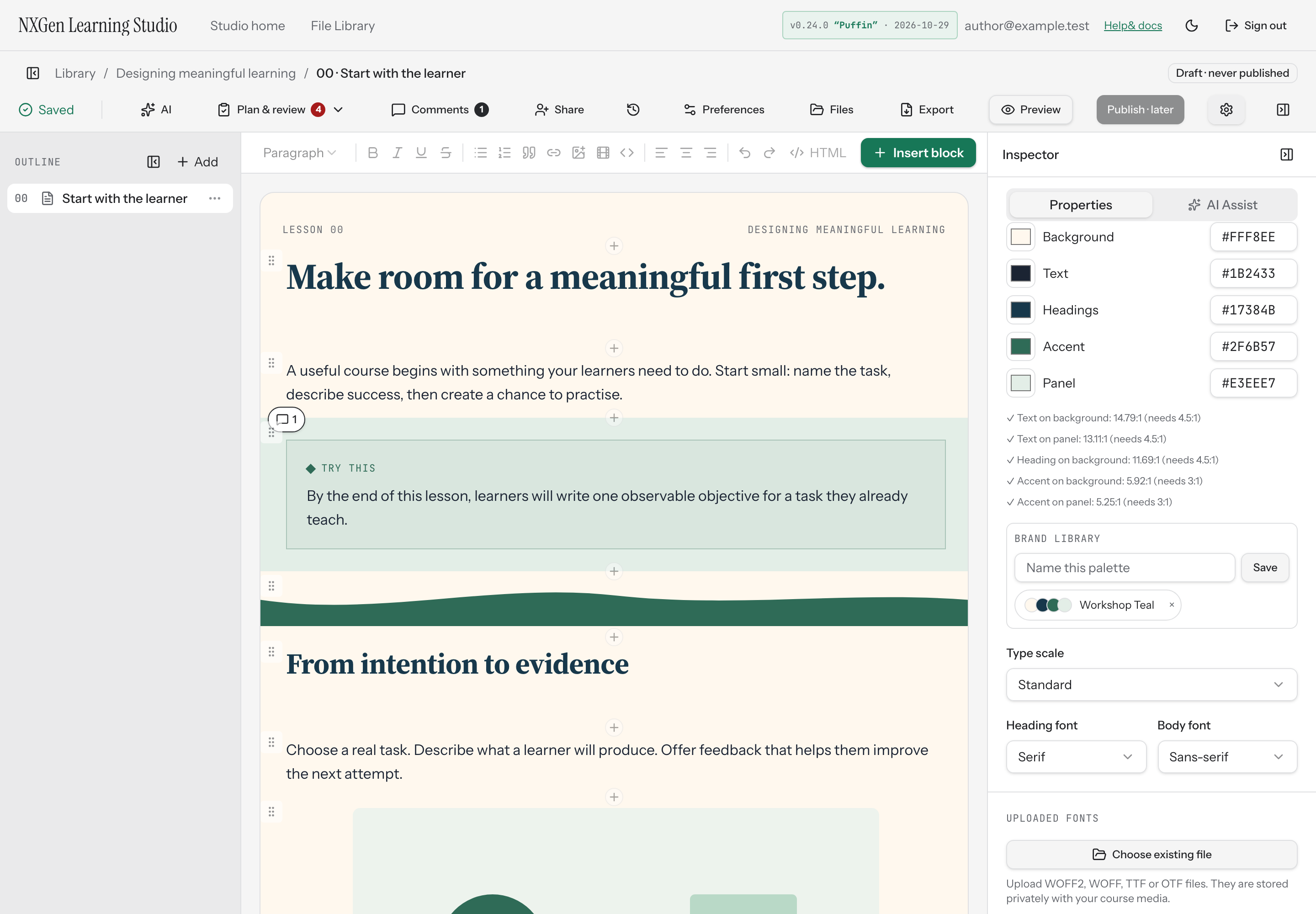
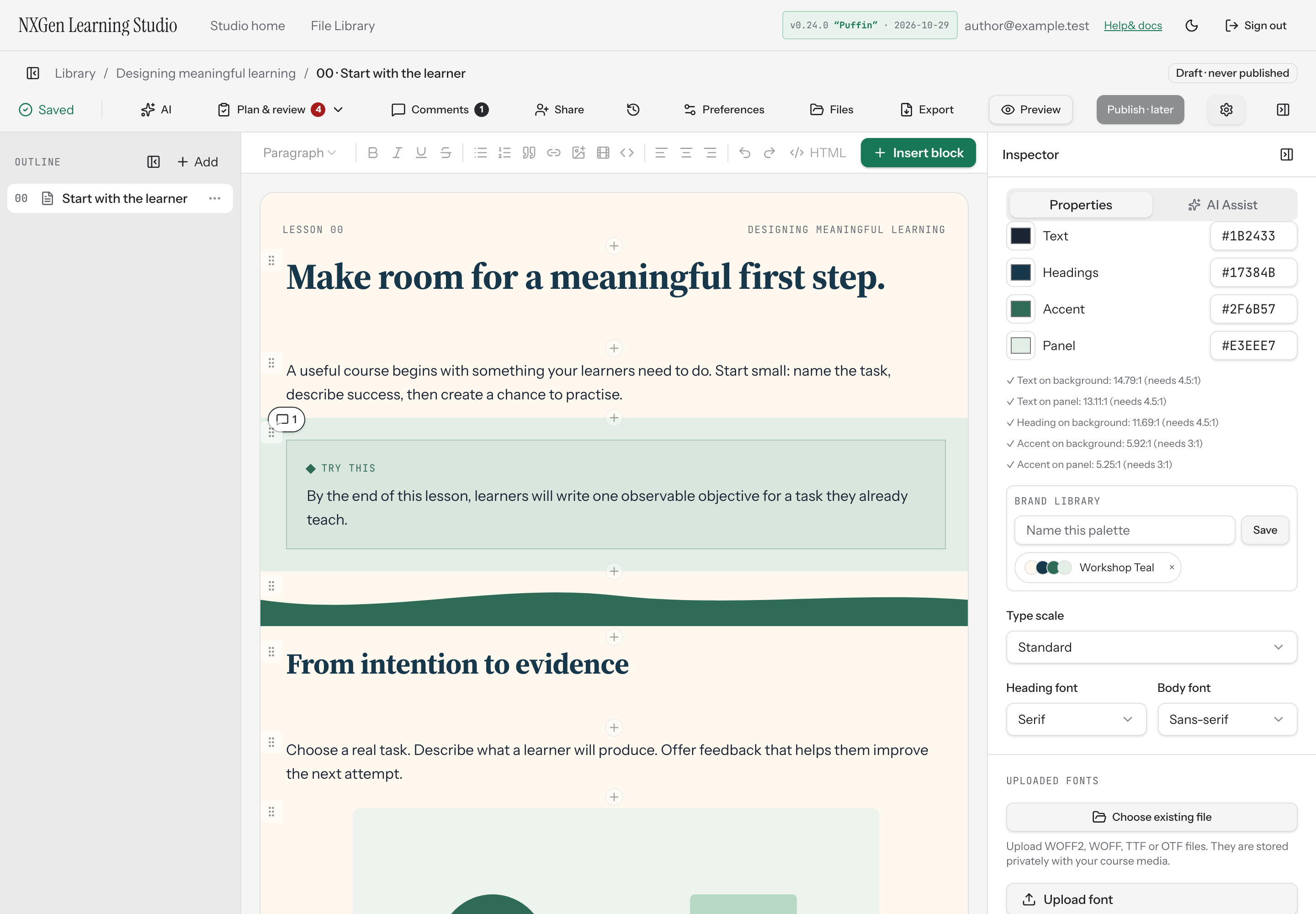
Type scale offers Compact, Standard, or Large sizes. Choose a Heading font and Body font from the built-in sans-serif, serif, or monospace options, or from any custom fonts you’ve uploaded.
Uploaded fonts
Section titled “Uploaded fonts”Upload WOFF2, WOFF, TTF, or OTF font files, or use Choose existing file to reuse a font from Course Files or Files Library. They are stored privately with your course media. Uploaded fonts appear in the heading and body font selectors, and you can remove them individually.
Page layout
Section titled “Page layout”Set the course-wide page background, content width, and block spacing. These settings apply to every page in the course.
Learning objectives
Section titled “Learning objectives”Add up to 12 objectives describing what learners will be able to do. Each objective can be up to 300 characters. The list is shared with the Goals & objectives tab of the Learning Design workspace; use the Goals & objectives or Alignment link in this group to open it. Show objectives on any page by adding a Learning objectives block.
Availability and limits
Section titled “Availability and limits”- Course titles are limited to 200 characters; descriptions to 4,000 characters.
- You can add up to 12 learning objectives.
- Uploaded fonts must be WOFF2, WOFF, TTF, or OTF files.
- Course content is stored as a draft; publishing is not available in this build.
Save and apply brand palettes
Section titled “Save and apply brand palettes”Save the current course color palette to your per-account Brand library, then apply it to any course later. Saved palettes work across all your courses.
- In Course appearance, adjust the five course colors — Background, Text, Headings, Accent, and Panel — until you have a palette you want to keep.
- In the Brand library box, type a name in the Name this palette field. Names are limited to 80 characters.
- Select Save. The palette appears in the list below.
- To apply a saved palette to the current course, select its name from the list. The five course colors update immediately.
- To remove a saved palette, select the × next to its name. This deletes it from your Brand library.